

How to Rename Images and Generate Alt Text from the Media Library
Where to Find It
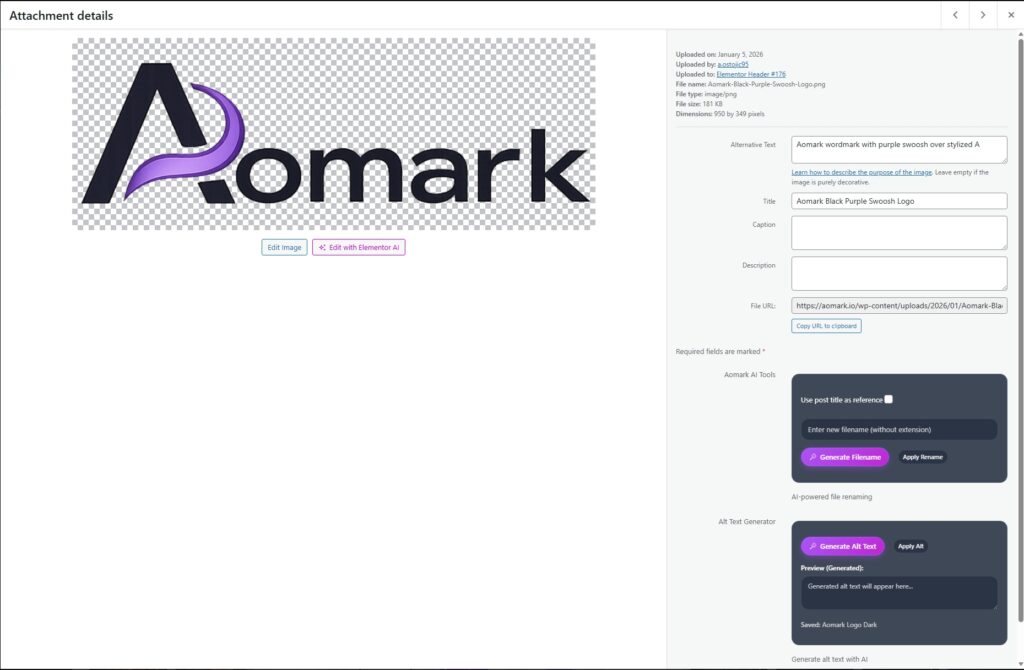
Go to Media in your WordPress admin and click any image to open the attachment details modal. On the right side of the modal, below the standard WordPress fields, you’ll see the Aomark AI Tools section.
Generating a New Filename
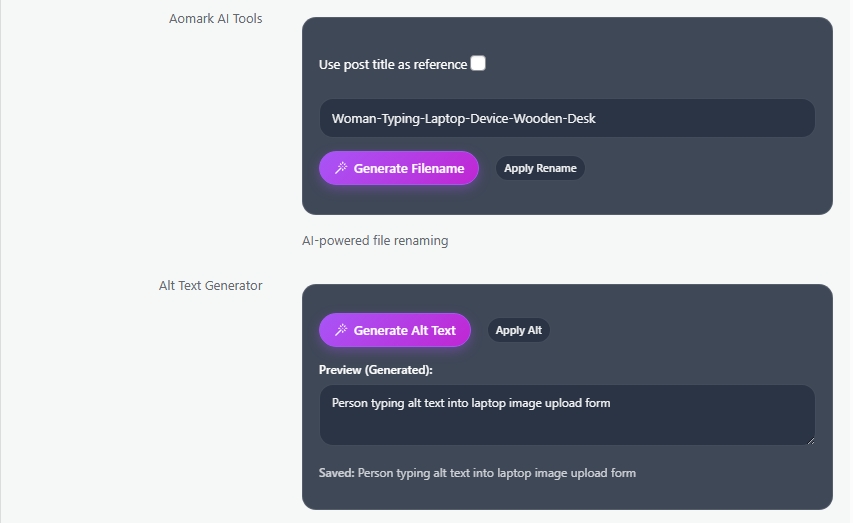
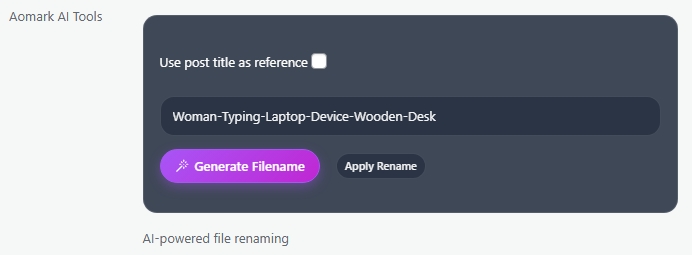
The filename generator shows you the current filename and lets you generate a new SEO friendly one with one click. Click Generate Filename and Aomark suggests a descriptive name based on the image content.
You’ll also see a Use Post Title as Reference checkbox. Enable this if the image is attached to a specific post and you want the filename to reflect that post’s topic. It gives the AI more context and usually produces a more relevant filename.
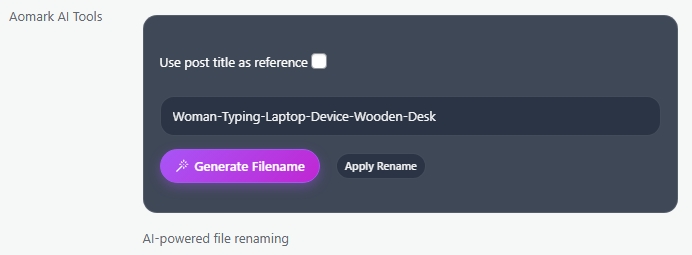
Once you’re happy with the suggested name click Apply Rename to save it.
Generating Alt Text
Below the filename section is the Alt Text Generator. Click Generate Alt Text and Aomark analyzes the image and writes descriptive alt text for it automatically.
The generated text appears in the preview field first so you can review it before saving. If it looks good click Apply Alt to save it to the image. If you want something different, hit Generate Alt Text again for a new version.
The Difference Between This and Bulk
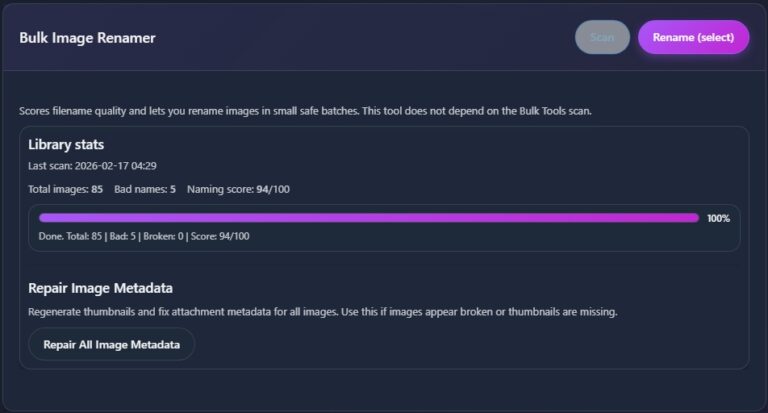
The Media modal is for individual images, useful when you’re working on a specific post or want precise control over a single image. The Bulk Image Renamer from the previous tutorial is for cleaning up large numbers of images at once. Both tools use the same AI under the hood, just at different scales.
Next Steps
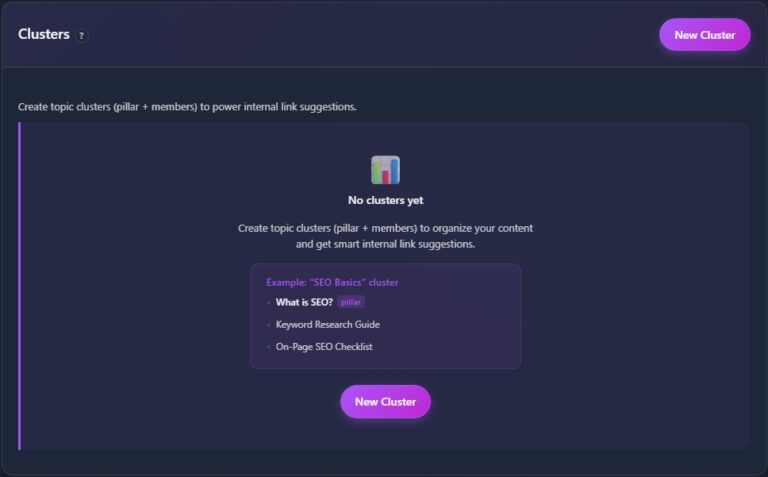
Image SEO is fully covered. Next we move into the site wide tools, starting with setting up Topic Clusters for internal linking.