

How to Use Bulk Tools in Aomark Suite
Where to Find It
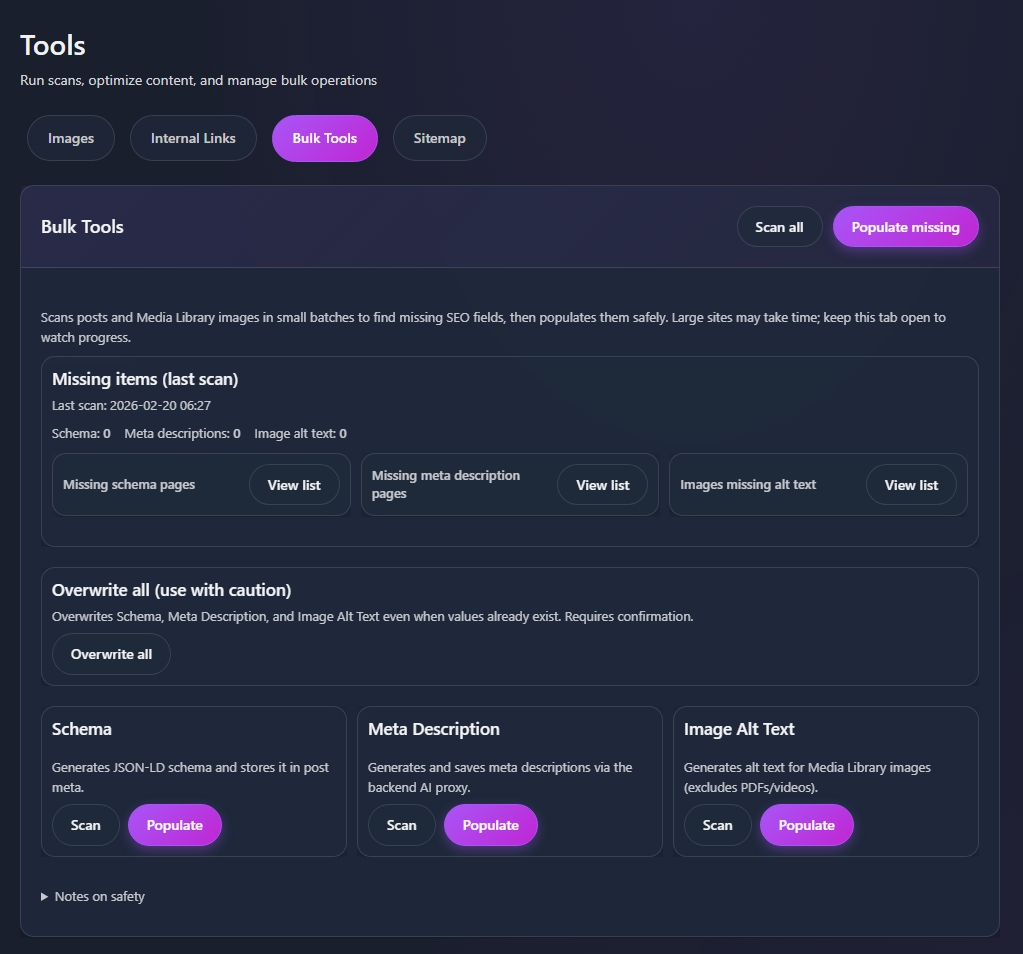
In your WordPress admin go to Aomark Suite > Tools and click the Bulk Tools tab. This is where you scan your entire site for missing SEO fields and populate them all at once.
Scanning for Missing Fields
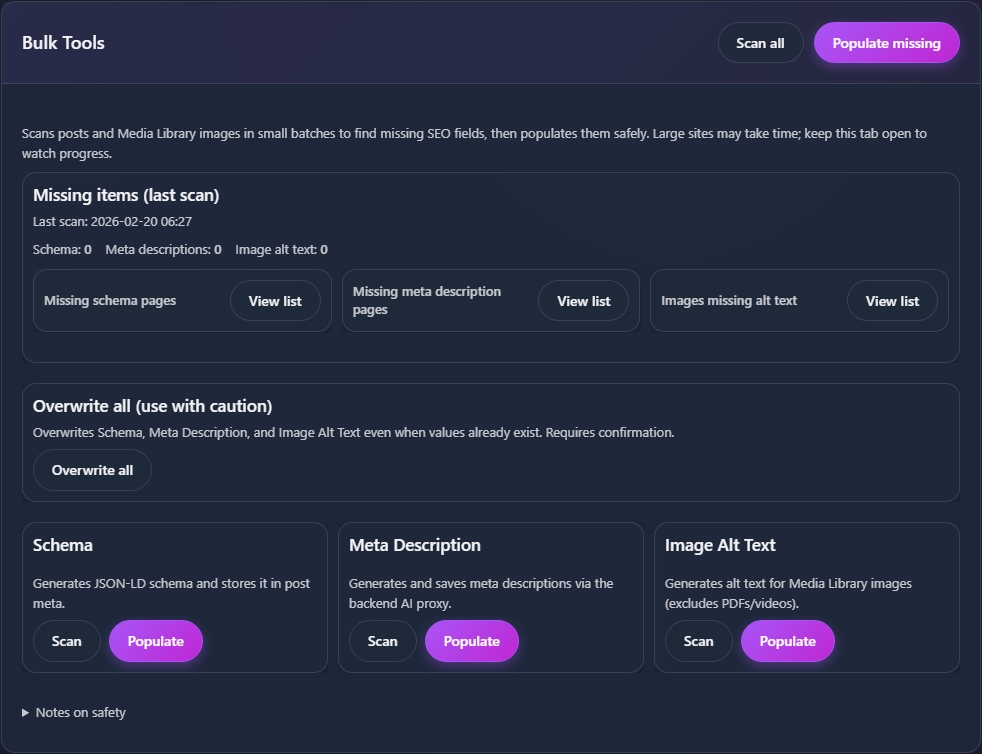
Click Scan All to run a full scan of your posts and media library. Aomark checks every post and image for three things: missing schema markup, missing meta descriptions, and images without alt text.
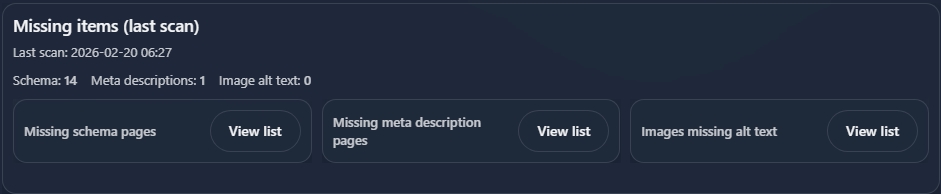
Once the scan finishes the Missing Items section at the top shows you exactly how many posts are affected in each category. Click View List next to any category to see exactly which posts or images are missing that field.
Populating Missing Fields
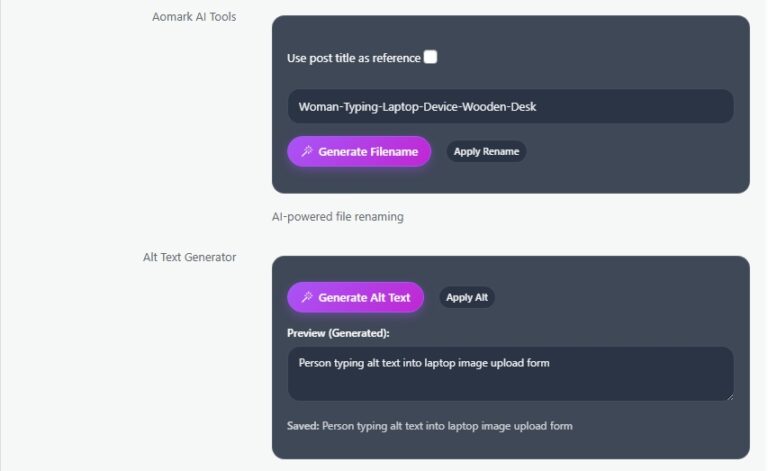
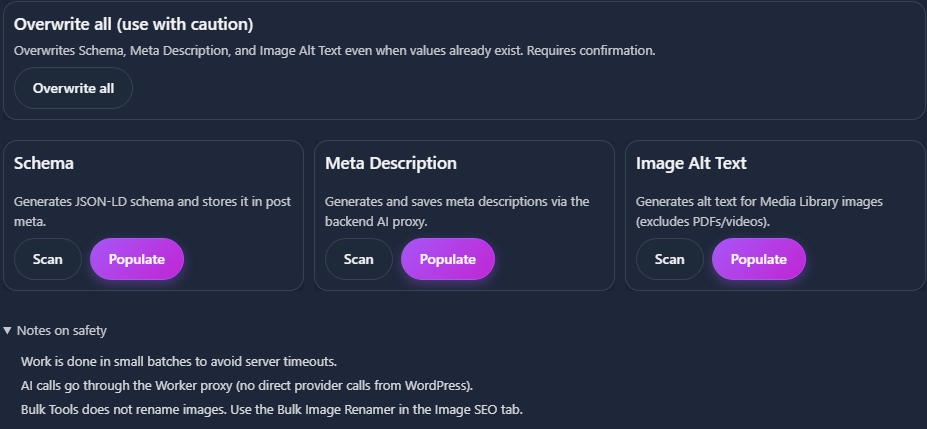
Each of the three sections below has its own Scan and Populate buttons. Schema, Meta Description, and Image Alt Text each work the same way. Click Scan first to confirm what’s missing, then click Populate to have Aomark generate and save the missing content automatically across all affected posts and images.
Aomark processes everything in small safe batches. For large sites this may take a few minutes, so keep the tab open and let it run.
Populate Missing vs Overwrite All
At the top of the page you’ll notice two options. Populate Missing only fills in fields that are currently empty, which is the safe default and what you’ll use most of the time. Overwrite All does exactly what it says, it replaces schema, meta descriptions, and alt text even if values already exist. Use this with caution and only when you deliberately want to regenerate everything from scratch.
Next Steps
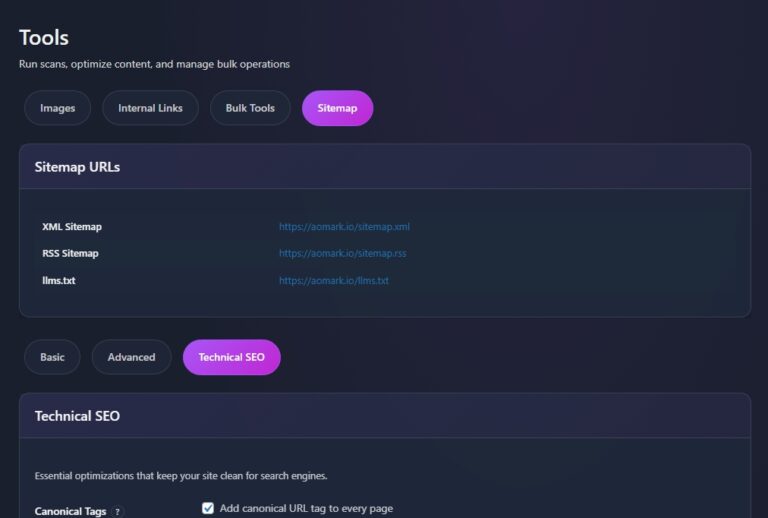
Bulk Tools done. One more tutorial to finish Suite, the Sitemap setup covering Basic, Advanced, and Technical SEO settings.