

How to Configure Schema Markup and Open Graph Settings in Aomark Suite
Getting There
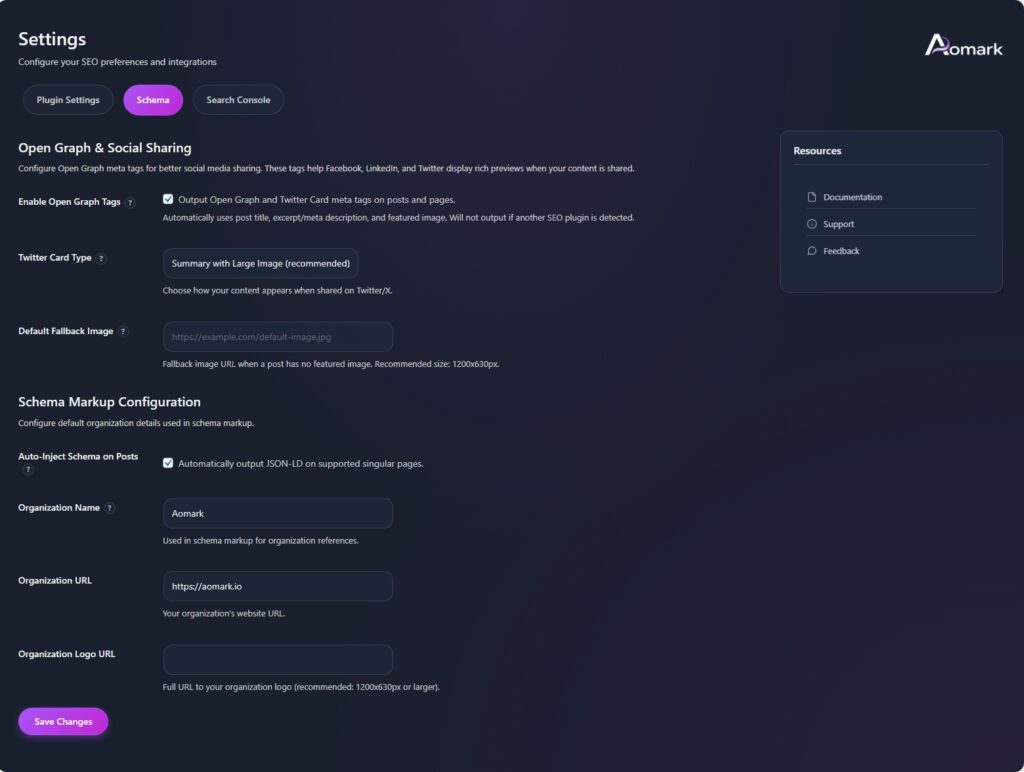
Go to Aomark Suite > Settings and click the Schema tab. This page has two sections: Open Graph and Social Sharing at the top, and Schema Markup Configuration below it.
Open Graph and Social Sharing
Open Graph tags control how your content looks when someone shares it on Facebook, LinkedIn, or Twitter/X. Without them, social platforms just grab whatever they feel like from your page, which often looks messy.
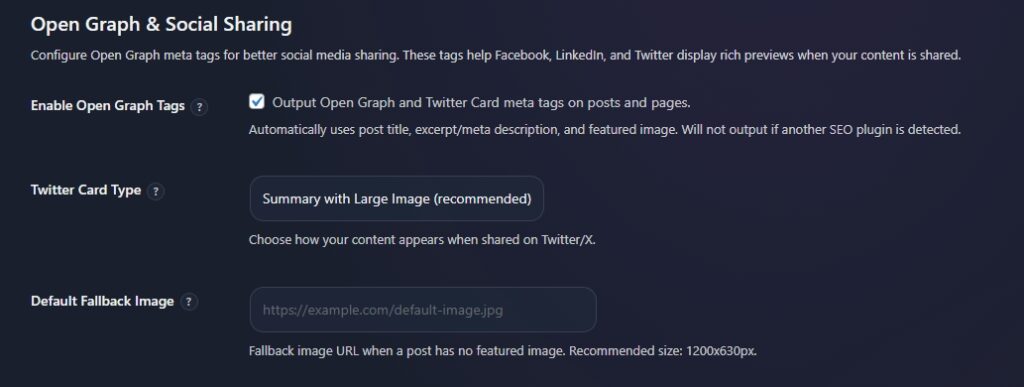
Enable Open Graph Tags is on by default. Leave it enabled unless you have another SEO plugin already handling this, in which case Aomark will detect that and disable itself automatically to avoid conflicts.
Twitter Card Type lets you choose how your posts appear when shared on X. Summary with Large Image is the recommended option and gives you the best visual presence in the feed.
Default Fallback Image is the image that gets used when a post has no featured image set. Paste in the URL of a generic branded image here, ideally 1200x630px. This ensures your shares always look intentional rather than blank.

Schema Markup Configuration
This section controls the organization details that get embedded in your JSON-LD schema across your site.
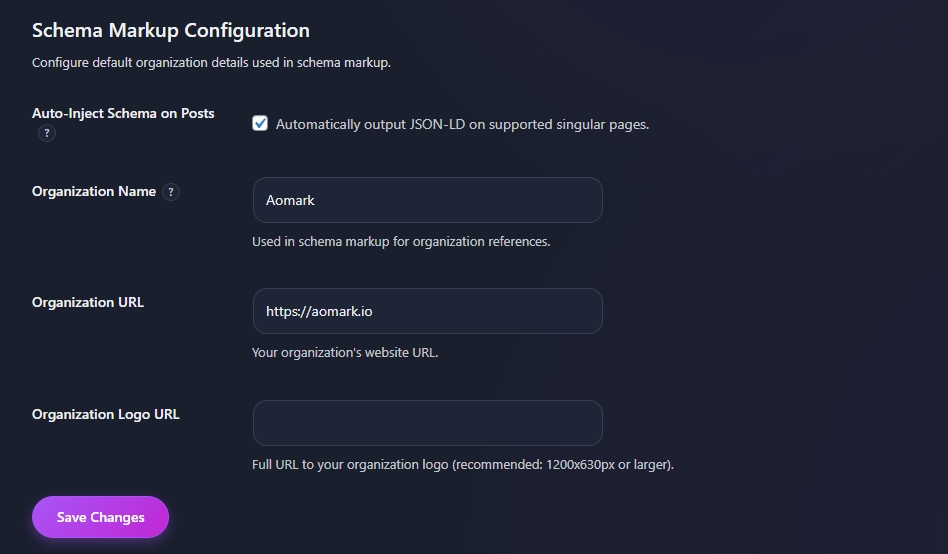
Auto-Inject Schema on Posts is checked by default. This automatically outputs JSON-LD structured data on your posts and pages, which helps search engines understand your content and can qualify you for rich results.
Fill in your Organization Name, Organization URL, and Organization Logo URL. These show up in your schema markup on every page so get them right. The logo should be at least 1200x630px for best results.
Hit Save Changes when done.
A Note on Conflicts
If you’re running Yoast, RankMath, or AIOSEO alongside Aomark Suite, the Open Graph and canonical tag features will automatically detect the other plugin and step aside. No manual juggling needed.
Next Steps
Schema and social sharing are set. Next up is connecting Google Search Console so Aomark can submit your sitemaps and pull search data directly.