

How to Configure Aomark Suite Plugin Settings
Getting There
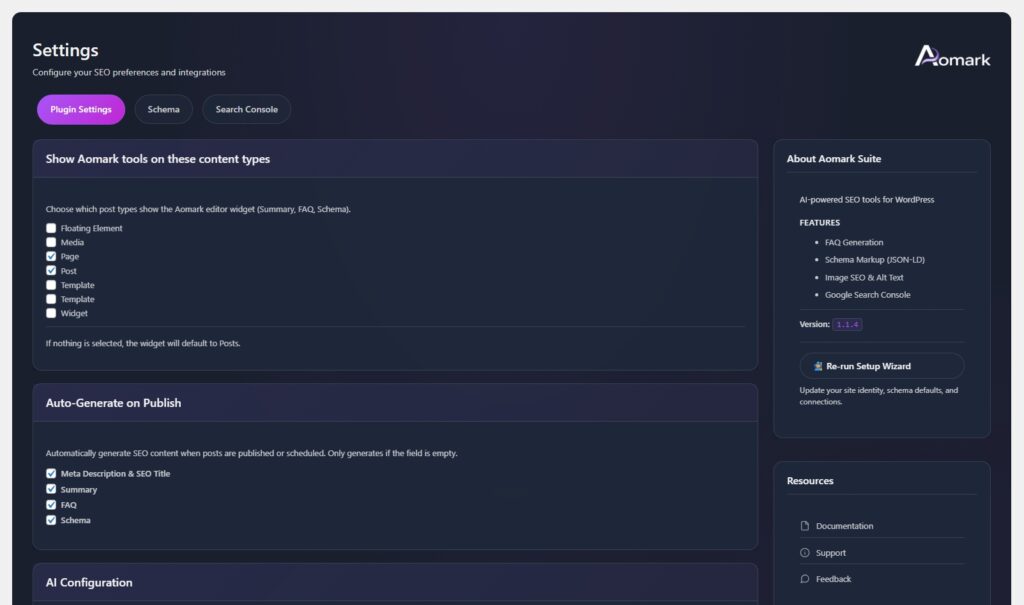
In your WordPress admin, go to Aomark Suite > Settings. You’ll land on the Plugin Settings tab by default. This is where you control three things: which content types show the Aomark editor tools, what gets auto-generated on publish, and which AI model handles your content.
Showing Aomark Tools on the Right Content Types
The first section lets you choose which post types display the Aomark editor widget. This is the panel you’ll use inside the post editor to generate summaries, FAQs, schema, and metadata.
By default Posts and Pages are checked, which covers most sites. If you run a WooCommerce store or use custom post types, you can enable those here too. Anything unchecked simply won’t show the Aomark panel in that content type’s editor. If nothing is selected, the widget defaults to Posts only.
Auto-Generate on Publish
This section controls what Aomark automatically creates when you publish or schedule a post. It only generates content if that field is currently empty, so it will never overwrite something you’ve already written manually.
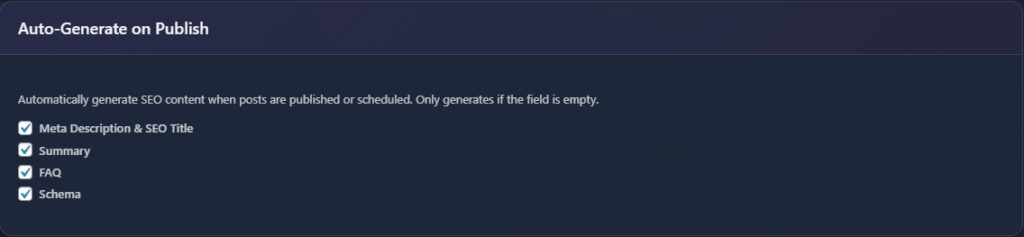
All four options are on by default and that’s the recommended setup. Meta Description and SEO Title, Summary, FAQ, and Schema will all be generated the moment you hit publish, with no extra steps needed. You can uncheck any of these if you prefer to generate them manually on a per-post basis.
AI Configuration
The last section has two settings: content language and AI model.
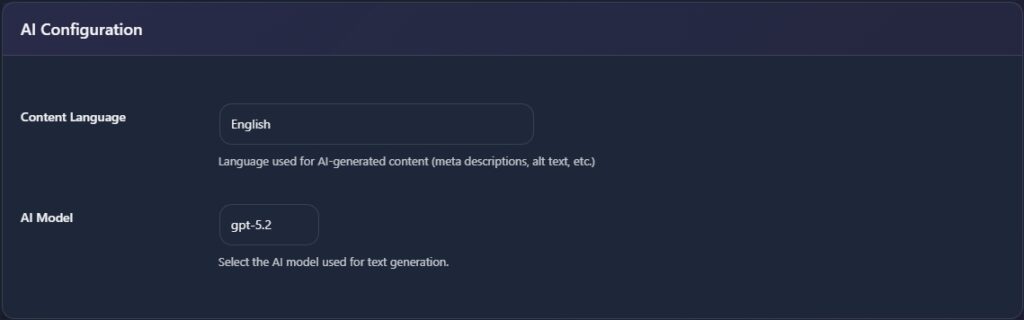
Content Language tells the AI what language to write in when generating meta descriptions, alt text, summaries, and other content. Set this to match your site’s language and leave it.
AI Model lets you choose which model handles text generation. The default is recommended for most users. Unless you have a specific reason to change it, leave this as is.
Hit Save Changes when you’re done.
Next Steps
With your content types and auto-generation preferences set, the next thing to configure is your Schema and Open Graph settings, which controls how your site appears in search results and when shared on social media.