

How to Connect Google Search Console to Aomark Suite
How This Connection Works
Aomark Suite connects to Google Search Console through your Aomark Hub account, not directly from the plugin. That means the connection is managed once at the Hub level and automatically available inside your WordPress plugin. No separate OAuth flow inside WordPress needed.
Setting It Up in the Hub
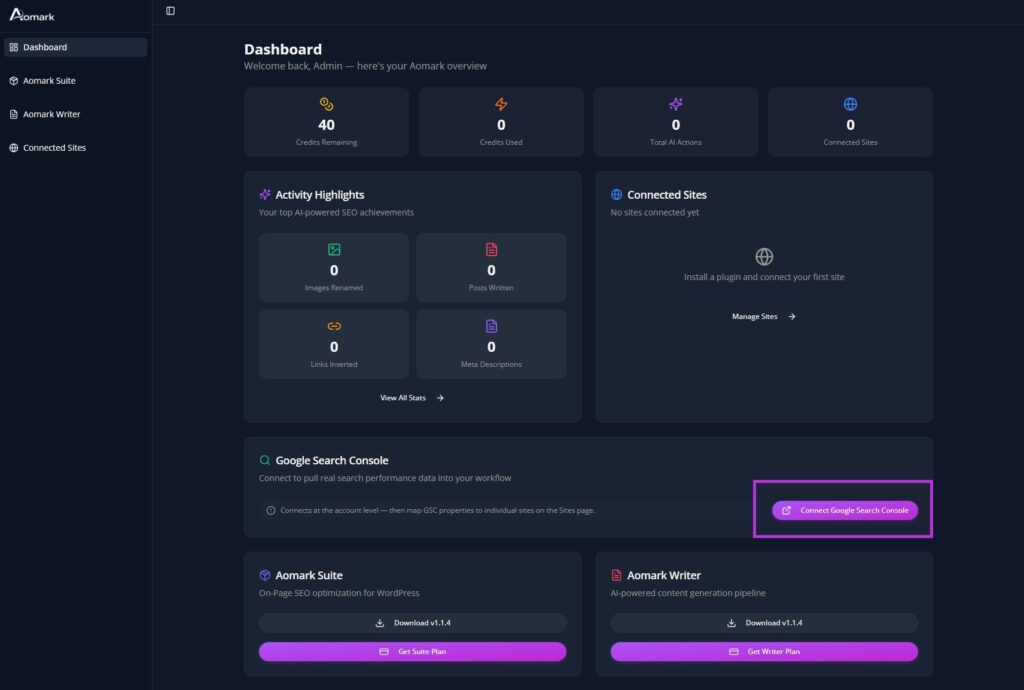
Log in to your Aomark account at app.aomark.io and connect your Google Search Console property from there. Once connected at the Hub level, your WordPress plugin picks it up automatically.
Verifying the Connection in WordPress
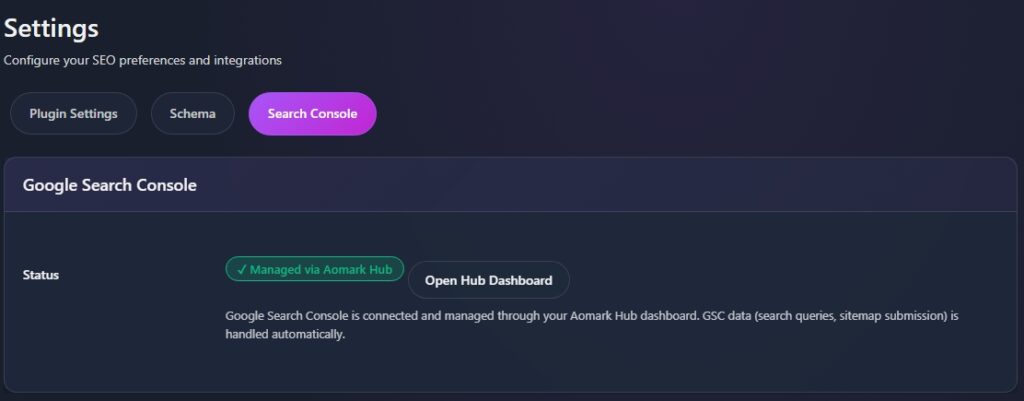
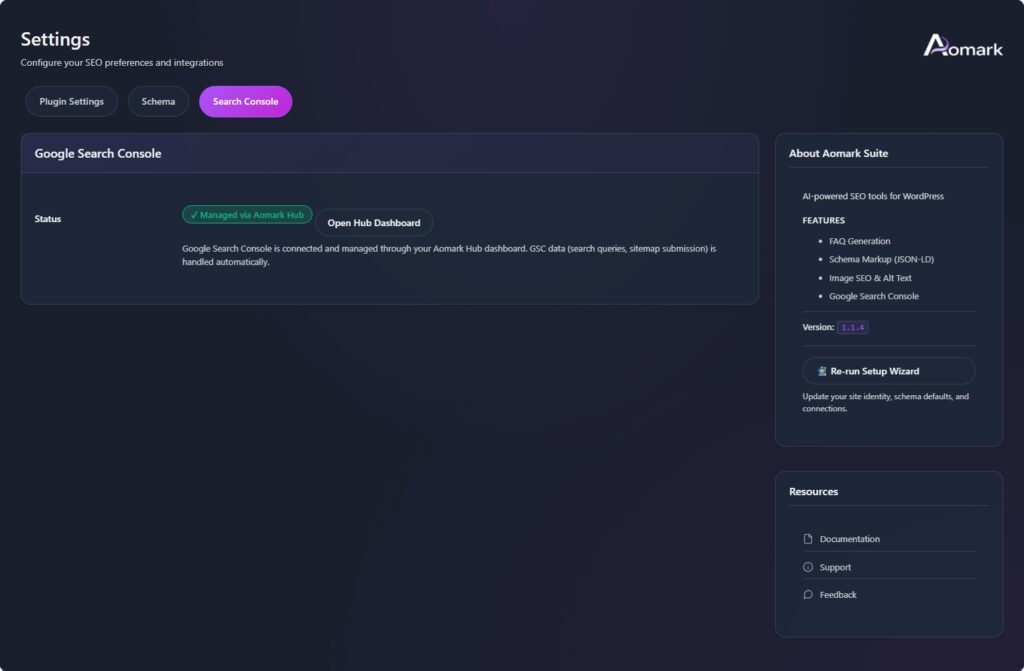
In your WordPress admin go to Aomark Suite > Settings and click the Search Console tab. You’ll see the status showing Managed via Aomark Hub with a green badge. That confirms everything is active and talking to each other.
From here you can click Open Hub Dashboard to jump straight back to your Aomark account if you need to manage the connection.
What This Unlocks
With GSC connected, Aomark can submit your sitemaps directly to Google Search Console without you having to do it manually. That’s covered in the Sitemap tutorial. The Dashboard System Status panel will also update to show Google Search Console as Connected.

Next Steps
With your setup complete, you’re ready to start using Aomark’s tools inside the post editor. The next tutorials cover everything available to you when editing a post, starting with generating summaries.