

How to Generate a Post Summary with Aomark Suite
Where to Find It
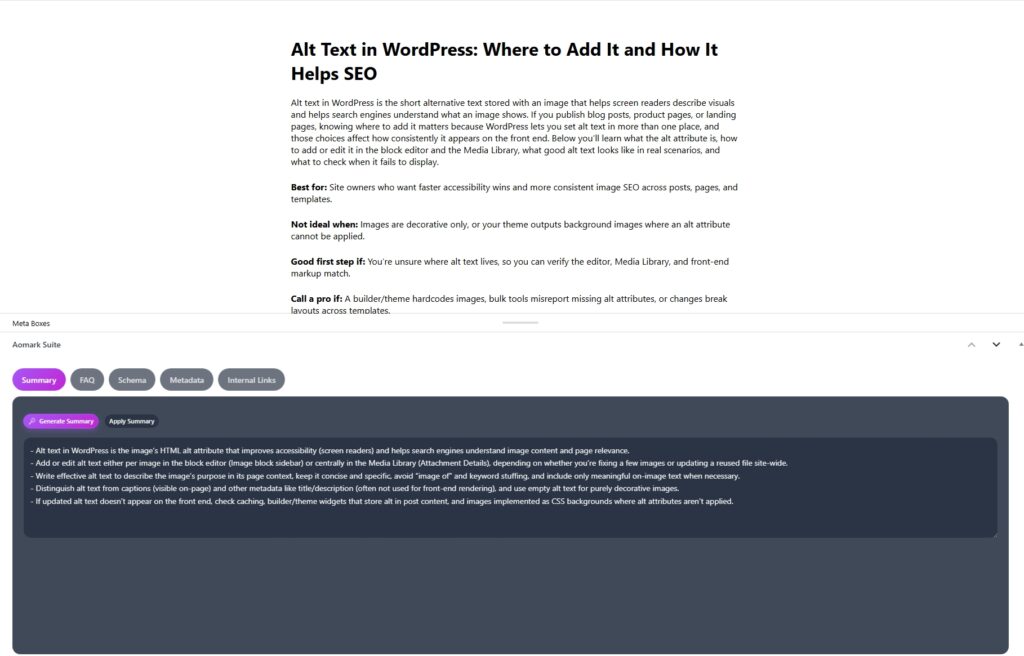
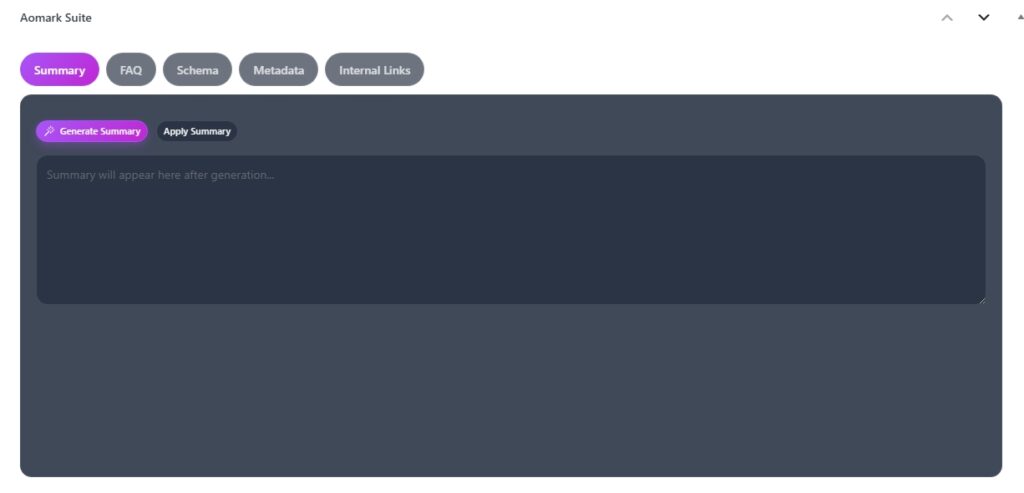
Open any post or page in your WordPress editor. Scroll down below the content area and you’ll see the Aomark Suite panel. Click Summary, it’s the first tab on the left.
Generating the Summary
Make sure your post has some content written first, the AI reads what you’ve written and summarizes it. Once your content is ready, click Generate Summary.
The summary appears in the text area below the button. Read through it and make sure it accurately represents your content. You can edit it directly in the box if anything needs adjusting.
Applying the Summary
Once you’re happy with it, click Apply Summary. This saves it to your post as the excerpt, which WordPress uses in archives, search results, and anywhere else excerpts are displayed.
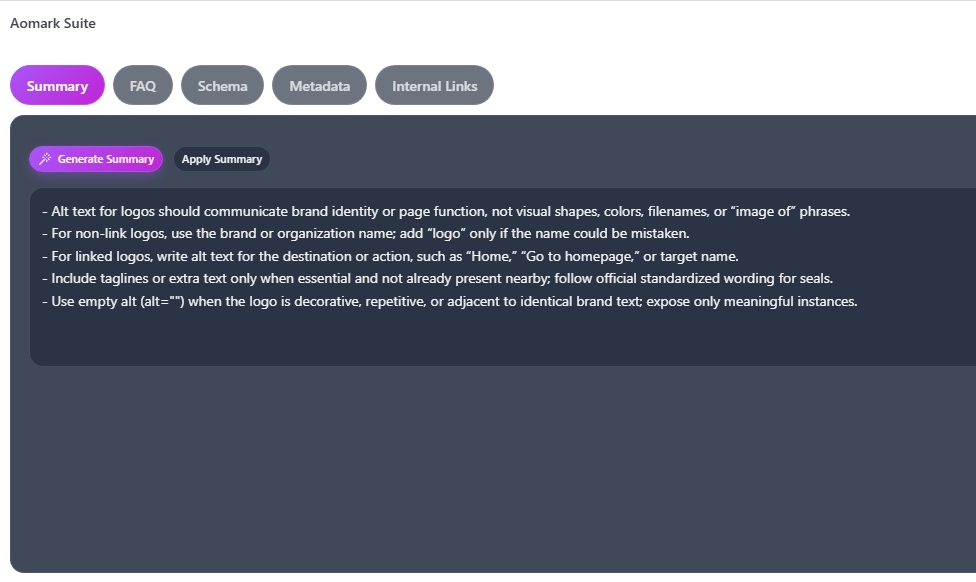
If you don’t like the result, just click Generate Summary again to get a new one, then apply whichever version works best.
Auto-Generated Summaries
If you have auto-generate on publish enabled in your Plugin Settings, Aomark will create a summary automatically when you publish a post, as long as the excerpt field is empty. The manual Generate Summary button is there for when you want to do it on your own terms or regenerate an existing one.
Next Steps
With summaries covered, the next tutorial walks you through generating FAQs directly from your post content.