

How to Scan and Analyze Your Site’s Internal Link Health with Aomark Suite
Where to Find It
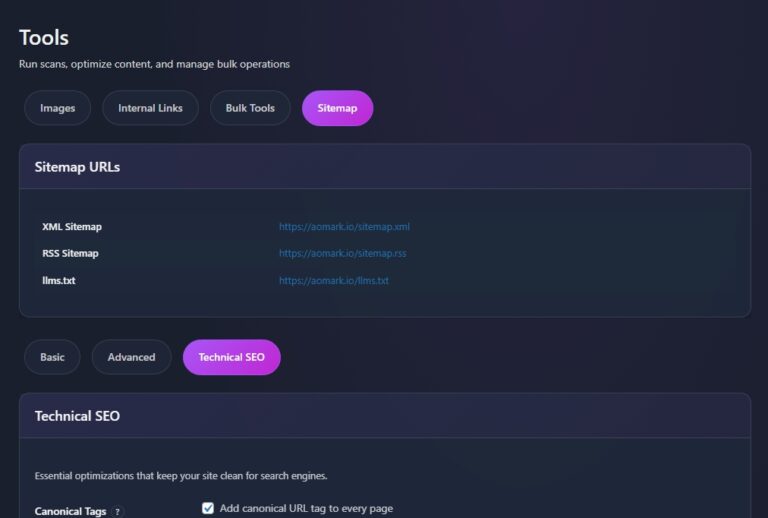
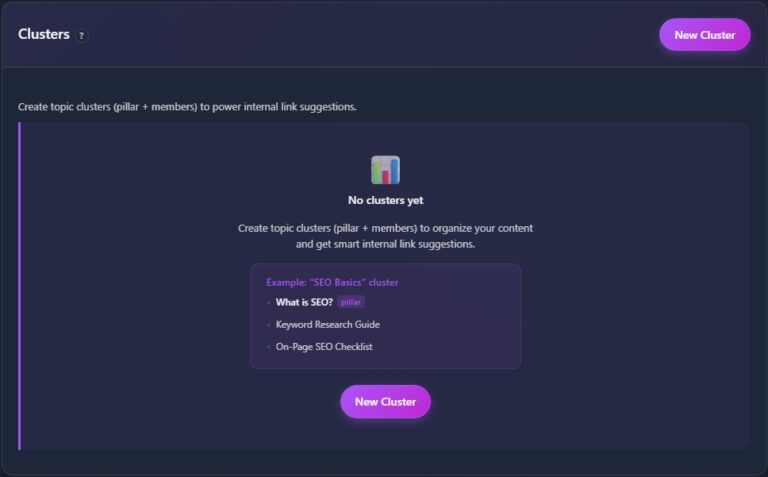
In your WordPress admin go to Aomark Suite > Tools and click the Internal Links tab. Scroll past the Clusters section and you’ll find the Internal Links analysis panel below it.
Understanding the Metrics
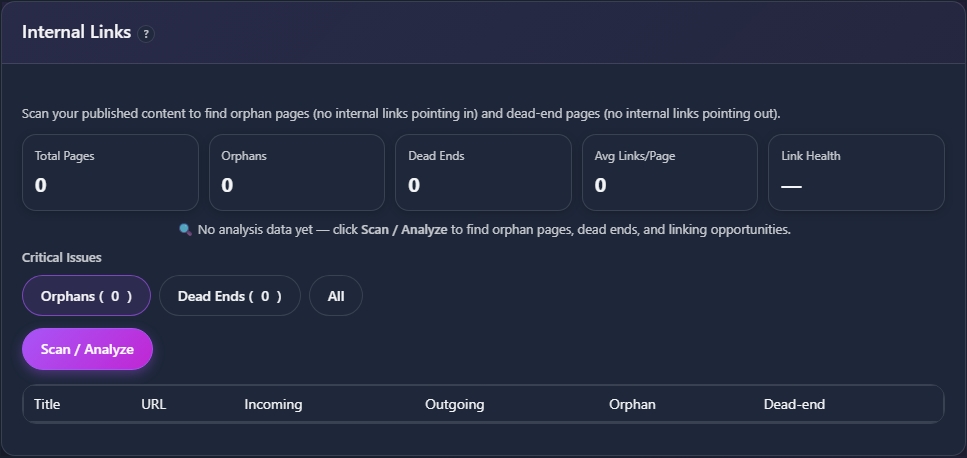
Before scanning, the panel shows four key numbers that give you a snapshot of your site’s internal linking health. Total Pages is the number of published pages and posts Aomark is tracking. Orphans are pages with no internal links pointing to them, meaning they’re essentially invisible to visitors navigating your site. Dead Ends are pages that have no outgoing internal links, leaving visitors with nowhere to go. Avg Links per Page shows the average number of internal links across your content.

Orphans and Dead Ends are the two numbers to focus on. Ideally both should be zero or as close to it as possible.
Running the Scan
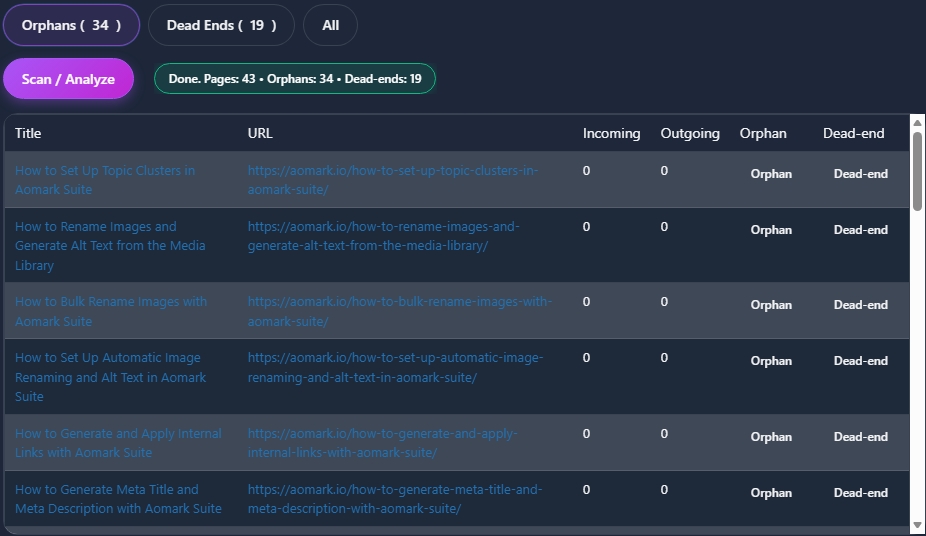
Click Scan / Analyze. Aomark crawls your published content and populates all four metrics along with a detailed list of pages below.
Reviewing the Results
The results table shows every page with its title, URL, incoming link count, outgoing link count, and flags for orphan or dead end status. You can filter the list using the Critical Issues buttons at the top to show only Orphans, only Dead Ends, or All pages.
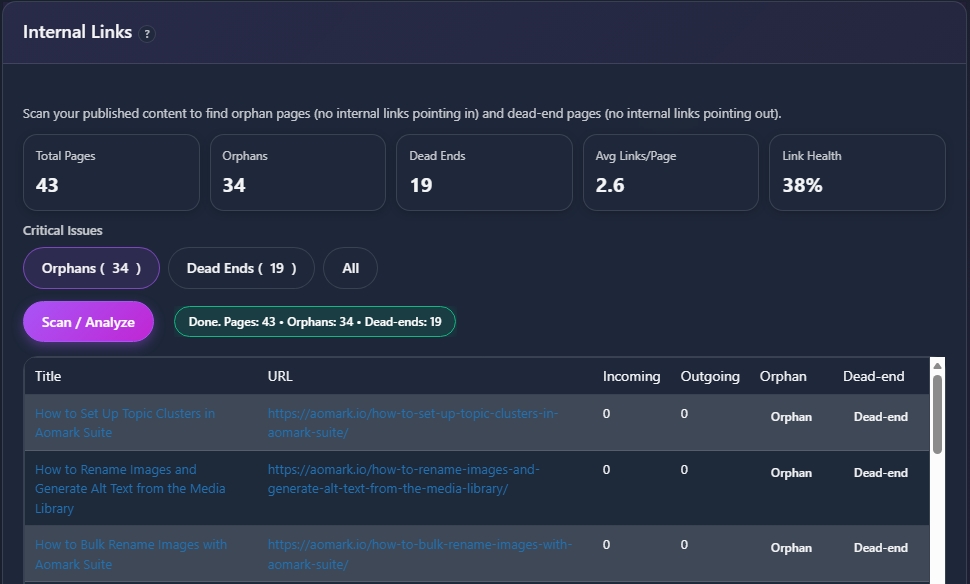
Use this list as your action plan. Any page flagged as an orphan needs other content linking to it. Any page flagged as a dead end needs links added pointing out to related content. The Internal Links tool in the post editor covered in Tutorial 9 is the fastest way to fix both.
Link Health Score
Below the metrics you’ll also see a Link Health indicator giving you an overall score for your site’s internal linking structure. This updates every time you run a new scan so you can track improvement over time.
Next Steps
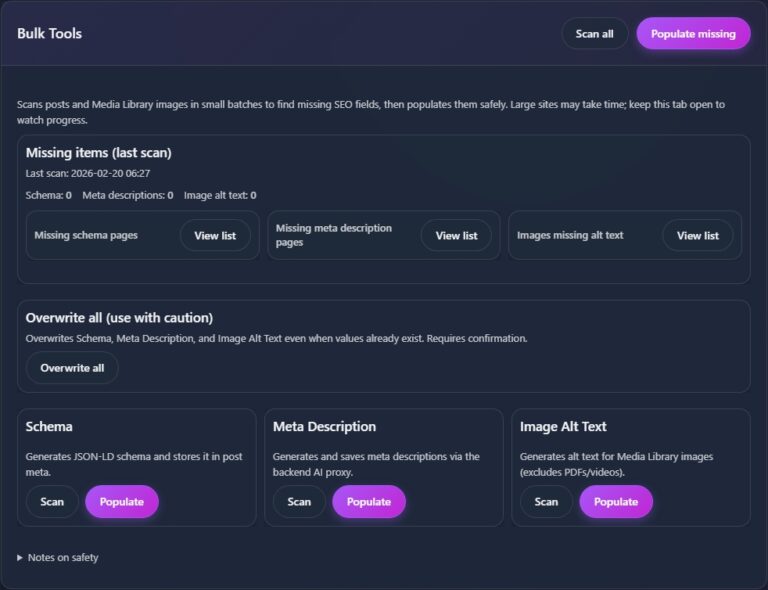
Internal linking fully covered. Next up is Bulk Tools, where you can scan and populate missing SEO fields across your entire site at once.