




If you need to mass fix missing alt text WordPress-wide, the goal is to move fast without turning your Media Library into a mess of generic, repetitive descriptions. Alt text (the alt attribute) supports web accessibility by describing meaningful images to screen readers, and it can also help image SEO by clarifying what an image represents in context. In this guide, you will learn how to audit for gaps, choose a bulk update method that fits your site size, and quality-check the results so changes stick across posts, pages, and product content.
Best for: Site owners and editors who need to update many images’ alt attributes consistently without rewriting every post manually.
Not ideal when: Images are highly contextual or complex, where generic or filename-based alt text would be misleading or low quality.
Good first step if: You are unsure how many images are affected and need a quick alt text audit before choosing a bulk workflow.
Call a pro if: Bulk updates do not apply, media is offloaded or customized, or your theme builder stores images outside standard WordPress fields.
Quick Summary
- Missing alt text can mean no alt attribute saved, or an empty alt attribute used intentionally for decorative images.
- Start by auditing both the Media Library and images embedded in content, since not every image maps cleanly to an attachment.
- The Media Library bulk-edit workflow is fastest for small to medium libraries, but it is still manual and easy to inconsistently name things.
- Plugins scale better by scanning site-wide, applying bulk actions, and sometimes generating alt text via templates or AI.
- After any mass update, spot-check representative pages and run an accessibility checker to confirm real-world output.
What “Missing Alt Text” Means in WordPress (Missing vs Empty)
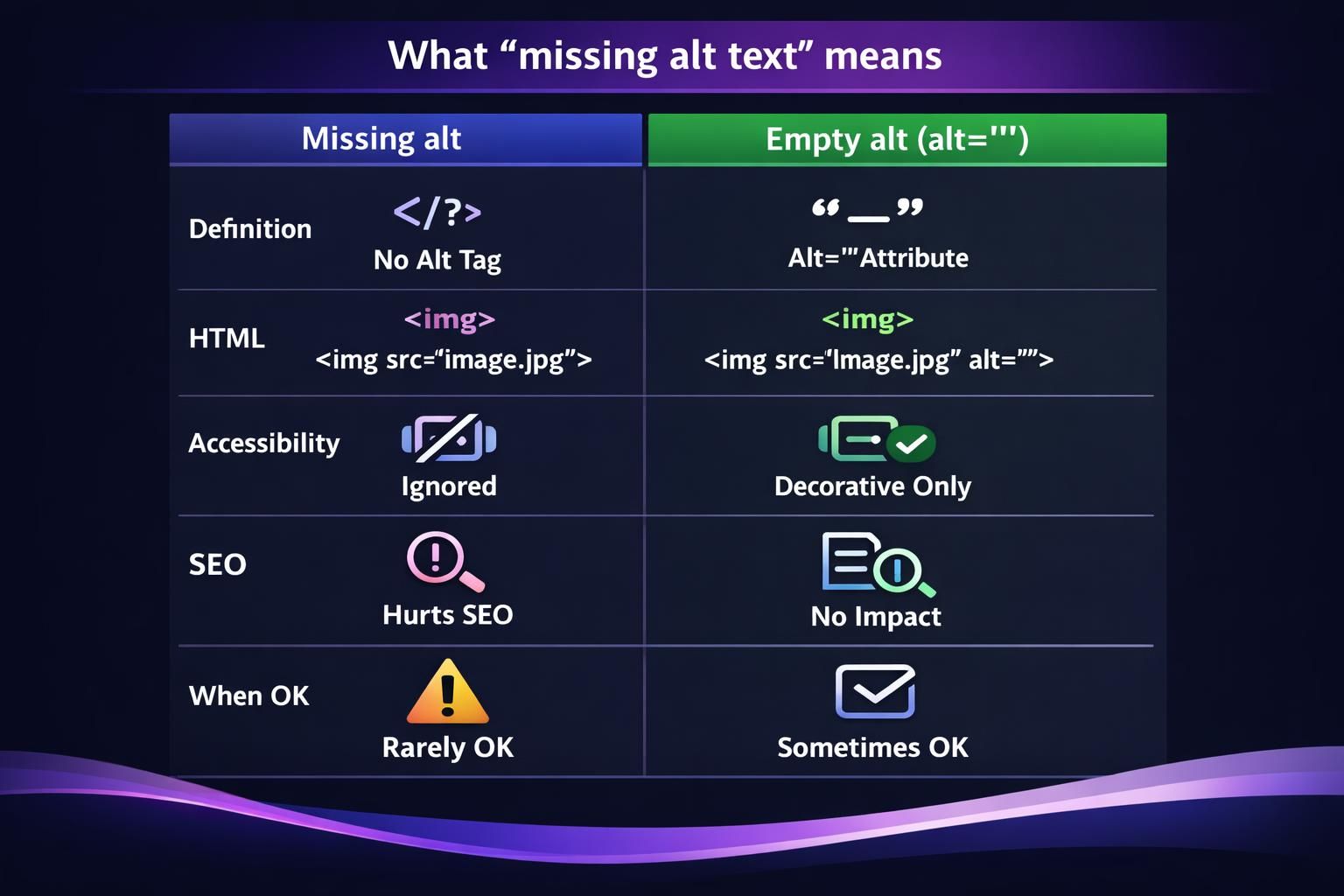
In WordPress, “missing alt text” usually means the attachment’s Alt Text field has no saved value, so images render without a helpful description. “Missing” differs from “empty”: WordPress may output alt="" when the field is blank, which can be correct for decorative images but is often accidental. Alt text is stored on the attachment, yet rendered HTML can vary by editor, builder, or overrides in inserted markup.
When Alt Should Be Intentionally Blank
Alt should be intentionally blank when the image is purely decorative and adds no meaning beyond nearby text, such as spacer icons or background flourishes. In those cases, alt="" helps screen readers skip noise. Do not leave alt blank for functional images like buttons, charts, infographics, or product photos where the image itself conveys information.
Quick Audit: Find Which Images Are Missing Alt Text (Site-wide)
Start by finding attachments with an empty Alt Text field, then confirm whether those images appear on live pages. Use Media Library list view filters or columns to spot blanks, and sample key post types like posts, pages, or products. For broader coverage, run a site crawl or a plugin audit that scans rendered pages for missing or empty alt attributes. Browse step by step tutorials for related workflows.
Check Media Library vs Images Embedded in Content
Media Library data is attachment-centric, but many sites have images embedded via builders, galleries, sliders, or custom fields that may not reflect the attachment’s current alt text. Your audit should include both: attachment records and actual front-end output. A small spot crawl using an accessibility checker can reveal patterns like repeated empty alt attributes in specific templates.

Method 1 — Bulk Edit Alt Text From the Media Library (Fastest Manual Approach)
Bulk editing in the Media Library is the quickest manual method because it uses WordPress core and updates the attachment Alt Text field directly. Switch to list view, filter to images, then open attachments and fill in alt text consistently (or use any built-in bulk UI available). This creates a single source of truth for reused images. It works best when you have a manageable library and clear naming rules.
Pros/cons for Large Libraries
Manual editing is safe but slow, and inconsistency is common across capitalization, tone, and keyword use. You may also need to coordinate attachment titles, captions, or descriptions for organization. With tens of thousands of images, bulk tools matter less for speed than for consistency, error prevention, and repeatable rules.
Method 2 — Use a Plugin to Scan and Fix Missing Alt Text (Recommended for Scale)
A plugin is usually the most practical way to fix missing alt text at scale because it can scan across content and apply consistent bulk actions. Typical workflows: install, run a scan for missing or empty values, then write updates to the attachment Alt Text field (and sometimes embedded content). Done well, it becomes repeatable after imports. For standardized ops checklists, see practical site guides.
What to Look For: Scan Scope, Bulk Actions, Safety, WooCommerce Support
Check scan scope: posts, pages, custom post types, and builders, not only attachments. Bulk actions should filter missing values and support previews, undo, or logs. Confirm WooCommerce support for product galleries. Also review whether it uses external services and offers templates, exclusions, and field-mapping controls.
Method 3 — Auto-generate Alt Text From Filenames/titles (Best for “Good Enough” Coverage)
Auto-generation is the fastest way to reach baseline coverage by turning filenames, attachment titles, or post titles into readable alt text. Most tools clean separators, remove extensions, and normalize words into a short phrase. It works best when filenames were curated and images are straightforward. The trade-off is limited context awareness, so review key pages. Use writing workflow resources to align generation rules with your editorial standards.
Rules to Avoid Spammy or Repetitive Alt Text
Keep generated alt text natural with simple rules: remove camera strings, sizes, and random IDs unless meaningful. Prefer curated attachment titles over filenames. Avoid a repeated prefix like your brand name. Don’t stuff synonyms, locations, or categories. If using post titles, add a short qualifier so each image is distinct.
Method 4 — Sync Attachment Alt Text Into Post Content (Fix Mismatches)
Use syncing when Media Library alt text is correct, but images inside posts show outdated or inconsistent alt attributes. Builders, imports, and some editors can store image HTML with its own alt value, so attachment changes don’t propagate. Sync tools copy the attachment Alt Text into embedded markup or flag mismatches for review. This is useful after migrations, bulk imports, or theme changes with hardcoded attributes.
Handling Images Not in the Media Library
Some images aren’t attachments: externally hosted files, inline HTML URLs, or plugin-managed assets in custom storage. Attachment-based syncing won’t work because there’s nothing to map. Update the real source (builder module, custom field, template) or replace the image with a Media Library attachment so alt text is
Safety Checklist Before Mass Changes (Backups, Staging, QA)
Treat bulk alt text edits like a content migration: plan rollback and validation. Take a full backup first, and run the first pass in staging to test rules, templates, and plugin settings. Define a simple style guide: describe what’s in the image and why it matters, keep it concise, and avoid repeating nearby text unless needed. Confirm what fields the tool changes (Alt Text only, or also title, caption, description). Keep a change log and document standards in your main blog hub.
Spot-checking Accessibility + SEO After the Update
Spot-check by opening a mix of pages: top traffic posts, image-heavy pages, and templates like product archives. Verify the rendered HTML includes the expected alt attribute, not just the Media Library field. Run an accessibility checker to catch empty or duplicate alts, and confirm decorative images are blank while functional images are descriptive. For image SEO, look for relevance and uniqueness rather than perfect keyword alignment.
Conclusion
To mass fix missing alt text WordPress sites reliably, start with an audit that separates attachment data from real front-end output, then pick the lightest method that fits your scale. Manual Media Library edits work for smaller sets, while plugins, rule-based generation, and attribute sync cover larger or messier sites. Whatever method you choose, protect your site with backups and staging, and finish with a focused QA pass to ensure the alt attribute is accurate where it actually renders.