




Noindex WordPress setups are usually simple. But they can also hide the wrong URLs fast. That’s why it helps to know where noindex can be added. And how to verify it. In this post, you’ll learn what noindex actually does. You’ll also learn how it differs from robots.txt. Then we’ll cover the common places WordPress adds noindex. Finally, you’ll get a quick checklist to trace the source. This matters when Google Search Console shows “Not indexed: excluded by ‘noindex’ tag”.
Best for: Hiding low-value pages like internal search results, thin archives, and utility pages without breaking your site structure.
Not ideal when: You need privacy or security, because noindex doesn’t block access or stop content from being shared.
Good first step if: Search Console says a URL is excluded by noindex, and you need to confirm whether it’s meta robots or headers.
Call a pro if: Your whole site is noindexed, key pages vanished from results, or multiple plugins are fighting over directives.
Quick Summary
- Noindex tells search engines not to show a URL in results, even if they can crawl it.
- Robots.txt controls crawling, but it doesn’t reliably keep a page out of the index.
- WordPress can add noindex through the Reading setting, archives defaults, or an SEO plugin.
- Verify using page source and headers, since X-Robots-Tag can override what you see in HTML.
- Keep internal links sensible, since noindex is not the same as nofollow.
What “Noindex” Means (and How it Differs From Robots.txt)
Noindex tells Google not to index a page via meta robots or an HTTP header. Google may still crawl it, but it shouldn’t rank. Robots.txt controls crawling, not indexing, and blocked URLs can still be indexed from links.

Meta Robots vs X-Robots-Tag
Meta robots is in the HTML head. X-Robots-Tag is an HTTP header set by server rules or code. Use headers for non-HTML files like PDFs. Headers scale fast, but mistakes can go sitewide.
The Most Common Ways WordPress Adds Noindex
WordPress noindex signals usually come from the Reading setting, archive templates, or your SEO plugin. Some are intentional defaults. Many sites noindex author or tag archives to avoid thin or duplicate content, and some themes noindex paginated archives. Validate these choices against your content model and search goals.
Settings → Reading “Discourage Search Engines”
The Reading setting can apply a sitewide noindex signal. It’s meant for staging. But it’s easy to forget. For example, you launch a redesign. Then rankings drop. And you later find this box still checked. Always confirm it after migrations and domain changes.
SEO Plugins (Yoast, Rank Math, AIOSEO) and Defaults
SEO plugins set archive noindex defaults, but conflicts happen when themes or
How to Noindex Specific Pages, Posts, and Archives
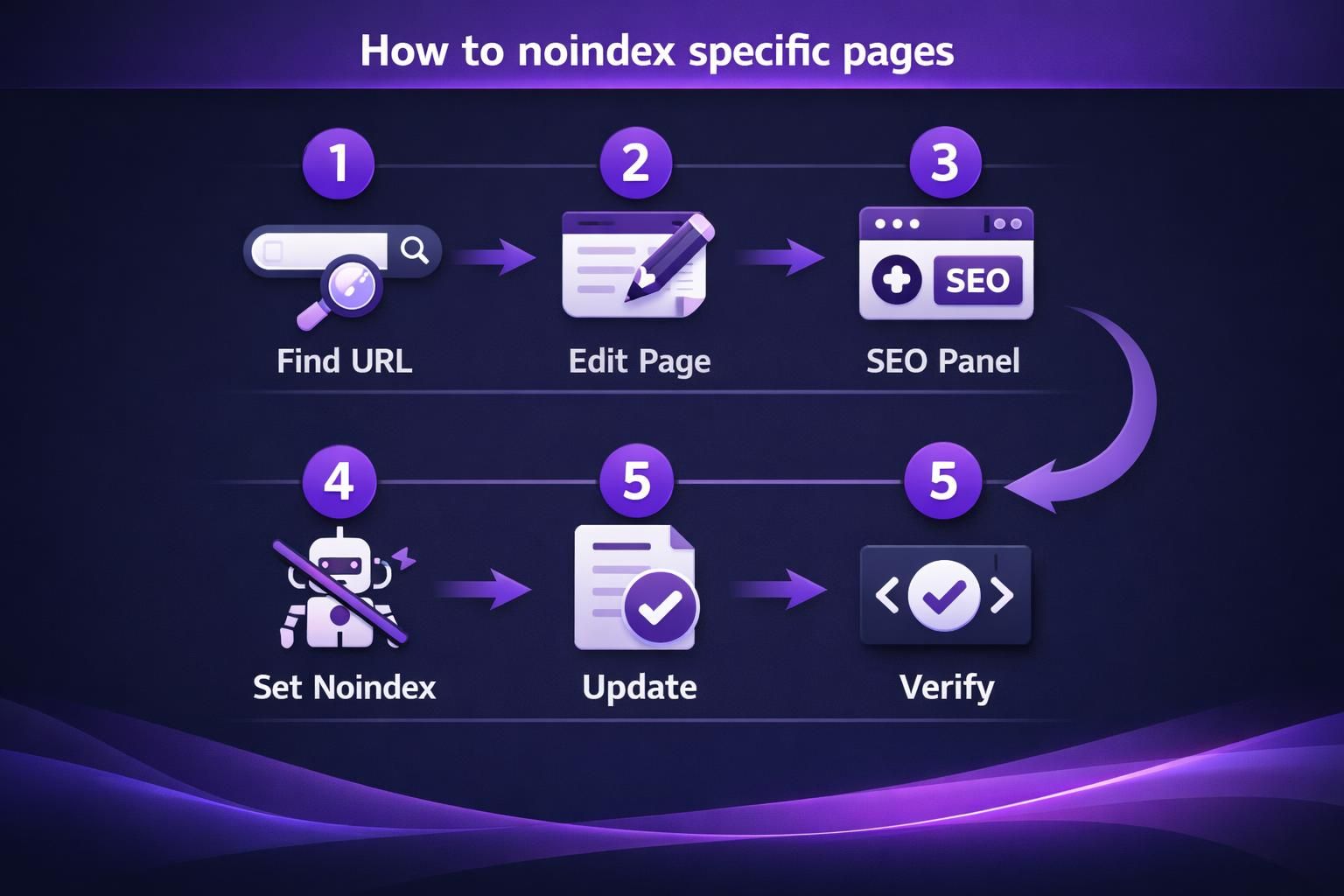
Use per-URL noindex settings in your SEO plugin. It keeps rules tied to each page type and avoids code edits for one-offs. Typical examples are thank you pages or temporary campaign landers. For bulk updates, review URLs and batch changes using bulk tools workflow.
Yoast: Per-page Noindex Setting
In the editor, open the Yoast panel and Advanced settings. Set “Allow search engines to show this Page in search results?” to “No.” Save, clear caches, then confirm the meta robots tag outputs noindex.
Rank Math: Per-page Noindex Setting
Rank Math can noindex a page inside the editor under its Advanced tab. You toggle robots meta and choose noindex. For example, you can set “index” for your sales page. Then set “noindex” for a /preview/ URL used by your team. Always update and re-check the live HTML.
How to Noindex Common Low-value WordPress URLs
Noindex pages that add noise or duplication. Common targets are internal search results, parameter/filter URLs, some pagination, thank you or confirmation pages, thin tag or author archives, feeds, previews, and attachment variants.
Internal Search Results, Feeds, and Paginated Archives
Internal search results pages are common noindex targets. Google has historically discouraged indexing them. For example, /?s=blue+shoes can generate endless near-duplicates. Feeds can also be noindexed to reduce clutter. Paginated archives are trickier. For instance, page 2 can help users browse. But it rarely deserves rankings.
Attachment Pages and Author Archives
Attachment pages are usually thin wrappers around a single file, so many sites noindex them and link to the media or parent post. Author archives help multi-author sites, but on single-author blogs they often duplicate the main index.
How to Find Where Noindex is Coming From (Fast Troubleshooting Checklist)
Identify the source: meta robots tag, X-Robots-Tag header, or a plugin/theme override. If your SEO plugin shows “index” but Search Console reports noindex, a security plugin, CDN, server rule, or caching may be forcing it.
Check Page Source vs HTTP Headers (X-Robots-Tag)
Check both HTML and headers. View source, search for “robots,” then inspect response headers in dev tools for X-Robots-Tag. If the header says noindex, it typically overrides the meta tag, so review server rules, CDN settings, and functions.php snippets.
Confirm Sitemap Isn’t Submitting Noindexed URLs
Avoid listing intentionally noindexed URLs in your sitemap because it sends mixed signals and wastes crawl. If a plugin still includes them, adjust settings in your sitemap configuration and resubmit the sitemap.
Removing Accidental Sitewide Noindex and Getting Reindexed
Remove the directive, then request reindexing. Uncheck “Discourage search engines,” confirm your SEO plugin isn’t applying global noindex, and purge caches. In Search Console, inspect the homepage, confirm index, follow, then request indexing. Spot-check templates.
Conclusion
Noindex WordPress controls are perfect for cleaning up low-value URLs. They’re also a common source of accidental deindexing. So keep your rules simple. Verify with page source and X-Robots-Tag headers. And make sure your sitemap matches your intent. If Search Console flags “excluded by noindex,” trace the source first. Then remove the directive and request reindexing on your important pages.