



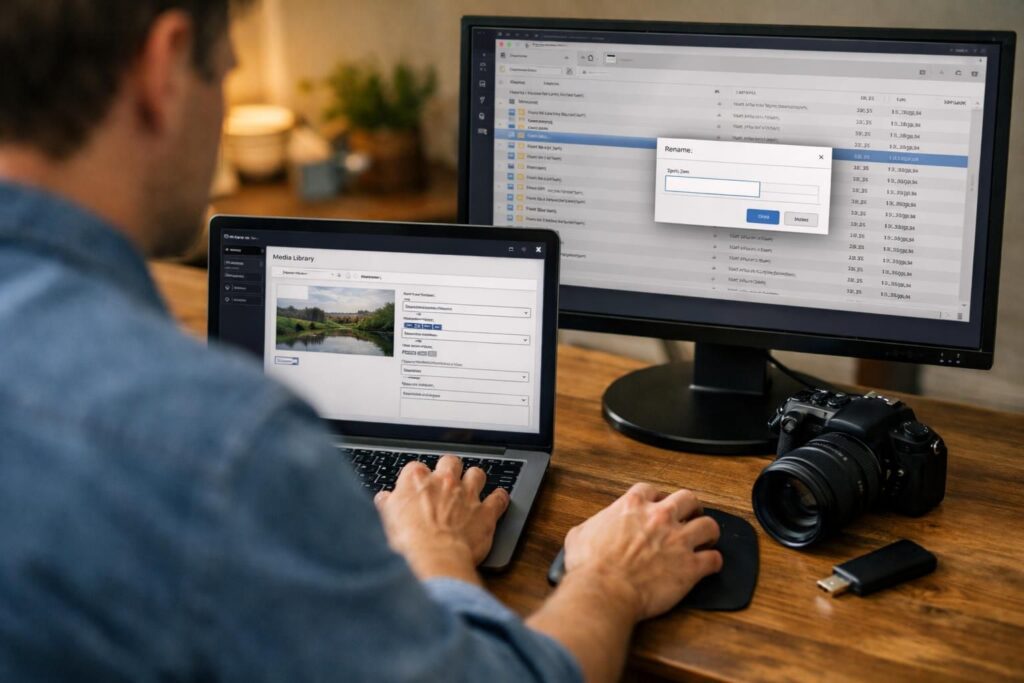
Renaming media can feel simple, but in WordPress it often affects the actual URL that posts, pages, and themes rely on. This guide explains wordpress rename image file name in a way that keeps your site stable: what you can change safely, what changes the file URL, and which workflows reduce broken links. You’ll learn how WordPress stores uploads in the wp-content/uploads directory, how to find an attachment URL in the Media Library, and when to use re-uploading versus a plugin. You’ll also get practical SEO naming guidance and a checklist to avoid 404 errors.
Best for: Site owners who want clearer, SEO-friendly filenames without risking missing images across posts and pages.
Not ideal when: The image URL is shared externally, heavily cached, or embedded in many places you can’t easily update.
Good first step if: You can identify where the image is used and you can copy the current attachment URL for reference.
Call a pro if: You need redirects, have permission errors in wp-content/uploads, or plan large bulk changes on a live site.
Quick Summary
- WordPress file renaming usually changes the attachment URL, so old links can break unless you replace or redirect.
- Editing Title, Caption, or Alt Text does not rename the actual file in the uploads directory.
- Re-uploading is safest when you can swap the image everywhere it’s used and remove the old file deliberately.
- Plugins can rename files and update database references, but quality varies and testing is essential.
- Bulk rename needs a rule-based approach, backups, and a rollback plan to avoid widespread 404 errors.
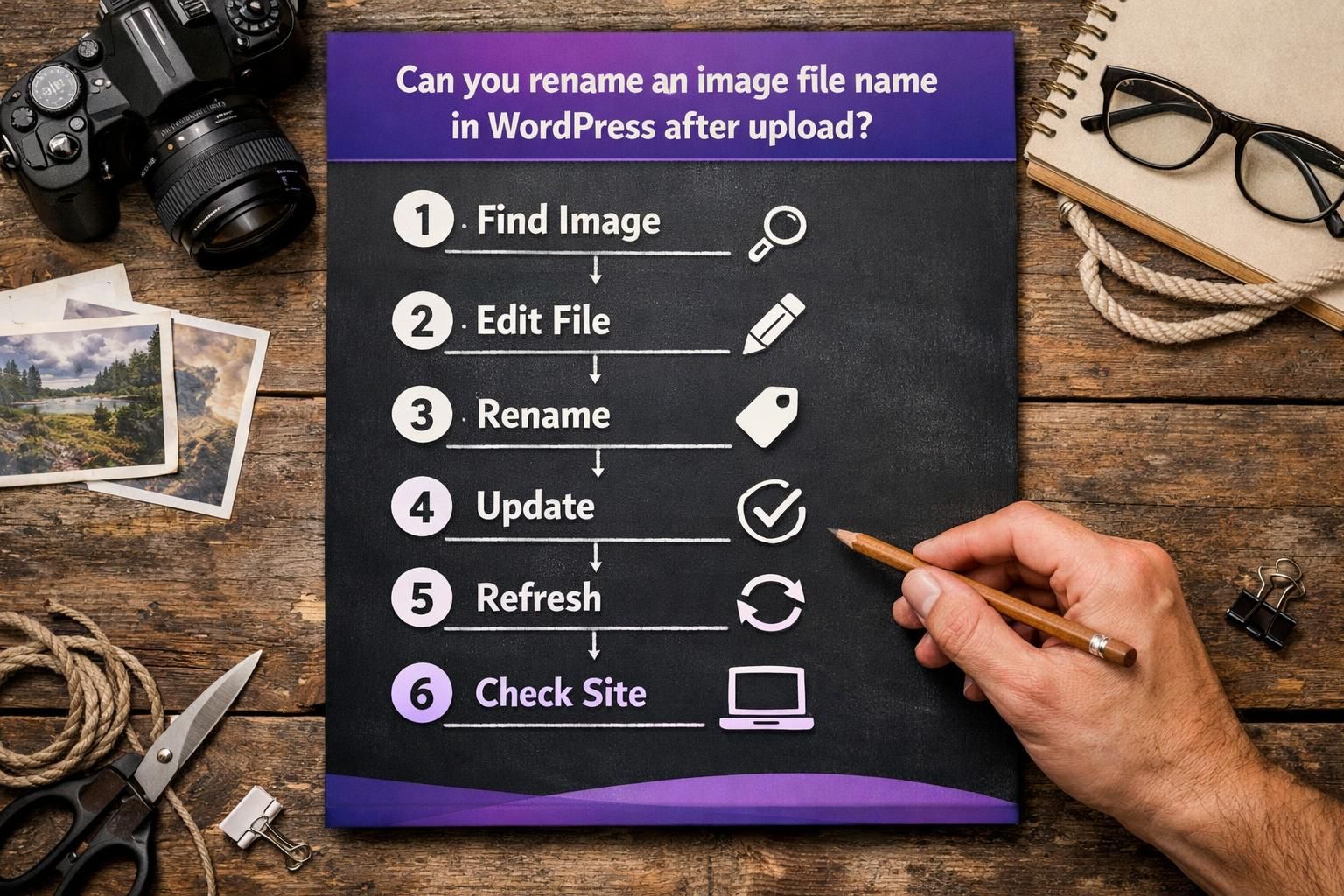
Can You Rename an Image File Name in WordPress After Upload?
Yes, but do it in a way that accounts for the attachment URL and every place it’s used. WordPress stores uploads in wp-content/uploads/year/month folders, so the URL includes that path plus the filename, and renaming usually changes the URL. Copy the file URL from the attachment screen before editing so you can search later. If it’s widely used, consider replacement or a redirect. More help: WordPress learning tutorials.
Filename vs Title vs Alt Text (What Actually Changes)
Filename is the physical file name in uploads and the basis of the attachment URL. Title is an internal label in WordPress, while Alt Text describes the image for accessibility, including the importance of an SEO friendly image file name.
Option 1: Rename by Re-uploading (Safest Manual Method)
Re-uploading is the safest manual option because it creates a new asset and avoids database/file mismatches. Download the image, rename it locally (keep the same extension), then upload it again to the Media Library to generate a new attachment URL. Update every place the old image appears (posts, pages, galleries, theme areas). After confirming the new image displays, delete the old attachment. For workflow standards, see the collection of writing guides.
How to Replace the Image Across Your Site After Re-upload
To replace reliably, search for the old attachment URL in your content and update each occurrence to the new file URL. In the block editor, reselect the image block and choose the new media attachment. In classic content, replace the src link in the HTML where needed.
Also check non-obvious locations: reusable blocks, widgets, and page builder modules. If the old URL is used outside WordPress (emails, social posts, PDFs), treat the old URL as permanent or add a redirect rather than deleting the old file.
Option 2: Rename Inside the Media Library Using a Plugin
A plugin is the most practical way to rename an image without re-uploading because it can rename the file in uploads and update database references to the new URL. Typical steps: install the plugin, open the attachment edit screen, change the filename, and let it update metadata and generated sizes. This is faster than FTP edits, but only if thumbnails and references are handled correctly. Test on staging and keep a backup. See helpful site resources.
What a Good Renaming Plugin Must Handle (URLs, Thumbnails, References, Redirects)
A renaming plugin must rename the original file and all WordPress-generated thumbnails, or sizes can become orphaned. It should update database paths and attachment metadata used by themes and galleries. Look for tools that update URLs in posts/pages, keep thumbnails consistent, provide a history log with undo/rollback, and optionally add 301 redirects for old URLs to follow best practices for media library image folders. Without rollback, treat renames as irreversible and move slowly.
Bulk Rename Image File Names (When You Have Lots of Uploads)
Filename is the physical file name in uploads and the basis of the attachment URL. Title is an internal label in WordPress, while Alt Text describes the image for accessibility, including the importance of an image filename for SEO.
SEO Best Practices for WordPress Image File Names
Good filenames support SEO by describing the image clearly, especially alongside relevant Alt Text and on-page context. Use readable, consistent names tied to the page topic, not camera defaults or random strings. Avoid keyword stuffing. The main risk is stability: changing an established attachment URL can create 404s if the old link is used elsewhere. If an image is already embedded or ranking, improving Alt Text and context may be safer than using a WordPress Alt Text Generator. Filenames are only one signal.
Naming Format, Hyphens, Keywords, and Avoiding Over-optimization
Use lowercase words separated by hyphens and keep the correct extension (.jpg, .png). Choose a short, specific phrase that matches the image, like product-color-angle. Prefer hyphens over underscores, avoid stuffing repeated keywords, and keep filenames stable after publishing, especially if shared externally, as outlined in the Google Image SEO best practices. If you need uniqueness, add a simple differentiator such as a model, location, or sequence number. If renaming on upload, define one pattern and enforce it.
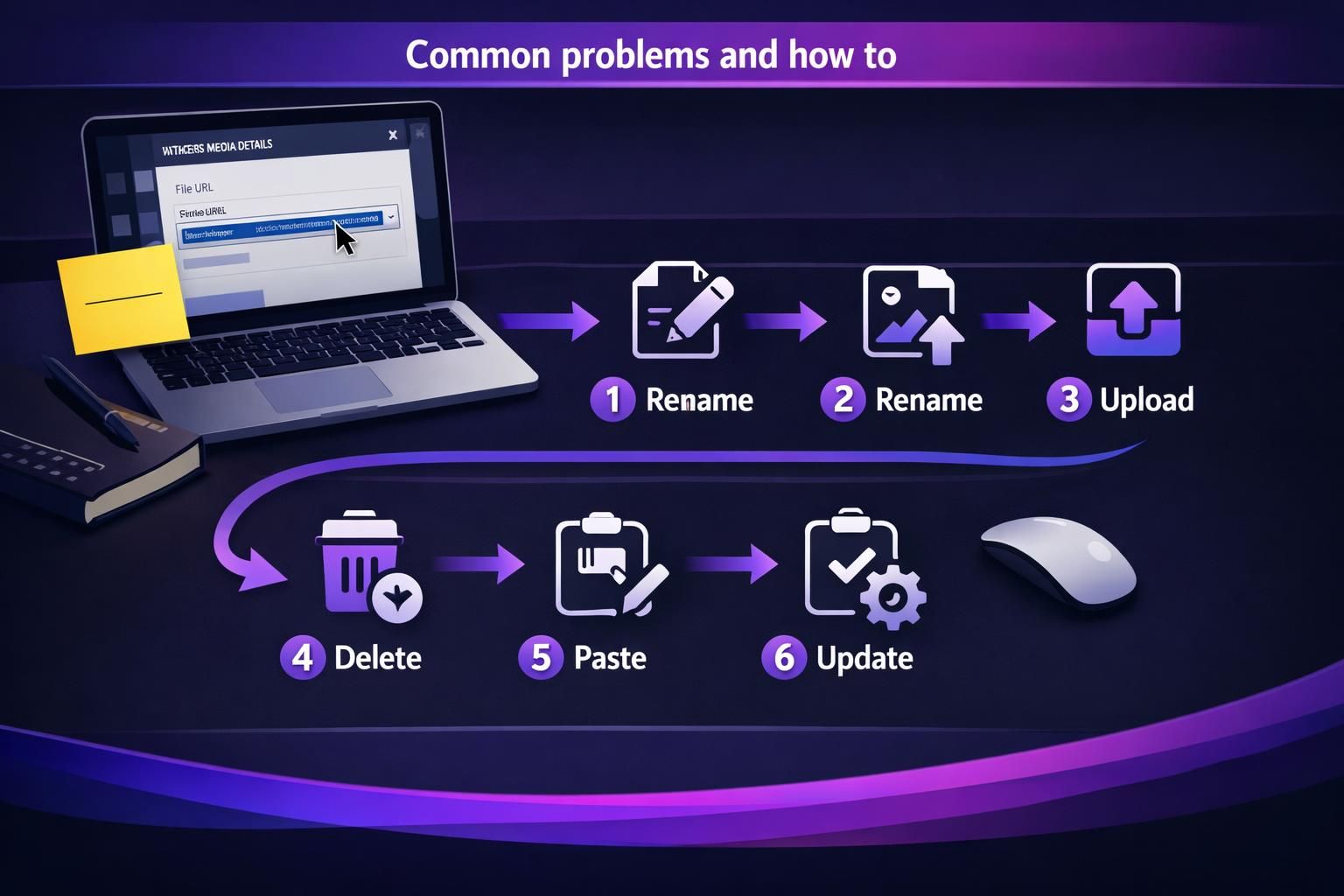
Common Problems and How to Avoid Them
Most renaming problems come from changing the file URL without updating references, causing broken links (404s) or missing images. Another issue is permissions: WordPress can’t rename files in wp-content/uploads if the server user can’t write to those folders. You can also see Media Library items whose files are missing on disk. Reduce risk by renaming one image as outlined in our tutorial on renaming images, then checking key pages in an incognito window. If the old URL must work, use replacement or a redirect.
Caching/CDN, Image Optimization Plugins, and Broken Image URLs
Caching and CDNs can make a correct rename look broken because old URLs may be served from cache. After renaming, purge site and CDN caches and hard refresh pages. Image optimization plugins may rewrite paths, generate WebP variants, or offload media, so you may need to re-optimize or regenerate derived assets. If issues appear only for logged-out users or some devices, suspect caching. Silent failures often point to permissions or hosting restrictions.
Checklist Before and After Renaming
A checklist prevents surprises when you wordpress rename image file name on a live site.
Before: copy the attachment URL and note placements, confirm extension and new naming format, back up database and uploads, and review plugin settings for reference updates or rollback.
After: purge cache and verify key pages, search and replace any remaining old URLs, confirm thumbnails and metadata match, and add a redirect if the old URL must keep working.
Conclusion
Renaming media in WordPress is doable, but it’s rarely just a cosmetic change because the filename is usually part of the attachment URL. Choose re-uploading when you want the safest manual workflow, and use a reputable plugin when you need controlled file renaming with database updates and rollback. If you take time to audit usage, clear caches, and test, wordpress rename image file name changes can improve clarity without breaking links.