



Picking a wordpress speed optimization plugin is easy. Picking one that improves real Core Web Vitals is harder. The problem is overlap. One plugin caches pages. Another delays JavaScript. A third compresses images. And if you stack them blindly, you’ll get conflicts.
In this guide, you’ll learn what these plugins should actually do. You’ll see which features matter for LCP, CLS, and INP. You’ll also get practical stacks for different site types. And you’ll get a setup order that reduces breakage. For example, you’ll know when “one-click” modes are safe, and when they’re a trap.
Best for: Site owners who want faster pages and better Core Web Vitals without changing themes or rewriting templates.
Not ideal when: Your TTFB is high from slow hosting, heavy queries, or backend bottlenecks that caching can’t hide.
Good first step if: You can run baseline tests, list heavy plugins, and accept small visual changes while tuning settings.
Call a pro if: Checkout breaks, layouts shift, or delayed scripts disrupt analytics, ads, memberships, or core site actions.
Quick Summary
- Focus on outcomes, not features. Aim to improve LCP, CLS, INP, and real user experience.
- Start with baseline tests. Then change one thing at a time and re-test.
- Caching handles repeat visits well. Asset optimization fixes render blocking and front-end bloat.
- Don’t blindly combine CSS/JS. HTTP/2 and HTTP/3 change the tradeoffs.
- Image and font choices can make or break LCP and CLS on content-heavy pages.
- Dynamic sites need exclusions. Cart, checkout, and account pages can’t be fully cached.
What a WordPress Speed Optimization Plugin Should Do
A speed plugin should reduce real Core Web Vitals bottlenecks, not just inflate PageSpeed. It should provide page caching, better CSS/JS delivery, and improved media delivery, with safe rollback when something breaks.
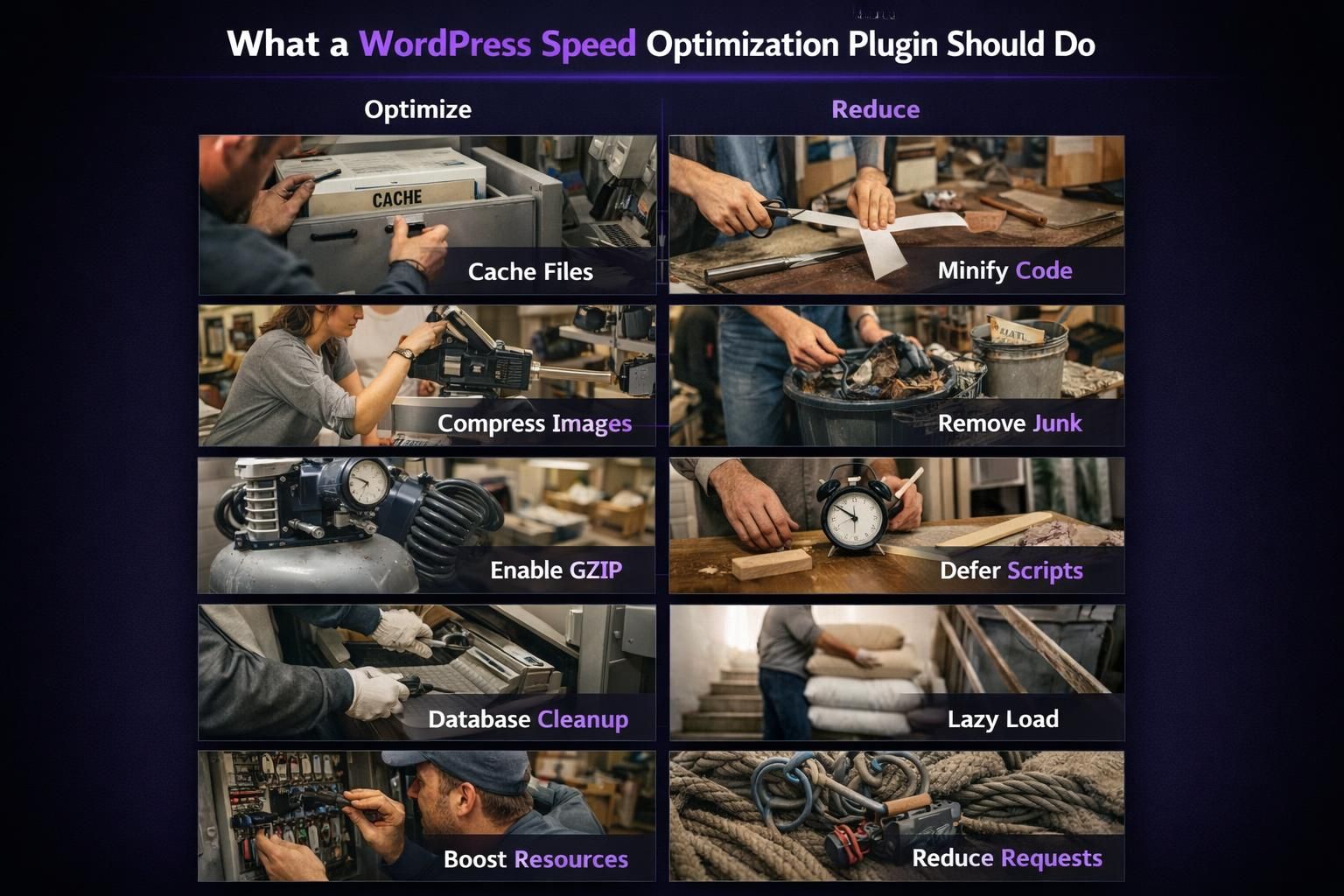
Focus on LCP, FCP, CLS, and INP: faster above-the-fold rendering, fewer layout shifts, and fewer long tasks. Compatibility with your host, theme, and page builder matters more than aggressive settings, since over-optimization can break injected CSS/JS.
Caching vs Asset Optimization vs Image/CDN
Caching speeds up delivery by serving pre-built HTML from a page cache instead of rebuilding each request. Asset optimization speeds up rendering by changing how CSS, JS, fonts, and third-party scripts load. Image and CDN features reduce payload and distance, which often helps LCP.
They solve different problems, so one plugin rarely covers all cases perfectly. For example, cache warmup can help your first visitor after publishing. But it won’t fix render-blocking CSS from a giant theme stylesheet.
Quick Checklist Before You Install Anything
Audit your site first, because most speed problems have a clear source. List what’s “expensive” on key pages: sliders, page builders, chat widgets, and big analytics stacks.
Identify whether slow pages are static or dynamic. Static pages benefit from full-page caching. Dynamic pages need exclusions or fragment caching, since a WooCommerce cart can’t serve identical HTML to everyone.
Review media. Oversized images and heavy video embeds are common culprits. A 4000px hero JPEG scaled down in CSS still wastes bandwidth and decode time.
Check fonts too. Too many files can trigger CLS and delay text rendering. Ensure you can undo changes with clear toggles and fast rollback.
Test Baseline (Core Web Vitals / PageSpeed / GTmetrix)
Baseline testing is the only way to know what actually improved. Use Google PageSpeed Insights to check Lab data and Core Web Vitals hints. Use Chrome’s real-user data when it’s available. Use GTmetrix for waterfall detail and repeatable tests.
For example, if LCP is high but TTFB is fine, your issue is often images, fonts, or render-blocking resources. If INP is poor, you’re likely dealing with heavy JavaScript or third-party scripts.
The Main Plugin Types (and When You Need Each)
Most speed plugins fall into caching or front-end optimization, and you often need both. Caching reduces server work and helps repeat visits. Asset optimization speeds browser rendering and cuts main-thread pressure.
Use caching when server generation is slow or traffic is high. Use asset optimization when PageSpeed flags unused CSS, render blocking, or long tasks.
Avoid overlap. Two plugins minifying or delaying the same assets can break layouts or scripts.
Caching Plugins
Caching plugins primarily manage page cache, browser caching headers, and cache preloading or cache warmup. They often include object cache hooks, but that varies by host. They’re usually the foundation of wordpress page speed optimization.
For example, if your blog post pages render slowly on first request, a page cache can stabilize performance. Add preload so new posts aren’t slow right after publishing. But exclude logged-in views if your content changes per user.
Performance/asset Optimization Plugins
Asset optimization plugins focus on CSS minification, JavaScript minification, and changing load order. They may add delay JavaScript execution, JS defer, and script targeting. Some include asset unloading and plugin targeting per page.
For example, you can unload a form plugin’s scripts on pages without forms. That reduces main-thread work and can improve INP. But you must test interactions like menus, sliders, and modals after changes.
Must-have Features to Compare
Pick features that match your bottleneck and limit risk. Prioritize Core Web Vitals gains with clear presets, safe defaults, and a real compatibility list.
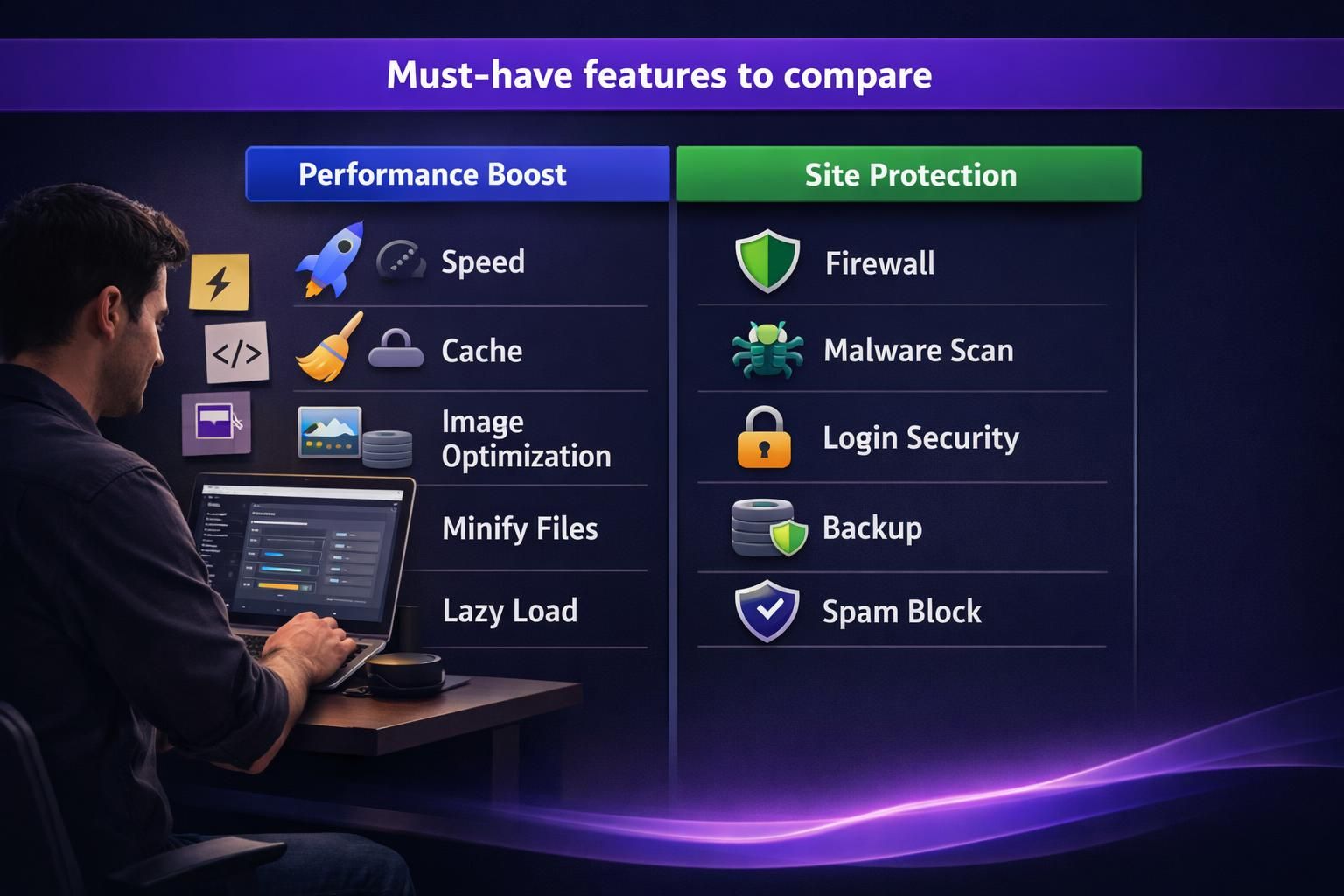
Performance history tracking helps spot regressions after updates. Rollback matters too: if critical CSS is generated, you need cleanup so old cached CSS isn’t served after deactivation.
Finally, weigh support. Strong docs and responsive help can save hours when a layout breaks.
Critical CSS, Delay/defer JS, Remove Unused CSS
Critical CSS can improve LCP by rendering above-the-fold content sooner, but automation can miss styles, especially with page builders. Removing unused CSS can help, yet may cause missing styling if mis-detected.
Defer or delay JS can improve INP and FCP by reducing early main-thread work, but you need exclusions for essential scripts (like consent logic).
Be cautious with concatenation. With HTTP/2 or HTTP/3, combining files may hurt caching granularity.
Image Optimization (WebP/AVIF, Lazy Load) + CDN
Optimize images with resizing, compression, and modern formats like WebP/AVIF, with quality controls for product photos. Use lazy loading for below-the-fold images, but never lazy load your LCP element. Add width and height attributes to reduce CLS.
CDNs matter. A built-in CDN is convenient, but a separate or image-focused CDN may integrate better and support on-the-fly resizing. If you’re fixing image SEO too, rename images safely helps avoid broken URLs.
Recommended Plugin Stacks by Site Type
A solid stack is usually one caching layer plus one focused optimization layer, not multiple all-in-ones competing. Start simple, then add features only when you can measure improvement.
Match the stack to how dynamic the site is. Static blogs can use aggressive page caching and HTML minification. Membership sites can break if you cache the wrong pages. WooCommerce can suffer if checkout scripts are delayed.
If you publish often, cache preloading or warmup becomes more important.
Blog / Brochure Site
For a blog, use a caching plugin with page cache and preload, plus an asset optimizer for CSS and JS. Add an image optimizer if WebP/AVIF isn’t handled well.
Recipe blogs often have many images and videos: lazy load below-the-fold images and use click-to-play video previews. For media hygiene, media library folder rules helps.
Keep fonts lean: preload one key file and use font-display: swap. Test multiple templates before enabling site-wide.
WooCommerce / Membership / Highly Dynamic Sites
Dynamic sites need caching with strict exclusions and conservative optimization so carts, logins, and payments don’t break. Avoid delaying scripts tied to add-to-cart, variants, checkout, or membership gating; use targeting and exclusions instead.
Reduce CLS by reserving space for notices and validation messages. A CDN still helps static assets, but be careful with edge-caching HTML when content varies
Setup Priorities (Safe Defaults First)
Use a safe order: cache first, then images, then CSS, then JS. Caching delivers predictable gains with fewer front-end side effects. Images are usually the next easy win. CSS/JS tweaks are where breakage happens.
Start with a plugin preset or basic mode, then change one setting at a time and retest the same pages. Track changes like code: notes, screenshots, and rollback steps.
Plan monitoring because speed can regress after new plugins or tags. A new chat widget can tank INP overnight. If you’re auditing structure too, scan internal link health fits broader cleanup.
Cache + Exclusions (Cart/checkout/admin)
Cache rules should exclude pages that vary by user or session. That typically includes cart, checkout, my account, and admin. Also exclude pages with nonce-heavy forms if they break after caching.
For example, if a coupon field stops applying, your checkout page may be cached. Fix exclusions before touching JS delay settings. Then purge cache and retest.
Also set up preload or warmup if your plugin supports it. That reduces the “first visitor is slow” problem after a purge. And confirm that logged-in users aren’t seeing cached public pages unless that’s intended.
Conclusion
Choosing a wordpress speed optimization plugin comes down to matching features to bottlenecks, then tuning carefully. Start with baseline tests, then add caching, then tighten images, then refine CSS and JS. Keep your focus on Core Web Vitals like LCP, CLS, and INP, not just a PageSpeed score. Your next step is simple. Pick one caching tool and one asset optimizer. Apply safe defaults. Then test key pages and user flows before going further.