




A wordpress alt text generator can save hours by creating descriptions for images right inside WordPress, especially when your Media Library has lots of missing fields. But automated text is only useful when it matches the image’s purpose on the page and reads naturally for people using screen readers. In this guide, you will learn what these plugins generate, which features matter most, how to set them up for one-click or bulk runs, and what to review so the alt attribute supports both accessibility and SEO without creating awkward, risky text.
Best for: Site owners with many existing images who need faster, consistent alt attribute coverage across posts, pages, and products.
Not ideal when: Images are complex, sensitive, or require precise context that an AI model cannot infer from pixels alone.
Good first step if: You want a plugin that writes WordPress image metadata from the Media Library and offers a missing-alt report.
Call a pro if: You see recurring API errors, upload failures, or theme and builder conflicts that affect media fields sitewide.
Quick Summary
- Alt text generators fill the alt attribute and sometimes captions and image description fields, depending on plugin settings.
- The best results come from computer vision plus clear rules for tone, length, language, and brand terms.
- Look for bulk generation, “missing alt text” reports, and controls for where text gets written in WordPress metadata.
- WooCommerce support matters if you rely on product images and variations that need consistent, descriptive naming.
- Always review outputs for accuracy, context, and whether the image is informational or purely decorative.
What a WordPress Alt Text Generator Does (and Why it Matters)
A WordPress alt text generator uses computer vision to suggest text for the alt attribute, improving accessibility for screen readers and meaning when images don’t load. Plugins usually run on upload or in the Media Library, including workflows that fix items flagged as missing alt. See step-by-step tutorials for workflow tips.

Accessibility Vs. SEO: What “Good” Alt Text Looks Like
Good alt text is concise, specific, and aligned with page intent. For accessibility, describe what matters and follow the accessibility image alt text guidelines to avoid repeating nearby visible text. For SEO, keep it natural and relevant, without forcing keywords.
Must-have Features to Look for in an Alt Text Generator Plugin
Choose a plugin that writes reliably to WordPress image metadata and lets you control when generation runs. Prefer a clear settings page, an onboarding wizard explaining data processing, and “generate only if empty” to protect manual alt text. Useful extras include tone, length, and multi-language controls, plus a preview before saving. Active maintenance, documentation, and a visible changelog matter. For more guidance, see find more guides for standards.
Bulk Generation, Media Library Tools, and WooCommerce Support
Bulk generation helps fix older libraries, while Media Library filters support selective runs. A missing-alt list targets gaps fastest for bulk add alt text. For WooCommerce, ensure it covers galleries and variations without breaking bulk edits.
Top WordPress Alt Text Generator Plugins (Quick Comparison)
The best WordPress alt text generator plugin depends on whether you need automation, bulk cleanup, WooCommerce coverage, or strict privacy controls. Some plugins focus narrowly on the alt attribute, while others generate captions and descriptions, or bundle image optimization such as image compression to help page speed and determine how alt text can help SEO. Compatibility can vary with themes, page builders, and other plugins that modify media fields via WordPress hooks/actions, so favor tools that clearly state where they write metadata and how they avoid conflicts. Use the table below to compare common approaches before you commit to a workflow.
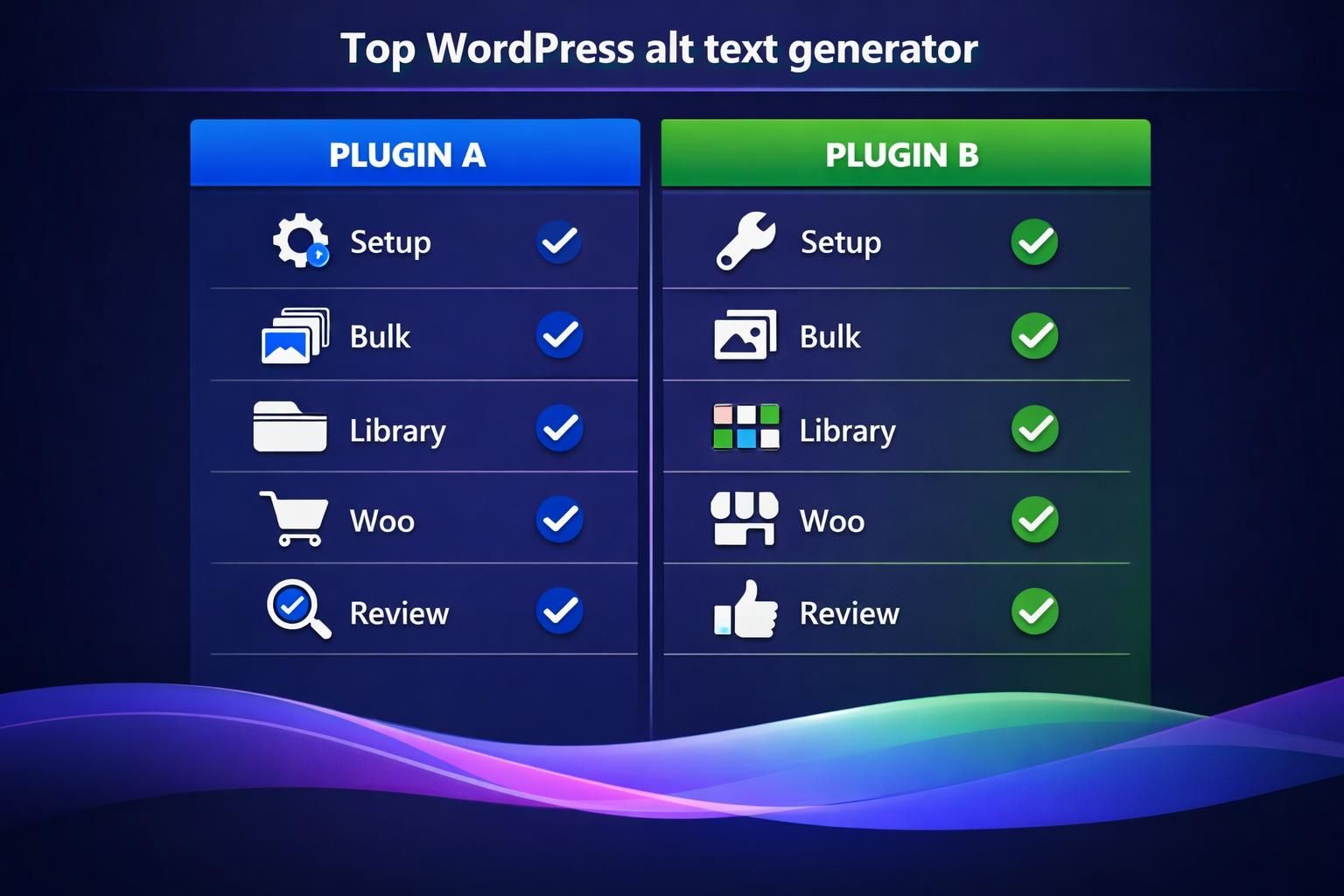
| Option | Best for | Limits | Typical outcome |
|---|---|---|---|
| Auto-on-upload plugin | New uploads staying compliant | quota, rate limits | consistent baseline coverage |
| Bulk-cleanup focused plugin | Existing Media Library backlog | bulk caps | faster gap closure |
| WooCommerce-aware plugin | product images at scale | catalog complexity | more consistent product media |
If you are weighing feature sets against budgets, check current plan options before you standardize across multiple sites.
Hosted Credits Vs. Bring-your-own OpenAI Key: Cost Tradeoffs
Hosted credits are easiest but tie you to usage billing, quotas, and plan changes. Bring-your-own API key can be cheaper and clearer, but adds setup, rate-limit handling, and key security duties.
How to Set up and Generate Alt Text (Upload, One-click, and Bulk)
Install the plugin, run its setup wizard, and connect an API key if required. Choose whether to generate alt only or also captions/descriptions, and whether to run on upload. In the Media Library, generate, review, and save. For bulk fixes, start from a missing-alt report and run batches to avoid limits. Verify the correct fields.
Best Practices for AI-generated Alt Text (Quality Control Checklist)
Treat AI alt text as a draft and review it every time. Confirm it matches the image’s role: informative, navigational, or decorative. Verify accuracy, remove assumptions, and avoid repeating nearby headings or captions. Keep it concise, skip “image of,” and add context AI can’t infer. Use use the writing tool for consistency.
Common Issues and Troubleshooting
Most problems come from permissions, API setup, quotas, or plugin conflicts that block saving metadata. If nothing starts, confirm the API key is valid, allowed by the host, and has credits. If it “saves” but fields stay blank, edit the Media attachment and check for plugins that override alt text on render. For API errors, capture the exact message from logs for support. If bulk runs stall, lower batch size and test a small set.
When Not to Add Alt Text (Decorative Images) and Avoiding Keyword Stuffing
Skip descriptive alt text for decorative images; an empty alt attribute is often best to reduce screen reader noise. Avoid keyword stuffing, which harms usability and can look manipulative. Keep logos minimal when text already names the brand.
FAQs About WordPress Alt Text Generators
What is a WordPress Alt Text Generator Plugin, and Does it Also Create Captions?
A WordPress alt text generator plugin writes alt attributes and may also create captions and image descriptions, depending on settings. Alt text supports accessibility and can be enhanced with examples of good vs bad alt text; captions are visible; descriptions are stored metadata used by some themes.
Can I Generate Alt Text Automatically When I Upload Images?
Yes. Many plugins can generate alt text on upload via a settings toggle. Still review results for hero images, charts, screenshots, and cases where page context changes the meaning.
How Accurate is AI Object Recognition for Alt Text, and Should I Edit It?
Object recognition can identify common subjects well, but it can miss context, misread text in images, or make incorrect assumptions.
Conclusion
A WordPress alt text generator is most valuable when you have many images to update and need consistent coverage without manual rewrites. Treat generated alt text as a starting point: confirm accuracy, add page-specific context, and leave decorative images empty to reduce screen reader noise. Choose a plugin with bulk tools, missing-alt reports, and clear control over which WordPress metadata fields get updated.