


Article schema markup helps search engines understand your post fast. And it can help your pages qualify for richer search features. In this guide, you’ll get an article schema markup example you can copy. You’ll also learn how to add it in WordPress without breaking anything. We’ll cover what to include, what to avoid, and how to test your setup. So if you’ve ever wondered why Google shows odd titles, dates, or authors, this is for you. We’ll also clear up the confusing part. Article, BlogPosting, and NewsArticle aren’t the same. Choosing the right one matters for schema markup for articles.
Best for: Blogs that publish evergreen tutorials, opinion posts, and guides where you want clear author, date, and headline signals.
Not ideal when: Your pages are product pages, landing pages, or category archives that don’t represent a single written article.
Good first step if: You already have clean titles, author names, featured images, and consistent publish and modified dates in WordPress.
Call a pro if: Your theme outputs conflicting schema, validation errors persist, or you manage many authors across a large site.
Quick Summary
- Article schema tells search engines your page is a written piece, not just generic web content.
- JSON-LD is the simplest format to add and maintain in WordPress.
- Your schema should match what users can actually see on the page.
- Testing matters, since themes and plugins often output overlapping markup.
- BlogPosting is usually the best fit for typical blog content.
What is Article Schema Markup
Article schema markup is structured data that describes a written article using Schema.org properties. It gives search engines consistent fields like headline, author, publish date, modified date, image, and publisher.

It works like a label set attached to a post, reducing ambiguity when themes hide details or show multiple dates. It’s commonly implemented as JSON-LD, separate from visible HTML, which makes it easier to maintain without risking layout changes.
A practical baseline includes @context, @type, mainEntityOfPage, headline, author, datePublished, dateModified, image, and publisher. Use only what you can support on-page.
It isn’t a keyword container or a ranking shortcut. It’s a clarity tool that can reduce misinterpretation and messy snippets over time.
Why Article Schema Helps Your Blog Posts
Article schema helps blog posts by making key metadata explicit, improving how systems interpret and sometimes display your pages. It’s about eligibility and clarity, not guaranteed rich results.
Themes and plugins can surface multiple dates, images, and author names. Schema provides a canonical set of answers: the intended headline, primary image, author, and publish or update dates. That consistency matters across templates and post types, especially if you publish tutorials, announcements, and case studies.
Common practical benefits include cleaner extraction of headline and author, better confidence in published and modified dates, and clearer association to the main image. It can also reduce ambiguity on multi-author sites.
Schema must match the visible page. If you mark an author or modified date, it should be shown consistently. Otherwise markup can be ignored or flagged. Before prioritizing schema, resolve bigger blockers with a technical SEO audit checklist.
Article Schema Markup Example (Full JSON-LD)
A solid article schema markup example includes only fields you can support on the page and in your CMS. Keep it simple, valid, and aligned with what the reader sees.
Below is a full JSON-LD example you can adapt. Replace placeholders with real values, and keep URLs absolute.
{ "@context": "https://schema.org", "@type": "BlogPosting", "mainEntityOfPage": { "@type": "WebPage", "@id": "https://example.com/your-post-url/" }, "headline": "How to Add Article Schema Markup in WordPress", "description": "A practical guide to adding Article schema in WordPress using JSON-LD, plus testing and troubleshooting tips.", "image": [ "https://example.com/wp-content/uploads/2026/04/article-schema-example.jpg" ], "author": { "@type": "Person", "name": "Jane Doe", "url": "https://example.com/author/jane-doe/" }, "publisher": { "@type": "Organization", "name": "Example Site", "logo": { "@type": "ImageObject", "url": "https://example.com/wp-content/uploads/2026/04/site-logo.png" } }, "datePublished": "2026-03-10", "dateModified": "2026-03-28" }
BlogPosting fits most WordPress blogs better than generic Article. Remove anything you can’t verify on-page, like an author URL, modified date, or image. Be intentional: headline should match the visible title, description should match your snippet intent, and the publisher logo must be crawlable. For meta workflow help, see add a meta description.
How to Add Article Schema in WordPress
You can add Article schema in WordPress via an SEO plugin, a dedicated schema plugin, theme options, or custom code. The right choice depends on what your site already outputs.
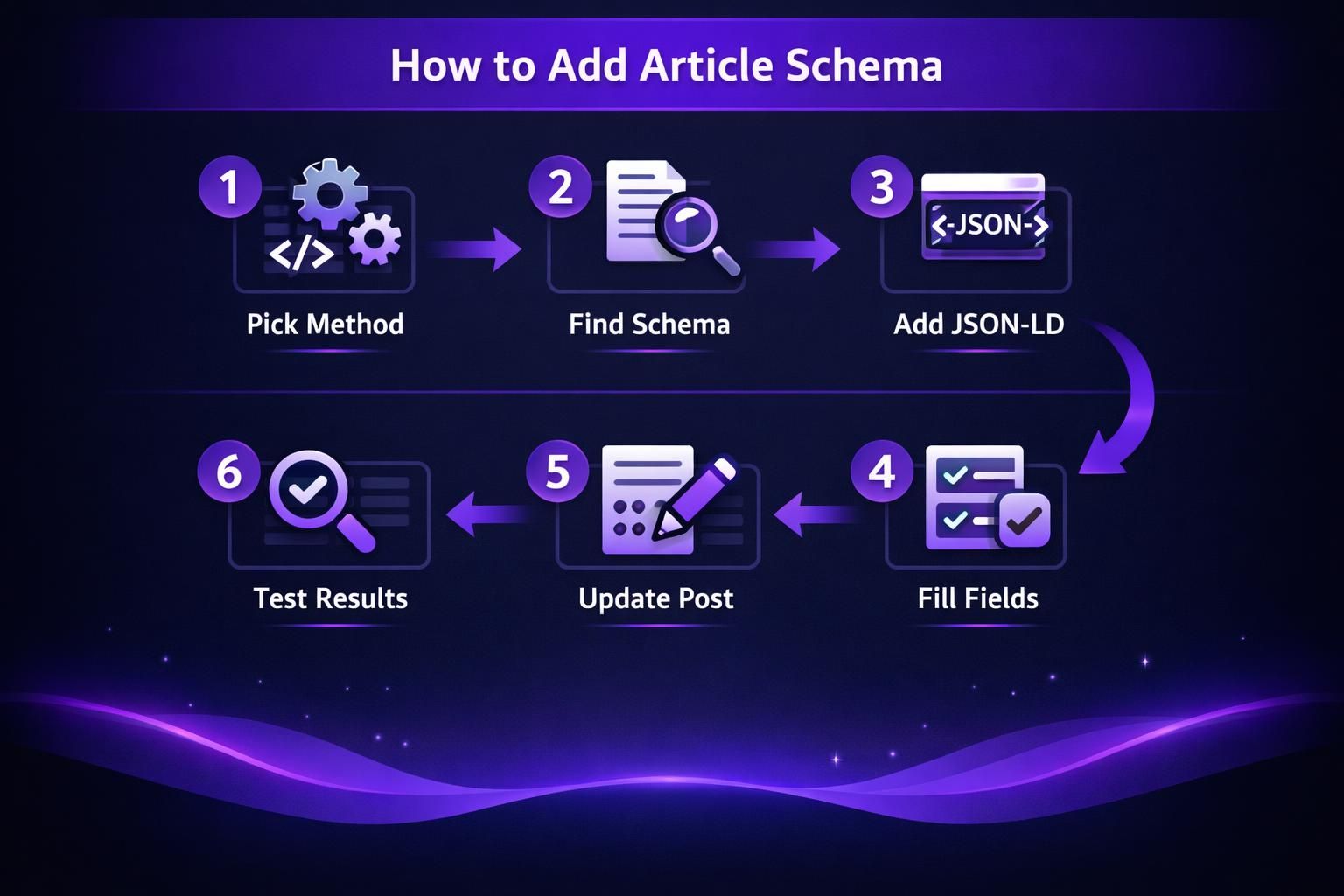
First, audit your current markup. Many SEO plugins and themes add schema automatically. The main risk is duplicates, like JSON-LD from a plugin plus microdata in the theme, which can create conflicting author, date, or headline fields.
Typical options include: using your SEO plugin’s schema type settings, adding a schema-focused plugin for per-post-type control, or outputting your own JSON-LD via a safe hook if you need precise fields.
If your suite also manages social metadata, ensure schema doesn’t conflict with Open Graph titles and images. For setup guidance, see schema and Open Graph settings.
Option 1: Use Your SEO Plugin’s Built-In Schema
Using your SEO plugin is usually safest when it already controls titles, authors, and post metadata. In the plugin’s schema settings, set the post schema type to BlogPosting for standard blog content, and use other types only where appropriate.
Still, validate output. Extra properties are fine if accurate, but mistakes like wrong logo URLs, missing author details, or incorrect dates can cause schema to be ignored.
Option 2: Add Custom JSON-LD Code (Safe Method)
Add custom JSON-LD when you need exact output and can maintain it over time. Implement it through a hook that prints in the head or footer, ideally in a small custom plugin or a child theme.
Limit output to single posts, escape dynamic values, use the correct canonical URL for @id, and avoid emitting two article schema blocks on the same page. Custom code is useful when plugins can’t supply specific fields like consistent author URLs.
If you’re uncertain about canonicals, fix that first; see WordPress canonical URL basics.
How to Test if Your Article Schema is Working
Confirm Article schema by validating structured data and checking for duplicates or conflicts. Testing shows what your site actually outputs, not what you think it outputs.
Use a structured data validator and submit a post URL. Verify the intended item type, such as BlogPosting, and confirm key fields populate correctly. Watch for missing required properties and warnings about image or logo formatting.
If results show multiple entities with different headline, author, or dates, suspect duplicate markup from a theme and plugin combination. Then check the page source, search for “ld+json”, and count blocks. Multiple blocks can be fine, but duplicate article entities usually are not.
If markup validates but snippets look odd, verify on-page consistency for title, author, and dates. Also confirm the post is indexable; if not, review noindex in WordPress.
Article Schema vs BlogPosting vs NewsArticle
BlogPosting is usually the best choice for standard WordPress blog content, while NewsArticle fits time-sensitive reporting and Article is a broader fallback. The right pick depends on what you publish and how you present it.
Here’s a simple way to think about it. Article is generic. BlogPosting is opinion, guides, and blog-style publishing. NewsArticle is for newsrooms and timely reporting with editorial structure.
For example, you write weekly commentary about PPC changes. That’s BlogPosting. But if you run a local publication with breaking updates, NewsArticle is a better semantic fit.
| Option | Best for | Limits | Typical outcome |
|---|---|---|---|
| Article | generic articles | less specific | valid, but vague |
| BlogPosting | blog posts and guides | not for breaking news | clear blog context |
| NewsArticle | news reporting | needs news style signals | clearer news context |
A few decision cues that help in real life:
- Choose BlogPosting for how-to posts, list posts, and opinion pieces.
- Choose NewsArticle for reporting, press-style writing, and frequent updates.
- Choose Article when your tooling can’t support the more specific types.
But don’t overthink it. The bigger mistake is inconsistent output across posts. If half your posts are BlogPosting and half are Article without reason, you create noise.
For example, you migrate content to a new theme. Older posts keep Article microdata. Newer posts get BlogPosting JSON-LD. Pick one approach and normalize it during content maintenance. If you already refresh older content, fold schema checks into that workflow. A process like update old blog posts makes it easier to standardize.
Conclusion
If you want cleaner metadata signals, start with one well-implemented article schema markup example and scale from there. Keep the fields accurate, keep them consistent, and don’t let plugins and themes output duplicates. In WordPress, BlogPosting is the best default for typical blog content. Then test every change, since your live output is what matters. Your next step is simple. Pick one post, add or confirm schema, validate it, and only then roll it out site-wide.