




If you’re trying to figure out how to add meta description in WordPress, you’re really trying to control two things. You want the HTML meta tag in the head section. And you want a strong search snippet that matches search intent. WordPress doesn’t give you a clear meta description field by default. So you’ll usually use an SEO plugin, or you’ll output it with custom code. In this guide, you’ll learn where meta descriptions actually live for posts, pages, and the homepage. You’ll also learn when Google may ignore what you wrote. And you’ll see how to check what’s live, plus fixes for duplicates and missing tags.
Best for: Site owners who want clean SEO metadata control for posts, pages, and the homepage without touching theme files.
Not ideal when: Your theme or plugin stack already outputs metadata and you can’t confirm which tool is “winning.”
Good first step if: You can edit one post in Gutenberg and confirm the meta description appears in page source.
Call a pro if: You see duplicate meta tags, conflicting SEO plugins, or custom theme code you can’t safely change.
Quick Summary
- A meta description is an HTML meta tag that influences the search snippet and CTR.
- WordPress usually needs an SEO plugin to add meta description fields.
- Yoast, Rank Math, and AIOSEO all support per-page descriptions and homepage settings.
- Defaults and variables help you cover archives and new content at scale.
- You can add descriptions with code, but it’s easier to break themes that way.
- Always verify output in view source, then wait for SERP updates.
What a Meta Description is (and When Google May Rewrite It)
A meta description is the short HTML meta tag that summarizes a page for search engines and readers. It often becomes the SERP snippet. But it’s not guaranteed. Google may rewrite it if your text doesn’t match the query, intent, or on-page content.

Meta description WordPress settings can feel confusing because the field isn’t native. WordPress has excerpts and custom fields, but those aren’t the same thing. A post excerpt is visible content. A meta description is hidden SEO metadata in the head section.
For example, you might write a description for “Beginner Lightroom presets.” But the page ranks for “mobile presets.” Google may pull a sentence from your page instead. That rewrite can be better or worse. Your goal is to make your description match what the page actually delivers.
The Easiest Way: Add a Meta Description With an SEO Plugin
The easiest way to add meta descriptions in WordPress is using an SEO plugin that outputs the correct meta tag. You get an editor field, and the plugin places the tag in the head automatically.
Most plugins work in Gutenberg and Classic. You’ll typically edit the SEO title and meta description in a sidebar panel or meta box. Many also support templates and variables for automatic drafts.
If you publish lots of product guides, templates can prefill descriptions, and you can override important pages. If you use Aomark tools, draft faster with meta title and description generator as part of your workflow.
Yoast SEO (Posts, Pages, and Homepage)
Yoast SEO lets you edit the meta description on each post and page from the Yoast panel. You’ll also get a snippet preview. That preview helps you spot truncation risk and missing keywords.
For example, open a blog post in Gutenberg. Scroll to the Yoast section. Add a description that mirrors the post’s promise. Then check the snippet preview for awkward cutoffs. Yoast also supports variables, so you can create metadata templates for new content.
To set the homepage description, go to Yoast’s settings for the homepage or front page. That depends on whether you use a static front page.
Rank Math and All in One SEO (AIOSEO)
Rank Math and All in One SEO (AIOSEO) both add an editor panel for meta description fields. Rank Math often groups settings under “Edit Snippet.” AIOSEO usually labels it as “Search Appearance” or similar.
For example, in Rank Math you can open a page, edit the snippet, and add a focused description. You can also see preview formats. Some setups show optional meta keywords, but those usually aren’t worth your time.
SEOPress is another solid option for how to change meta description in WordPress. It also includes previews and templates. The exact menu labels differ, but the workflow stays the same.
Set Default Meta Descriptions for Your Whole Site
Default meta descriptions reduce gaps by applying when you don’t write one manually. Most SEO plugins support global templates with variables like title, site name, category, or excerpt.
Defaults shouldn’t replace careful writing on key pages, but they help for archives, older posts, and drafts across many content types.
Example: on a recipe site, a template can combine post title and category, which is better than an empty tag. You can still override descriptions for high-value pages like “best recipes” roundups.
For larger cleanups, map templates to content clusters so pages share consistent patterns. That’s easier when your structure is planned, like in topic cluster setup.
Content Types, Archives, and Homepage Defaults
Content type defaults usually mean posts, pages, and custom post types. Archive defaults cover categories, tags, author archives, and date archives. Some plugins also let you noindex thin archives.
For example, you might set category archives to use a short template. You might also set author archives to a generic brand description. If your homepage is a static front page, it often needs its own field. If it’s your latest posts, the plugin may treat it as an archive.
Now check that your defaults don’t produce duplicates across many pages. Variables help avoid repetition.
Add a Meta Description in WordPress Without a Plugin (Manual Code Method)
You can add a meta description in WordPress without a plugin by outputting a meta tag via theme code. This method gives you full control. But it also adds risk. Theme updates can overwrite changes. And conflicts can create duplicate meta descriptions.
The core idea is simple. You fetch a value for the current post or page. Then you print a meta description tag in the head section. Most people use custom fields, the excerpt, or a fallback rule.
For example, a developer might add logic like this. If a custom field exists, use it. Else if an excerpt exists, use that. Else use a trimmed first paragraph. That can work, but it needs careful testing across templates.
Using Custom Fields + Functions.php (With Child Theme Warnings)
Using custom fields plus functions.php is common, but you should do it in a child theme. Otherwise your edits can vanish during updates. And small PHP mistakes can break the site.
For example, you can create a custom field named “meta_description.” Then your functions.php checks for it on singular posts and pages. It outputs an escaped content string in a meta tag. You should also avoid output on pages where an SEO plugin already prints metadata.
If you want safer control, use a plugin or a custom code snippet plugin. And keep the rule set simple.
Meta Description Best Practices (Length, Uniqueness, Keywords, CTA)
Good meta descriptions are specific, intent-matched summaries that earn clicks without overpromising. Don’t obsess over a perfect length; focus on clarity, relevance, and uniqueness.
Use your primary keyword naturally when it fits, and avoid keyword lists. Spammy wording increases the chance Google rewrites your snippet.
Example: for “WordPress permalink changes,” mention preventing 404s and handling redirects, because that’s the outcome searchers want.
Checklist:
- Lead with the benefit.
- Match the page content and intent.
- Add one concrete detail.
- Include a light CTA (“Learn how,” “Step-by-step”).
- Keep it distinct from the title and H1.
If you use AI, treat outputs as drafts and verify accuracy and tone.
How to Check Your Meta Description is Working (View Source + Search Snippet Timing)
Check both your HTML output and Google’s snippet over time. Page source shows what your site publishes; the SERP shows what Google chooses.
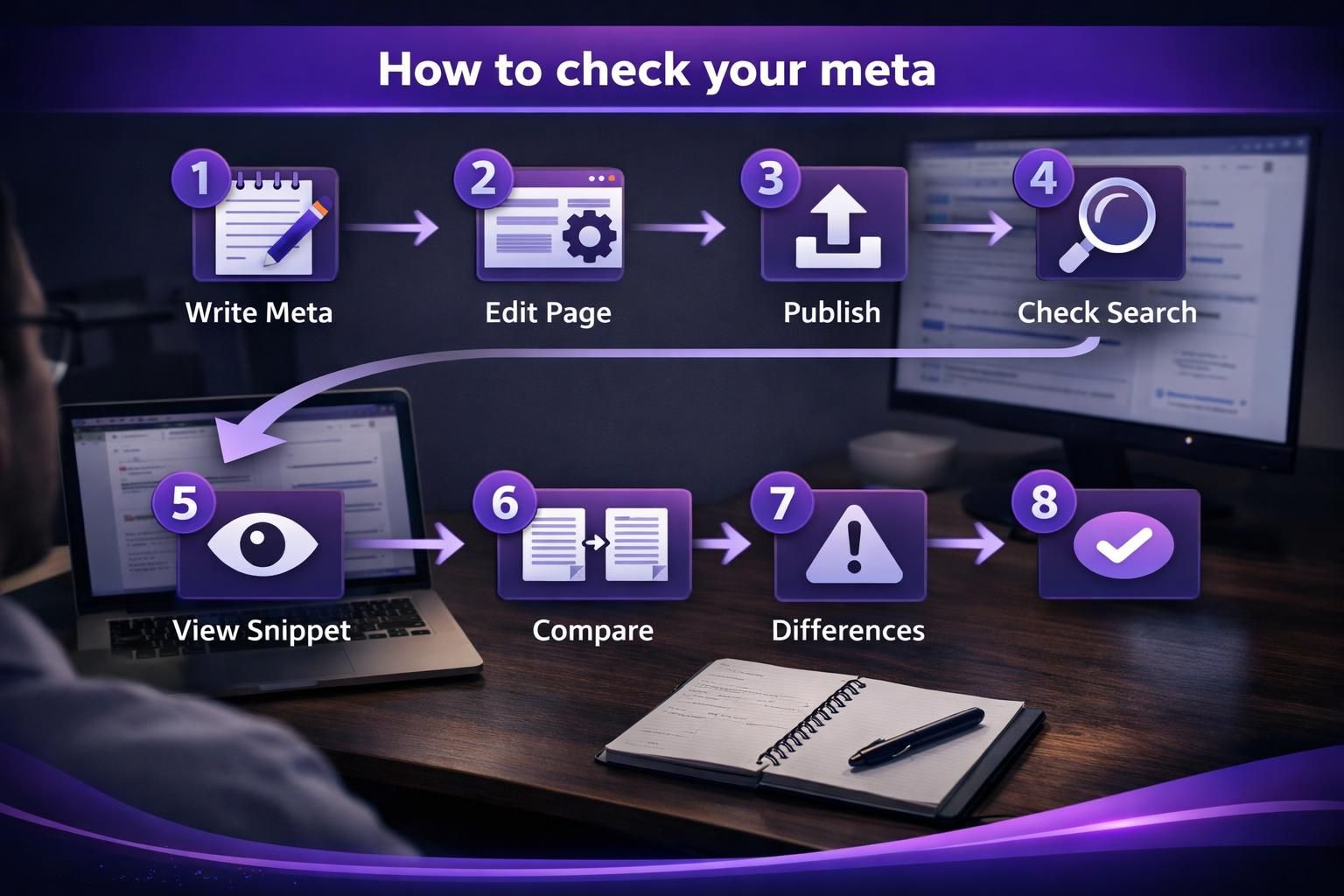
Open the URL in an incognito window, right-click, and select “View Page Source.” Search for name="description". You should find a single meta description tag that matches what you set in your SEO plugin.
If you edited the description but don’t see it in source, something is overriding it: another plugin, theme code, or caching.
Snippets can lag. Google must recrawl before changes appear. Use Search Console to request indexing, and track coverage after setup via Search Console connection steps.
Common Problems and Fixes (Duplicates, Missing Tags, Caching)
Most meta description problems come from duplicates, missing tags, or caching serving old HTML. Fix them by finding which system outputs metadata first.
Duplicates usually occur when two SEO plugins run together, or when the theme prints its own description tag. Disable the extra plugin, then recheck page source. If the theme is responsible, remove the output or disable it conditionally.
If Rank Math is active but you still see a Yoast meta box, fully deactivate the unused plugin and clear caches.
Missing descriptions are usually template-related. Either no description is set, or defaults aren’t configured. Add a global template in your SEO plugin and manually write descriptions for priority pages.
Caching can hide updates. Clear your WordPress cache plugin, any server cache, and your CDN cache. If you update a description and still see the old tag in source, it’s almost always cache.
For sitewide edits, test a few URLs first, then scale with bulk editing tools once output looks right.
Conclusion
The cleanest way to handle how to add meta description in WordPress is to use one SEO plugin and stick with it. Write manual descriptions for your most valuable posts, pages, and your homepage. Then set smart defaults for everything else. Verify the HTML meta tag in view source, not just the snippet preview. And give Google time to recrawl before judging SERP changes. If you hit duplicates or missing tags, simplify your stack first. One source of truth beats three competing ones every time.