




If you’re wondering how to duplicate a page in WordPress, you’ve got a few solid options. The right one depends on how often you’ll do it, and what kind of page you’re copying. A simple “About” page is easy. A builder layout with custom fields needs more care. In this guide, you’ll learn when duplicating is a smart move, three reliable methods, and the checks that prevent SEO and permalink problems. You’ll also see notes for Elementor and Divi, plus quick fixes for the most common post-duplicate issues.
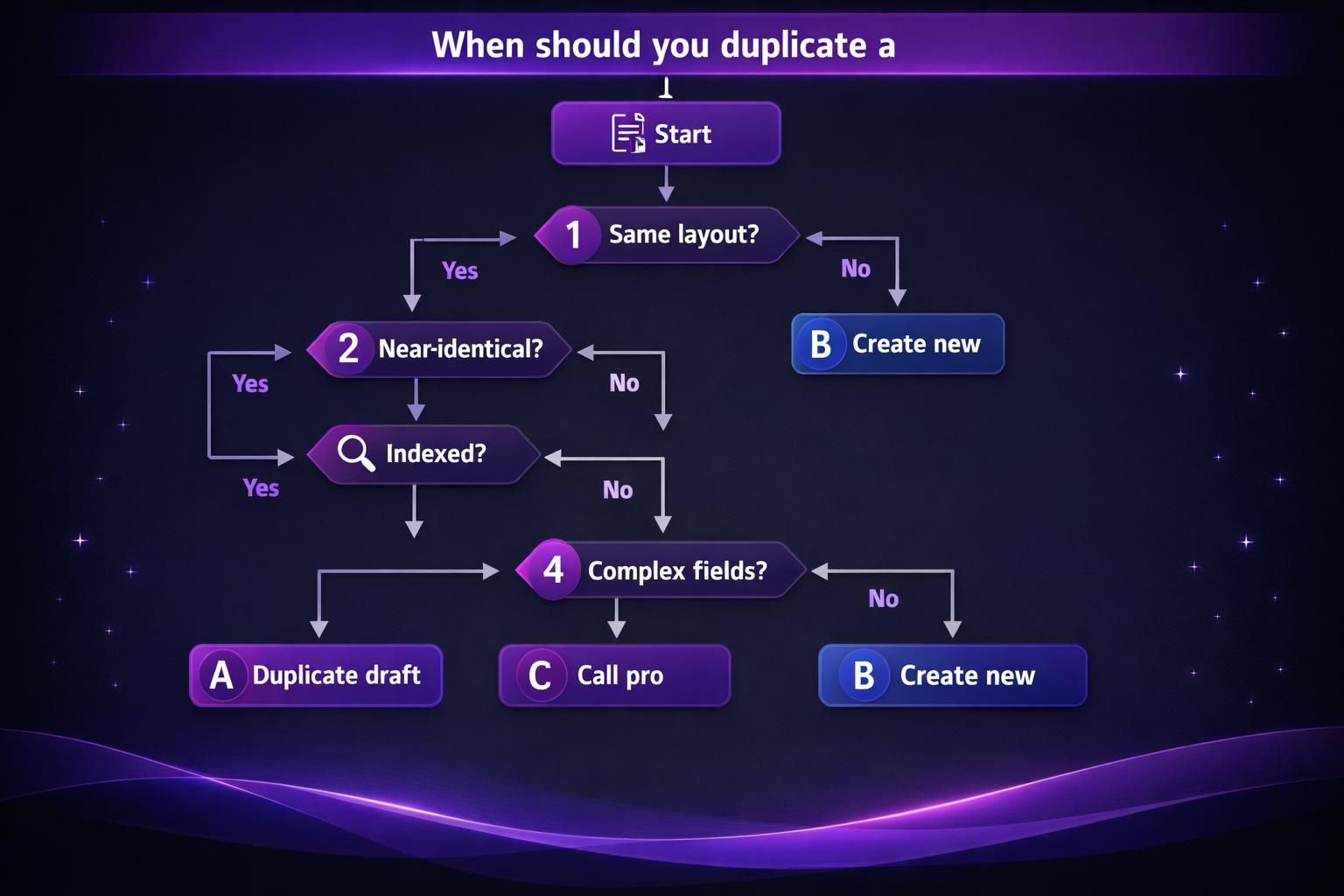
Best for: Reusing a proven layout for landing pages, service pages, or localized versions while keeping the original page intact.
Not ideal when: The page is already indexed and you’ll publish a near-identical copy on a competing URL.
Good first step if: You only need a one-off copy and can manually verify slug, template, and SEO fields.
Call a pro if: The page relies on complex custom fields, WooCommerce data, or theme-specific templates that don’t copy cleanly.
Quick Summary
- Plugins add Clone and New Draft actions right on the Pages screen and Posts screen.
- Manual duplication works fine for simple pages, but you must re-check settings.
- Builders like Elementor and Divi often clone best through their template libraries.
- Watch for slug collisions, accidental publishing, and canonical tags pointing to the wrong URL.
- Duplicating copies structure. You still need to rewrite page-specific copy and internal links.
When Should You Duplicate a WordPress Page (and When You Shouldn’t)
Duplicate a page when you need the same structure but different details, keeping blocks, spacing, and templates consistent across a series. For example, copy a “Service Area” page to create versions for nearby towns. Don’t duplicate if the published copy will remain nearly identical, since that risks duplicate content. Keep clones as drafts while rewriting, and note that some roles can’t duplicate without the right permissions.
Method 1 — Duplicate Using a Plugin (Fastest Option)
A duplication plugin is the quickest way to copy a page from the admin dashboard. It adds actions like Clone or New Draft in the Pages list, creating a duplicate ready to edit. Install and activate plugins on staging when possible, and restrict who can duplicate via settings to avoid unwanted copies. After duplicating, review SEO fields with a consistent workflow, like generating meta titles.
Recommended Plugins (Yoast Duplicate Post, Duplicate Page)
Yoast Duplicate Post is popular because it’s predictable and adds clear Clone and New Draft actions. Duplicate Page is another simple option for quick copies with fewer extras. Before choosing, check role controls so duplication is limited to the right users. If the duplicate option is missing, plugin settings or user capabilities are usually the cause.
What Gets Copied (Content, Featured Image, Templates, Custom Fields)
Most plugins copy page content, blocks, and the featured image. Many also copy template selection and some metadata. Custom fields may copy, but behavior depends on how fields are stored, especially with ACF or relationships. Verify taxonomies like categories and tags for posts. SEO plugin fields vary widely, so treat all “meta” fields as items to confirm on the clone.

Method 2 — Duplicate in the Editor (No Plugin)
This method copies the page content and pastes it into a new page. It’s slower, but avoids adding plugins and works well for one-off duplicates. The tradeoff is that settings outside the editor may not copy. Re-select the correct template, sidebar options, and page settings manually. On Full Site Editing themes, confirm the new page uses the same template parts and layout.
Block Editor (Gutenberg): “Copy All Blocks/content” Workflow
In Gutenberg, open the source page, use the options menu, and click “Copy all blocks.” Create a new page and paste to duplicate the layout. Then review block-specific settings like styles and links, which may embed old URLs. Also check reusable blocks, synced patterns, or template parts, since later updates can affect multiple pages unexpectedly.
What You Must Re-check (Slug, Template, SEO Metadata)
After duplicating, re-check the permalink/slug and the assigned template, because defaults can change on the new page. Then review SEO metadata: title, description, and social previews often carry over incorrectly. Keep your process consistent, like your SEO field workflow. Leave the page as draft until it’s rewritten and verified.
Method 3 — Duplicate With Custom Code (Advanced)
Custom code is useful when you need a controlled duplication process without third-party plugins. You can add a small custom plugin or snippet to duplicate pages, posts, or custom post types. It’s easy to miss edge cases: media, custom fields, and taxonomy terms may not copy as expected. You must maintain the code as WordPress evolves, so use this only if you can support it.
Safer Approach (Child Theme + Backups) and Who This is for
For custom duplication code, use a child theme plus backups, or ship it as a custom plugin. Avoid editing functions.php on a live site without rollback
Page Builder Notes (Elementor/Divi) and Best Way to Clone Layouts
Elementor and Divi clone best using their own libraries, not manual copy/paste, because layout data isn’t stored like normal blocks. In Elementor, save the page as a template and insert it into a new page. In Divi, use the Divi Library for sections or full layouts. After cloning, confirm the page template/theme template matches. To review links across clones, use internal link health scan.
Common Issues After Duplicating (Slug, Redirects, Canonical, Duplicate Content)
Post-duplication problems are usually URL conflicts and mixed SEO signals. WordPress may append “-2” to a slug, changing your intended permalink. Check the slug, parent page, and whether any redirects are needed. Confirm your SEO plugin didn’t set the canonical URL to the original page, and that internal links don’t still point to the old URL. Keep the clone draft/private or noindex until it’s meaningfully rewritten to avoid duplicate content.
FAQ (Draft vs Clone, Duplicating in Bulk, Duplicating Custom Post Types)
What’s the Difference Between Clone and New Draft?
Clone usually creates an immediate copy and may keep the same status rules set by the plugin. New Draft creates a copy as a draft by default. For example, if you don’t want editors publishing copies too soon, New Draft is the safer choice.
How Do I Duplicate Pages in Bulk?
Bulk duplication depends on the plugin. Many add Bulk actions on the Pages screen, letting you select multiple items and duplicate pages WordPress style. For example, you can clone ten location pages, then edit each draft. Afterward, review shared elements like menus and internal links.
Can I Duplicate a Custom Post Type or WooCommerce Product?
Yes, but results vary by how the post type stores data. For example, a WooCommerce product isn’t just a page. It includes product data, inventory fields, and taxonomies. Some plugins handle this well. Others only copy the content area and basic metadata, so you’ll need extra checks.
Conclusion
The safest way to handle how to duplicate a page in WordPress is to pick a method that matches your setup. Use a plugin for speed, the editor for one-offs, and custom code for controlled workflows. Then do your checks before publishing. Fix the slug, confirm the template, review canonicals, and rewrite content so you don’t ship duplicates by accident.