




If you’ve ever wondered why Googlebot isn’t crawling a section of your site, robots.txt is usually the first place to look. On WordPress, it’s also easy to get wrong. That’s because WordPress can serve a virtual file, plugins can override it, and a tiny typo can block the wrong URLs. This guide to robots.txt wordpress walks you through what it really controls, where to find it, and the safest ways to edit it. You’ll also get a practical template, plus fixes for the most common errors you’ll see in Search Console and SEO tools.
Best for: Site owners who want to guide crawling, reduce low-value crawling, and keep WordPress areas off-limits to bots.
Not ideal when: You’re trying to remove already-indexed pages, since robots.txt can’t reliably force deindexing.
Good first step if: You see crawl warnings and want to confirm what /robots.txt returns and what rules are active.
Call a pro if: Your robots.txt is returning 5xx, you’re blocked in Search Console, or you suspect server-level overrides.
Quick Summary
- robots.txt controls crawling, not guaranteed indexing, and that difference matters for fixes.
- WordPress may serve a virtual robots.txt even if no file exists in the root directory.
- The safest edits are minimal, targeted, and avoid blocking CSS files or JavaScript files.
- Use User-agent, Disallow, Allow, and Sitemap directives, and keep syntax simple.
- Always test rules in Google Search Console, then request recrawls after changes.
What Robots.txt Does (and Doesn’t) Do in WordPress
Robots.txt controls crawling, not indexing. It’s served from /robots.txt at your site root and uses directives like User-agent and Disallow to guide bots. In WordPress SEO, use it to keep crawlers out of low-value areas such as admin paths or internal search pages.
It won’t reliably remove URLs from search results if they’re linked elsewhere. It’s also public, so don’t use it to hide sensitive content. Keep rules narrow and intentional, and block only sections you’re sure you never want crawled.
Crawling vs Indexing (Robots.txt vs Noindex)
Robots.txt affects crawling, while the robots meta tag and noindex affect indexing. If Googlebot can’t crawl a page, it may still index the URL based on links. The listing can show without full content. That’s why robots.txt is a poor tool for cleanup.
For instance, if a tag page is already indexed, use noindex on that page type. Then allow crawling so Google can see the directive. If you block it in robots.txt, Google may never see the noindex.
Where WordPress Robots.txt Lives (Virtual vs Physical)
WordPress robots.txt is served from the site root, but it may be virtual. When you visit yourdomain.com/robots.txt, WordPress can output default rules even if no robots.txt file exists on the server. This “virtual” behavior often confuses troubleshooting.
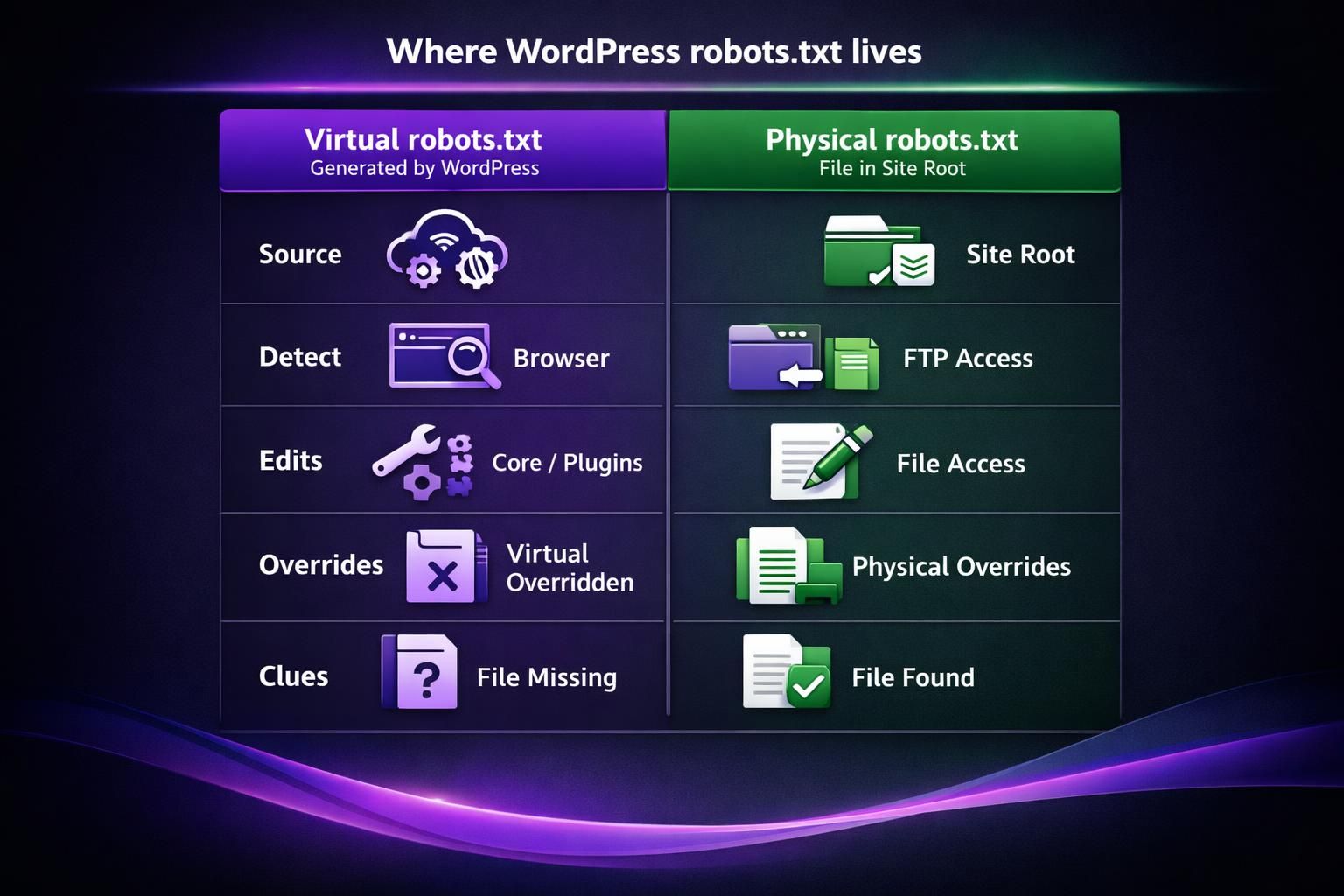
A physical robots.txt is a real file in the root directory, alongside wp-admin and wp-content. A virtual robots.txt is generated by WordPress core and sometimes modified by plugin filters, including “robots editor” features that change output without creating a file.
If you upload a physical robots.txt, it usually overrides the virtual output.
Default WordPress Robots.txt Rules Explained
The default virtual rules are minimal and mostly point crawlers away from wp-admin. You’ll often see Disallow for /wp-admin/ and an Allow for admin-ajax.php. That keeps front-end AJAX working for crawlers that render pages.
For example, if your theme loads content via admin-ajax.php, blocking it can break rendered pages. That can trigger blocked resources warnings in tools like PageSpeed Insights.
How to Edit Robots.txt in WordPress (3 Methods)
You can edit robots.txt in WordPress three main ways, and the right choice depends on access and whether you need a real file.
Options:
- SEO plugin editor for quick, simple changes.
- A dedicated robots plugin for a focused interface.
- Upload a physical robots.txt via FTP or a host file manager for full control.
Start by confirming whether /robots.txt is virtual or physical. For multi-environment setups, a physical file is easier to standardize and version. On managed hosting without file access, a plugin may be the only route.
Using Yoast/Rank Math/other SEO Plugins
Yoast SEO and similar tools can expose a robots editor, but availability varies by setup. In Yoast, it’s often under the Yoast File editor area, if enabled. All in One SEO also offers robots controls in many configurations. Some hosts disable file editing for security.
For example, you might open the plugin settings and find the editor missing. That’s often due to file permissions or a hardening rule. In that case, you can still use the plugin to output a virtual robots.txt, if it supports it.
Before relying on plugin output, check /robots.txt in an incognito window. That confirms what bots actually see.
Creating a Physical Robots.txt Via FTP/File Manager
Uploading a physical robots.txt via FTP or a server file manager gives the most predictable behavior. You create a plain text file named robots.txt and place it in the root directory. Then you confirm it serves with a 200 OK status.
For instance, if your site is at https://example.com, the file goes at example.com/robots.txt. Not inside wp-content. Not inside your theme folder. If you upload it to the wrong place, WordPress will keep serving the virtual version.
After upload, recheck in the browser. Then retest in Search Console. Caches can delay what you see, so hard refresh and test again.
Recommended Robots.txt Template for Most WordPress Sites
A good WordPress robots.txt is short and avoids blocking assets needed for rendering. Most sites only need to keep bots out of wp-admin and reduce crawl noise from internal search URLs. Add a Sitemap line to aid discovery.
Baseline template:
- User-agent: *
- Disallow: /wp-admin/
- Allow: /wp-admin/admin-ajax.php
- Disallow: /?s=
- Disallow: /search/
Don’t block /wp-content/ or /wp-includes/ by default, or you may block CSS/JS. Pair this with internal link health scan to avoid masking linking problems.
Adding Your XML Sitemap Line Correctly
Add your XML sitemap using a Sitemap directive on its own line, with an absolute URL. Place it at the end for readability.
Example: Sitemap: https://example.com/sitemap_index.xml
Verify the URL resolves and returns a valid sitemap, and don’t block it with robots rules. If an SEO plugin generates the sitemap, confirm the exact sitemap URL in its settings. For guided configuration, use sitemap setup tutorial.
Common Robots.txt WordPress Problems (and Fixes)
Common WordPress robots.txt issues come from bad responses, caching, or overly broad Disallow patterns. First, fetch /robots.txt and confirm the HTTP status and body. Then confirm how Google interprets it.
Rules are case sensitive and use prefix matching. Wildcards (*) and end-of-line ($) can help, but they’re easy to overuse. Example: Disallow: /tag blocks /tagged too; use /tag/ if that’s the intent. Don’t pile on more rules when the real issue is serving or caching.
404/blank/403/503 Robots.txt URL
Robots.txt should return 200 OK. A 404 means “no restrictions” to crawlers. A 5xx (including 503) can cause bots to back off crawling. A 403 may block access entirely, including Googlebot. Blank responses often come from caching, security, or WAF rules.
Check server logs, disable the blocking rule, and verify /robots.txt loads without redirects. Avoid redirecting /robots.txt to another URL; some bots follow redirects, but it’s unreliable and harder to debug.
Accidentally Blocking Googlebot (Disallow: /)
Disallow: / under User-agent: * blocks all crawling and can crash organic visibility. Remove it immediately, then confirm the updated robots.txt is actually live and not cached. Also check for a separate Googlebot block.
A staging rule often leaks into production:
- User-agent: *
- Disallow: /
After reverting, use the robots.txt tester in Search Console and test key URLs. For temporary suppression, use authentication or proper maintenance responses, not robots.txt, because it provides no secrecy.
Best Practices and Safety Checklist Before Publishing Changes
Robots.txt WordPress changes should be small, tested, and reversible. Treat edits like a deployment: one character can block critical URLs, and plugin updates can alter virtual output.
Before publishing:
- Confirm whether you’re editing virtual or physical robots.txt.
- Keep rules minimal and explainable.
- Avoid blocking wp-content or wp-includes without a clear reason.
- Check path matching, casing, and trailing slashes.
- Use * and $ only after testing exact matches.
- Ensure Sitemap points to a real XML URL.
- Save the previous version for rollback.
For larger cleanup, use bulk tools workflow instead of “fixing” everything with robots rules.
Test With Google Tools and Recrawl Expectations
Google Search Console’s robots.txt tester shows how Google interprets your syntax. Use it to test a few important URLs and assets. Then use URL Inspection for affected pages.
For instance, if you unblocked a CSS file, you won’t always see instant changes. Google needs to recrawl robots.txt and then recrawl pages. That timing varies. But you can speed things up by requesting indexing on key pages and ensuring the file returns 200 OK.
Also watch for mixed signals. If a page is allowed in robots.txt but set to noindex, that’s fine. If it’s blocked, Google can’t confirm the noindex.
Conclusion
Robots.txt WordPress setups work best when you use them for crawl control, not as an indexing off switch. Start by checking where is robots.txt in wordpress for your site by visiting /robots.txt. Then confirm whether it’s virtual or a physical file. Make small edits, test in Search Console, and avoid blocking resources needed for rendering. If something goes sideways, roll back fast, verify a 200 OK response, and let Googlebot recrawl. That’s the cleanest way to keep robots.txt wordpress rules helpful instead of risky.