



WordPress image SEO is the practice of preparing, describing, and delivering images so search engines and users can understand them quickly and clearly. Done well, it can help your pages load faster, improve accessibility, and increase your chances of appearing in image search results like Google Images. This guide walks through a practical, WordPress-specific workflow: what to do before upload (naming, sizing, formats), what to set inside the Media Library (alt text, titles, captions, descriptions), and which technical settings make images easier to crawl and render. You will also learn common mistakes that quietly block results and which tools can speed up your process without sacrificing accuracy.
Best for: Site owners who want better image search visibility and faster pages by optimizing every image at upload and in WordPress.
Not ideal when: Your images are decorative only, or you cannot control uploads and metadata across your site consistently.
Good first step if: You can standardize file naming, resize images before upload, and fill alt text for key content images.
Call a pro if: You have indexing issues, complex performance problems, or need help auditing themes, plugins, and media settings.
Quick Summary
- Image SEO combines relevance, descriptive metadata, and fast delivery so both people and crawlers understand what an image shows.
- Prepare images before upload by using clear file names, correct dimensions, and modern formats where possible.
- In the WordPress Media Library, alt text is the most important field for accessibility and context; other fields have narrower uses.
- Technical items like responsive images (srcset), lazy loading, and image sitemaps influence discoverability and speed.
- Avoid common traps like uploading huge originals, leaving generic filenames, and letting thin attachment pages get indexed.
What WordPress Image SEO Includes (and Why it Matters)
WordPress image SEO covers selecting relevant images, optimizing delivery, and adding metadata that explains each file. The aim is to help search engines connect images to page topics while keeping load times low.
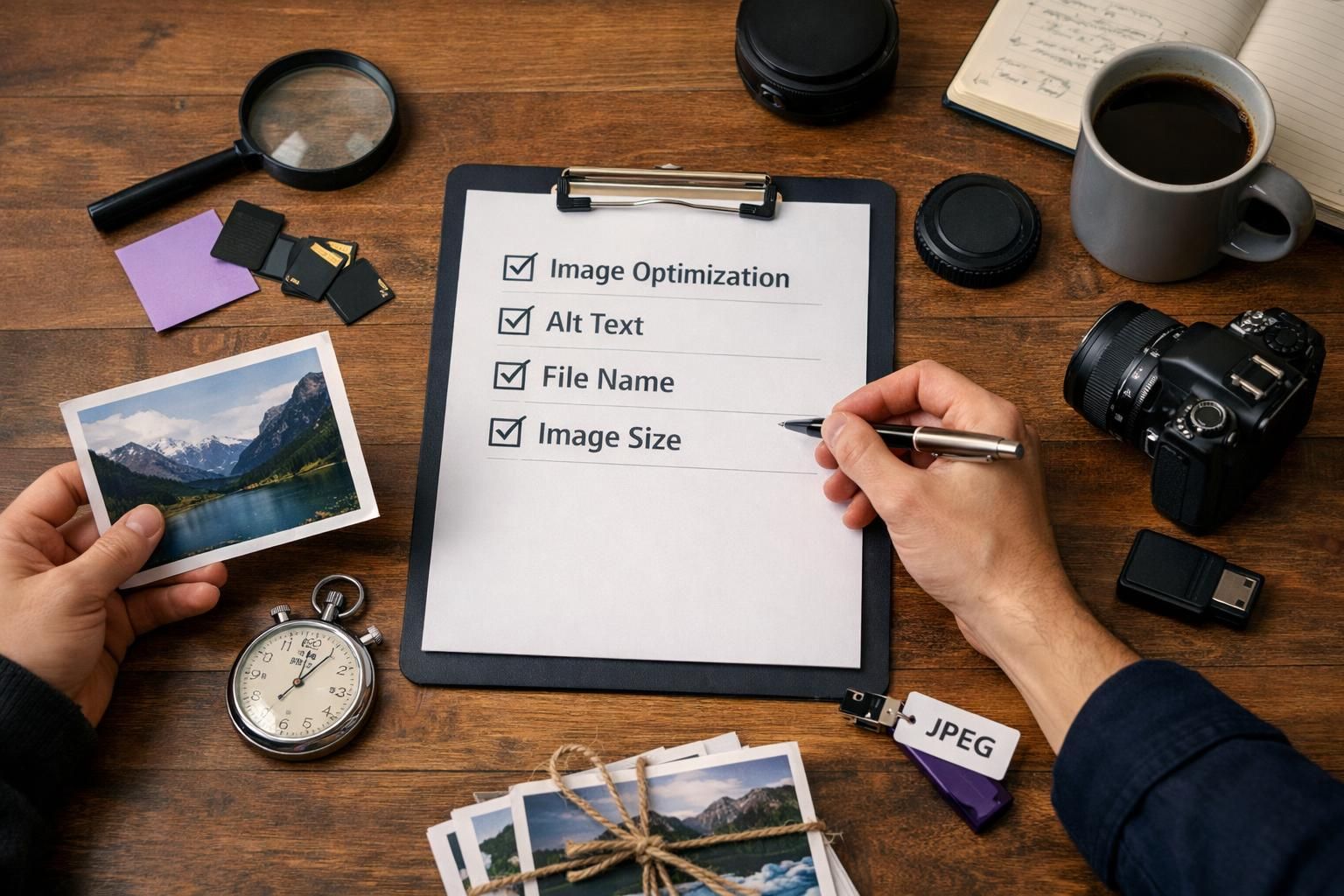
In practice: choose images that match intent, use descriptive filenames, compress and resize, then fill key Media Library fields. When these pieces align, images can appear more often in image search and reinforce the page’s topical clarity.
It also prevents friction: oversized files slow pages, missing alt text hurts accessibility, and messy naming makes libraries harder to manage. Keep standards in a checklist in your site publishing process so publishing stays consistent.
Before You Upload: File Names, Dimensions, and Formats
Image SEO combines relevance, descriptive metadata, and fast delivery so both people and crawlers understand what an image shows. Prepare images before upload by using clear file names, including following SEO friendly image file name practices, correct dimensions, and modern formats where possible. In the WordPress Media Library, alt text is the most important field for accessibility and context; other fields have narrower uses. Technical items like responsive images (srcset), lazy loading, and image sitemaps influence discoverability and speed. Avoid common traps like uploading huge originals, leaving generic filenames, and letting thin attachment pages get indexed.
The biggest wins happen before upload. WordPress can create sizes and srcset, but it cannot fix vague filenames or needlessly huge originals.
Pick images that genuinely support the content. Name files with plain, specific words, use hyphens, and avoid clutter. “stainless-steel-french-press.jpg” beats “IMG_4829.jpg” for meaning and organization.
Export dimensions close to the maximum display size for each placement (hero, in-content, thumbnail). Uploading massive files and letting the browser scale them wastes bandwidth and can hurt Core Web Vitals.
Choose formats intentionally so quality and speed stay predictable.
Choose the Best Format (JPEG/PNG/WebP/SVG)
The best image format depends on the content of the image, but WebP and well-optimized JPEG and PNG cover most WordPress needs. Use JPEG for photographs and complex gradients where small file size matters. Use PNG for graphics that need crisp edges or transparency. Use WebP when your workflow supports it, because it often balances quality and size well. Use SVG for simple logos and icons, but only if you trust the source and understand security and styling implications.
Whatever you choose, stay consistent: mixed formats are fine, but each image should be exported intentionally, not randomly.
In practice: choose images that match intent, use descriptive filenames, compress and resize, then fill key Media Library fields. When these pieces align, images can appear more often in image search and reinforce the page’s topical clarity by following accessibility image alt text guidelines.
Resize and Compress to Hit Speed Targets
Resizing and image compression should happen before upload so you control quality, not just file size. Resize to the maximum rendered width on your theme, then compress to remove unnecessary data while keeping the image visually clean. Also consider stripping metadata you do not need, especially for web publishing.
A simple workflow is: export at the correct pixel dimensions, compress, then spot-check on desktop and mobile. If text in screenshots becomes unreadable or product details look smeared, back off compression slightly or increase dimensions for that specific use case.
In WordPress: Optimize Media Library Fields (Alt, Title, Caption, Description)
Media Library fields turn what an image shows into text users and search engines can understand. Alt text matters most because it supports accessibility and acts as a fallback description.
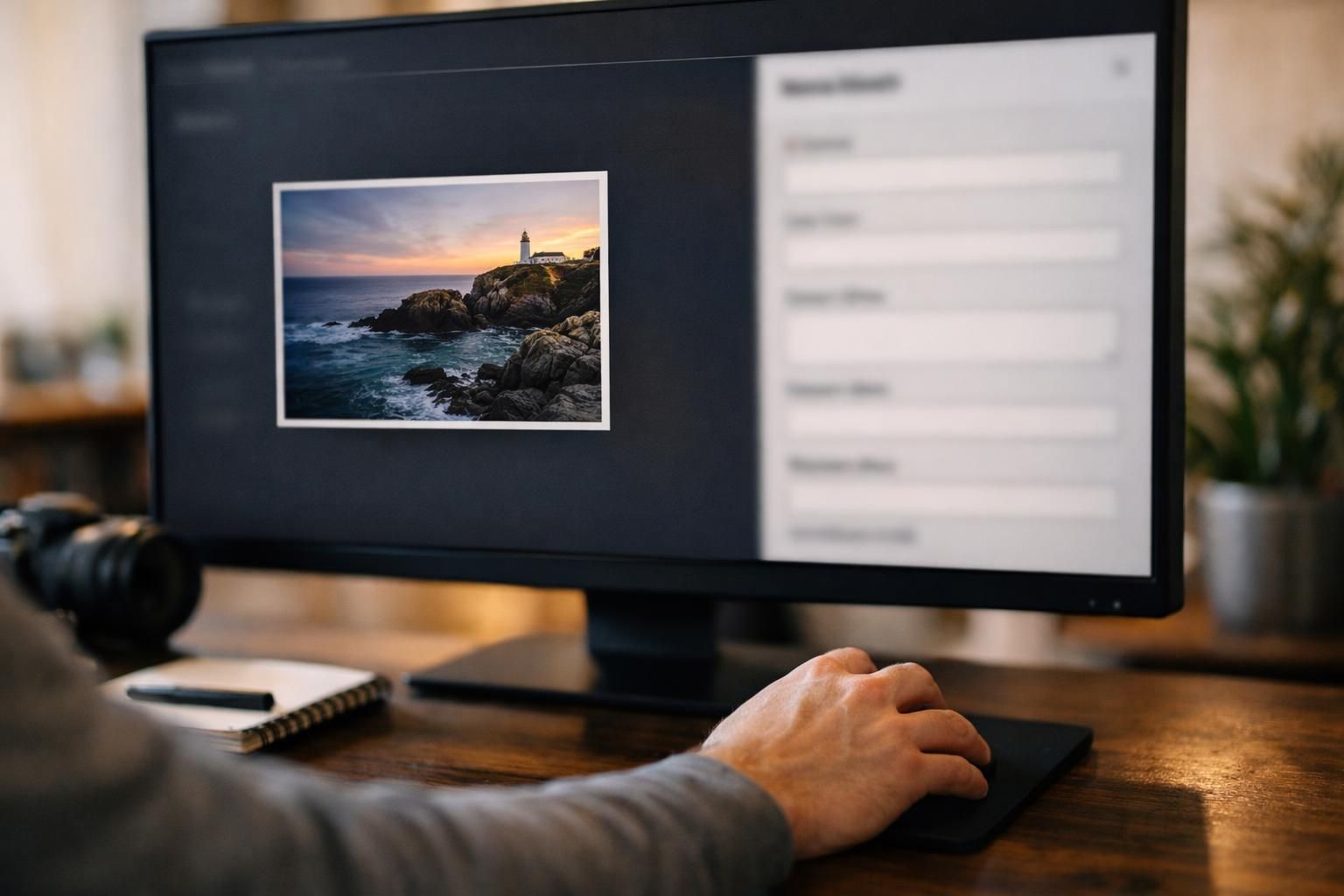
Do not confuse the attachment title with the HTML title attribute; in many themes it’s mainly organizational and not a dependable SEO lever. Use captions and descriptions when they add real context, explain a chart, or provide attribution.
Also review what happens on image click. If WordPress creates thin media attachment pages that get indexed, they can dilute quality signals, so adjust attachment behavior or SEO settings. Document standards in your writing and upload guidelines so contributors fill fields consistently.
How to Write Alt Text That Helps SEO and Accessibility
Alt text
When to Use Captions and Surrounding Text
Use captions when an image needs interpretation, attribution, or a takeaway for skimmers. If the image is central to the point, a caption can connect it directly to the topic. WordPress blocks often output figure and figcaption, which adds clear structure.
Surrounding text frames meaning. Nearby headings and paragraphs help search engines infer what the image represents, especially in step-by-step sections.
Do not stuff captions with keywords. Write for clarity and relevance, and let that do the SEO work.
Technical Setup That Helps Google Find and Understand Images
Technical setup helps Google crawl, render, and associate images with the right pages. In WordPress, this depends on theme output, performance settings, and SEO plugin behavior.
Technical setup helps Google crawl, render, and associate images with the right pages. In WordPress, this depends on theme output, performance settings, and SEO plugin behavior for effective Google Image SEO best practices.
Keep images indexable: do not block image folders in robots rules, and avoid systems that hide image URLs behind scripts. Ensure crawl-friendly loading: srcset must be correct, and lazy loading should not prevent images from appearing.
Watch for thin media attachment pages. If they exist and add little value, noindex them via your plugin or change WordPress so image links go to the file or parent post.
Image Sitemaps and SEO Plugins
Image sitemaps help search engines discover images and connect them to pages. Many SEO plugins generate them automatically, but you should confirm the sitemap is enabled, includes the right content types, and covers image-heavy pages.
Keep configuration simple: one canonical sitemap source, consistent indexing rules, and a clear approach to attachment pages. After changes, wait for re-crawling and validate coverage in Search Console.
For related maintenance checklists, see the technical SEO learning hub and reuse the templates.
Responsive Images, Lazy Loading, and Core Web Vitals
WordPress creates responsive images with srcset and sizes so browsers choose the best file per screen. This improves mobile speed, but themes can break it by hardcoding sizes or serving full originals.
Lazy loading can help, but it must not delay key visuals or hide images from users. Exclude above-the-fold hero images if lazy loading causes late rendering or layout shift.
Set width and height to reduce CLS, keep aspect ratios consistent, and test templates on multiple devices and connection speeds.
Featured Images, Social Sharing, and Open Graph/Twitter Cards
Featured images influence SEO indirectly by shaping clicks and trust in previews. In WordPress, the featured image often becomes the default Open Graph and Twitter card image, depending on your theme and SEO plugin.
Media Library fields turn what an image shows into text users and search engines can understand. Alt text matters most because it supports accessibility and acts as a fallback description for how to write alt text.
Choose a visual that matches the page topic and is not misleading. Keep a consistent style for series content, and still use accurate filenames and alt text that describe the image, not just the post title.
Verify which image your site pulls for shares. If previews show the wrong image, set a dedicated social image in your SEO plugin instead of relying on defaults. Keep navigation clear to your main article index for discovery.
Common WordPress Image SEO Mistakes (and Quick Fixes)
Common WordPress image SEO mistakes include missing alt text, oversized uploads, and generic filenames. Fix them by standardizing a workflow and starting with your highest-traffic or highest-intent pages.
Common WordPress image SEO mistakes include missing alt text, oversized uploads, and generic filenames. Fix them by standardizing a workflow and starting with your highest-traffic or highest-intent pages, especially when you need to perform a mass fix missing alt text WordPress update.
Quick remedies:
- “image1.jpg” defaults: rename before upload, or map titles to filenames carefully.
- Missing alt text on meaningful images: add accurate descriptions for products, charts, and key visuals.
- Blurry over-compression: re-export at higher quality, especially for screenshots.
- Huge originals in small slots: resize exports to your theme’s max widths.
- Irrelevant stock: replace with images that match intent.
- Thin attachment pages: noindex them or change attachment link behavior.
Do not rely on the title attribute for SEO; prioritize alt text, context, and performance.
Tools and Plugins to Speed up Image SEO Workflows
Good tools cut repetitive tasks without hiding what they change, especially on large sites. A practical stack is one bulk optimizer for compression, a resizing workflow, and optional automation for metadata suggestions. When choosing an seo friendly images wordpress plugin, prioritize control: review edits, undo them, and exclude images that should not be altered.
Keep installation simple. Use one optimization plugin at a time, avoid overlapping features, and test on staging when possible. Premium add-ons like WebP delivery and bulk edits can help, but consistent habits still deliver strong results.
AI can draft alt text, but it must be reviewed, especially for products and regulated topics.
Measure impact via speed, indexing, and image-search impressions.
Conclusion
A reliable WordPress image SEO process is less about hacks and more about consistency: