




A WordPress slug is the readable part of a URL that identifies a page, post, category, or tag. If you’ve ever asked what is a slug in wordpress, you’ve probably seen it in your browser bar. It usually comes right after your domain and helps both people and search engines understand the page topic. And because WordPress creates slugs automatically, it’s easy to forget about them. But small slug choices can shape click behavior, indexing signals, and how clean your internal linking stays over time. In this post, you’ll learn how WordPress slugs are made, how to edit them safely, and how to keep them SEO-friendly.
Best for: Site owners who want cleaner URLs that match search intent and are easy to share, scan, and maintain.
Not ideal when: You’re changing old slugs without a redirect plan, or you can’t update internal links and tracking.
Good first step if: You’re publishing new content and want consistent URL rules before you build more pages.
Call a pro if: You have many legacy posts, complex redirects, or traffic drops after URL changes.
Quick Summary
- A slug is the URL segment that labels a page, post, or archive in WordPress.
- WordPress auto-generates slugs from titles, but you can and often should edit them.
- Strong slugs are short, specific, and aligned with the page’s main topic.
- Slug choices affect readability, relevance signals, and internal linking clarity.
- Changing a slug can break links unless you handle redirects and updates.
What is a URL Slug
A URL slug is the human-readable part of a URL that identifies a page, usually the last segment, like /services/roof-repair or /blog/wordpress-slug-guide.
In WordPress, slugs exist for posts, pages, categories, tags, authors, and custom post types, so they can affect archives and navigation pages, not just single articles.
Example: a post titled “Beginner’s Guide to Espresso at Home” might get the slug beginners-guide-to-espresso-at-home, which becomes the URL path unless your permalink settings add folders like /blog/.
In practice, the slug is often the first context a user sees in a link preview and a stable identifier that other sites, analytics, and bookmarks may reference for years. Clean slugs build trust when shared, while messy slugs with dates or filler words can look less relevant and are harder to remember later.
How WordPress Generates Slugs Automatically
WordPress generates slugs by converting your title into a lowercase, hyphen-separated string. It removes most punctuation, strips special characters, and keeps URL-safe text.
If two posts would share the same slug, WordPress appends a suffix like -2 to make it unique. This often happens after imports or reused headlines. Example: “SEO Checklist” becomes /seo-checklist, and a later post with the same title may become /seo-checklist-2.
WordPress also generates slugs for taxonomy terms like categories and tags, such as /category/email-marketing. Renaming a term’s display name doesn’t always change its slug unless you edit the slug field.
Your permalink settings determine the full URL structure around the slug, such as /%postname%/ or paths that include dates or categories. During audits, slugs are a fast way to spot inconsistency across years of publishing. For a broader review, use technical SEO audit checklist.
Why Your Slug Matters for SEO
Your slug matters for SEO because it clarifies relevance, supports crawling, and improves link clarity. It won’t rescue weak content, but it can reinforce what the page is about.
Search engines read URLs as part of the context. A short, descriptive slug strengthens topical signals, while a vague slug forces reliance on other elements like headings and anchors. Example: /blog/wordpress-tips signals meaning; /blog/post-17 does not, and users may hesitate to click it.
Slugs also affect internal linking. Clean, consistent patterns reduce copy-paste mistakes and make outdated URLs easier to spot during maintenance. If you’re improving that system, WordPress internal linking basics fits naturally.
Think of wordpress slug seo as small advantages:
- Cleaner URLs can improve perceived relevance in SERP snippets.
- Shorter URLs are easier to share and remember.
- Consistent slugs reduce duplicate-like URL variations.
- Raw-URL links look better when others paste them.
If a podcast host posts your URL unanchored, the slug is what people see.
How to Edit a Slug in WordPress
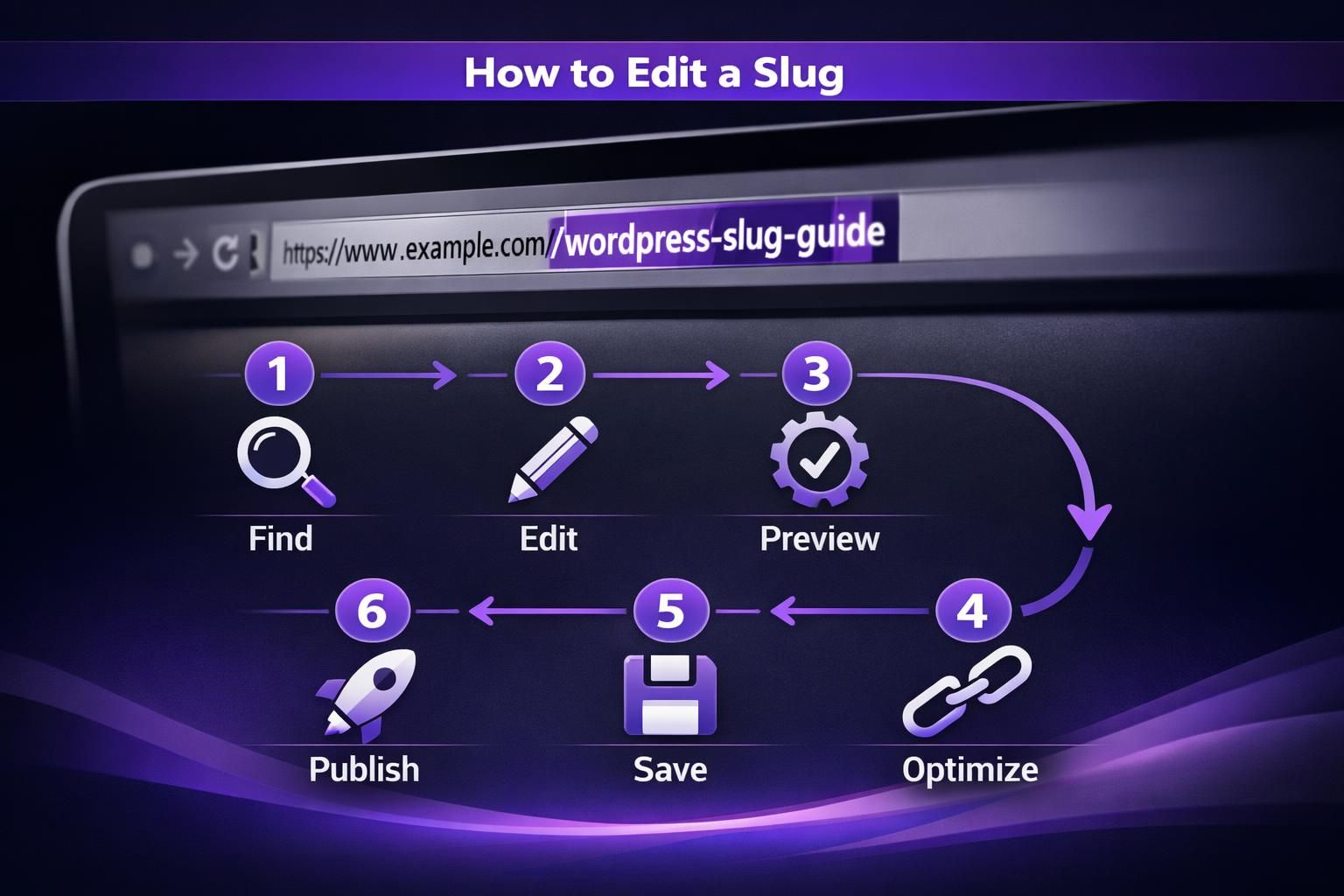
You can edit a WordPress slug from the editor screen or via Quick Edit in the post list. The safest time is before publishing, before indexing, and before links exist.
In the Block Editor, open post or page settings and find the URL or Permalink section, then edit the slug field. In the Classic Editor, click “Edit” next to the permalink preview.
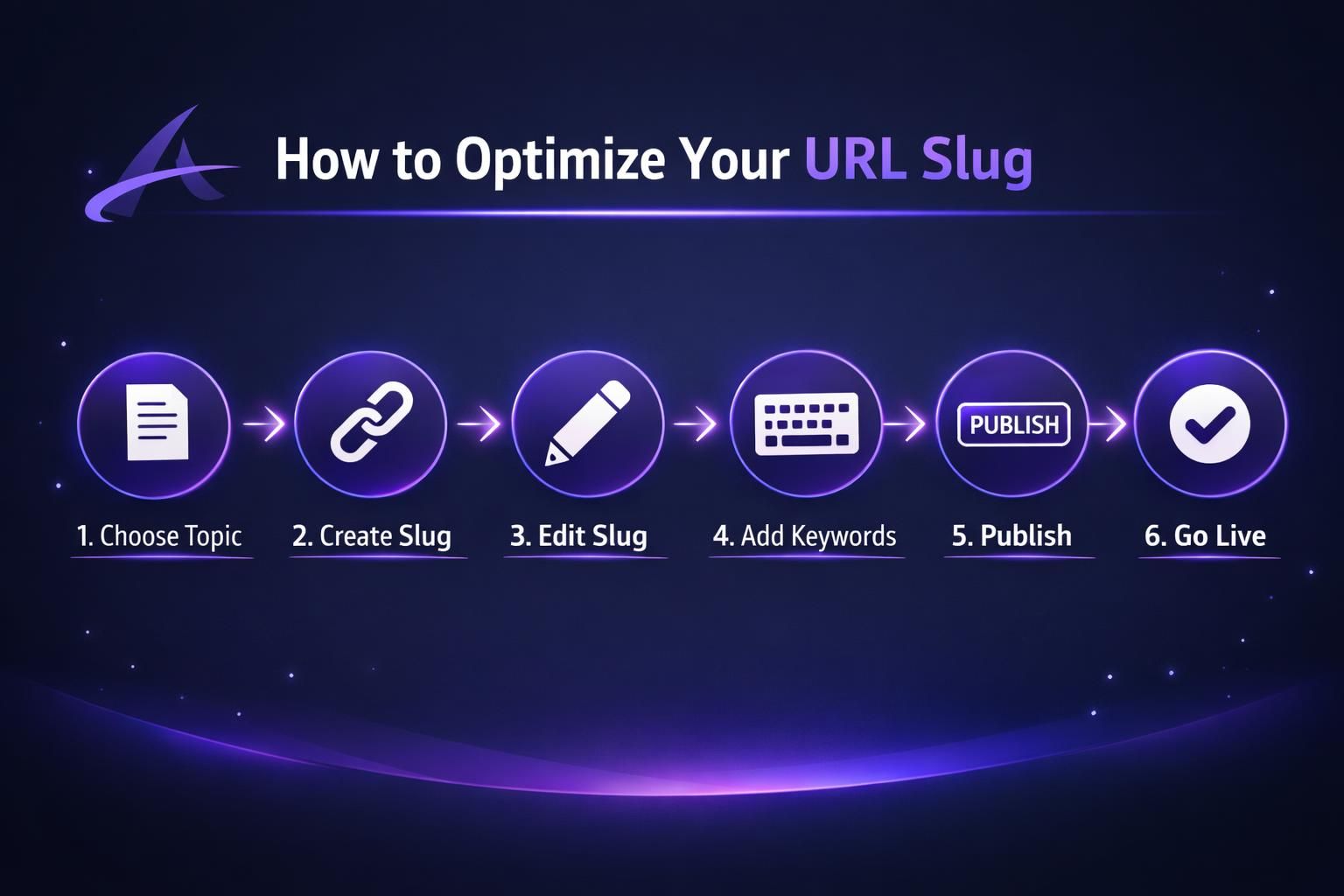
Example: your draft title is “How to Optimize WordPress Slug for Local Service Pages.” WordPress generates a long slug, and you shorten it to /optimize-wordpress-slug before publishing.
You can also edit slugs for categories and tags under Posts, then Categories or Tags. For custom post types, slug editing depends on the plugin or theme.
If the post is already live, treat a slug edit like a small URL migration. Changing it can break navigation menus, internal links, and external backlinks unless you redirect and update links. If you need to test layouts by copying content first, duplicate a page safely can help.
Slug Best Practices: Short, Descriptive, Keyword-Rich
The best WordPress slugs are short, descriptive, and aligned with the page’s main query. Aim for clarity, not cramming keyword variations into the URL.
Remove filler that doesn’t change meaning, such as “the,” “and,” or “of.” Keep words that signal topic or format, like “checklist,” “pricing,” or “template.” Example: “The Best Ways to Do Technical SEO Audits for SaaS” can become /technical-seo-audit-saas.
Use this filter:
- Can a human predict the topic from the slug alone?
- Does it match the page’s primary intent?
- Is it easy to read, say, and type?
- Is it consistent with similar pages on your site?
Keywords are fine when natural, but avoid forced exact-match phrasing. The slug supports the page; it doesn’t replace titles, headings, and copy. Example: /wordpress-canonical-url is clear and pairs well with canonical URL in WordPress.
Keep formatting consistent: lowercase, hyphens, no underscores, no random capitalization, and no tracking parameters in internal links. Link internally to the clean canonical URL, not /guide?utm_source=newsletter.
Common Slug Mistakes That Hurt Rankings
Slug mistakes usually hurt rankings by creating confusion, duplication, or broken paths.
A frequent issue is keeping auto-generated junk after a title change. The page topic evolves, but the slug stays stuck, which can feel misleading in search results and link previews. Example: the slug is /email-subject-lines, but the content is now about preview text.
Another problem is keyword stuffing. Overlong slugs look spammy, can be truncated, and add no value. Example: /wordpress-slug-seo-optimize-wordpress-slug-best-wordpress-slug.
Other mistakes to catch in audits:
- Using dates in slugs for evergreen content.
- Leaving “uncategorized” or irrelevant folders in URLs.
- Creating near-duplicate slugs across similar pages.
- Mixing formats like /SEO-Tips and /seo-tips.
- Breaking trailing-slash consistency after plugin or server changes.
If one variant redirects and another doesn’t, signals can split. For thin archives, noindex in WordPress can reduce low-value competition.
Finally, fix broken internal links after slug changes. You can surface them with find broken links during routine checks.
What Happens When You Change a Slug
Changing a slug changes the URL, which can create 404 errors and lose link equity if you don’t add redirects. It may also temporarily confuse search engines as they re-crawl, replace the indexed URL, and reassign signals.
If the page has any history, assume something links to it: internal links, backlinks, social shares, ads, bookmarks, or PDFs. Plan the change before you hit update.
Example: you change /pricing to /plans. Old blog posts, sales emails, and partner pages still point to /pricing. Without a redirect, those clicks fail.
After a slug change, do these essentials:
- Add a 301 redirect from the old URL to the new URL.
- Update internal links, menus, and footer links that still point to the old URL.
- Ensure your sitemap includes the new URL.
- Watch Search Console for crawl errors.
If you manage XML sitemaps, make sure the new URL appears quickly. If you’re unsure how yours is generated, create a sitemap in WordPress covers the basics.
Also check canonical tags. A wrong canonical can keep the old URL indexed or point to the wrong page. Change slugs when the old one is misleading, too long, or tied to a temporary campaign.
Conclusion
A WordPress slug is a small URL detail that can cause big maintenance headaches later. Keep slugs short, clear, and stable. Edit them early, before pages get shared and linked. If you must change an old slug, treat it like a migration. Add redirects, update internal links, and monitor crawl errors. And if you still find yourself asking what is a slug in wordpress, remember this. It’s simply the URL label your site will live with for a long time.