




Open Graph tags control how your pages look when they’re shared on social platforms. And yes, they matter even if your SEO is already solid. In this guide, you’ll learn how to add open graph meta tags wordpress the right way. You’ll see what the tags do, which ones are worth your time, and how to add them with or without a plugin. We’ll also cover testing, common gotchas, and a simple checklist you can use on every important page. So if your links are showing the wrong image, title, or description, you’re in the right place.
Best for: Site owners who want consistent share previews and fewer “wrong image” issues across Facebook, LinkedIn, and messaging apps.
Not ideal when: You can’t edit theme files safely or your site uses heavy page caching you don’t control.
Good first step if: You can confirm which plugin or theme is currently outputting your social meta tags.
Call a pro if: Your theme hardcodes conflicting tags or you’re seeing duplicate Open Graph outputs you can’t trace.
Quick Summary
- Open Graph tags set the title, description, image, and URL used in social previews.
- You usually need og:title, og:description, og:image, and og:url for each page.
- WordPress can output Open Graph via plugins, custom code, or theme features.
- Testing with social debuggers catches cached previews and missing image requirements.
- Duplicate tags are the most common reason previews look “random” across platforms.
What Are Open Graph Meta Tags
Open Graph meta tags are HTML meta tags that tell social platforms what to show in a link preview. They live in the page’s head and act as sharing instructions for Facebook, LinkedIn, Slack, and many chat apps.

WordPress usually doesn’t add Open Graph by default. Some themes include it, and most SEO plugins do, so the job is often ensuring one system outputs a single, consistent set of tags.
Without Open Graph, platforms may pull a random heading and a small logo. With proper tags, they pull your chosen title, summary, and featured image.
Open Graph differs from standard SEO meta. Google relies more on the title tag and meta description, while social platforms primarily use Open Graph. That’s why a page can look fine in search but messy when shared.
These tags are simple key-value pairs, like meta property="og:title" content="Your Title". Each platform decides how to render them.
Why Open Graph Tags Matter for SEO and Sharing
Open Graph tags don’t directly improve rankings, but they strongly influence clicks and trust when your pages are shared. Better previews can increase engagement, which can lead to more mentions and links over time.
The main benefit is control. You choose the preview title, description, and image instead of letting platforms guess from headings or random images. This is especially important for category, product, and landing pages where theme defaults are often generic.
Open Graph also stabilizes URLs. Setting og:url to the canonical page version helps prevent previews (and share metrics) from splitting across parameter or tracking URLs.
Treat share previews like a second SERP. Pair them with strong meta descriptions for consistent messaging: meta description setup steps.
Which Open Graph Tags Do You Actually Need
Most sites only need a small set of Open Graph tags for consistent link previews. Prioritize what controls the preview, then add optional tags only when they solve a real problem.
Core tags:
- og:title: The preview headline.
- og:description: The preview summary.
- og:image: The main image URL.
- og:url: The preferred canonical URL.
- og:type: Usually "article" for posts or "website" for general pages.
Set og:type intentionally. For example, a homepage is typically website, while a blog post is article, which can affect how platforms interpret the page.
Helpful optional tags:
- og:site_name: Brand name in some previews.
- og:locale: Language/region like en_US.
- og:image:alt: Alt text for accessibility.
- og:image:width and og:image:height: Can speed validation for some scrapers.
Avoid duplication. If a theme and a plugin both output og:title or og:image, platforms may pick the wrong one. If you rely on Twitter, also add Twitter Card tags; they overlap with Open Graph but aren’t identical.
How to Add Open Graph Tags in WordPress Without a Plugin
You can add Open Graph tags without a plugin by outputting meta tags in your theme’s head section. Use a child theme so updates don’t overwrite changes. This approach fits lean sites and custom builds, but you must handle dynamic values for posts, pages, and archives.
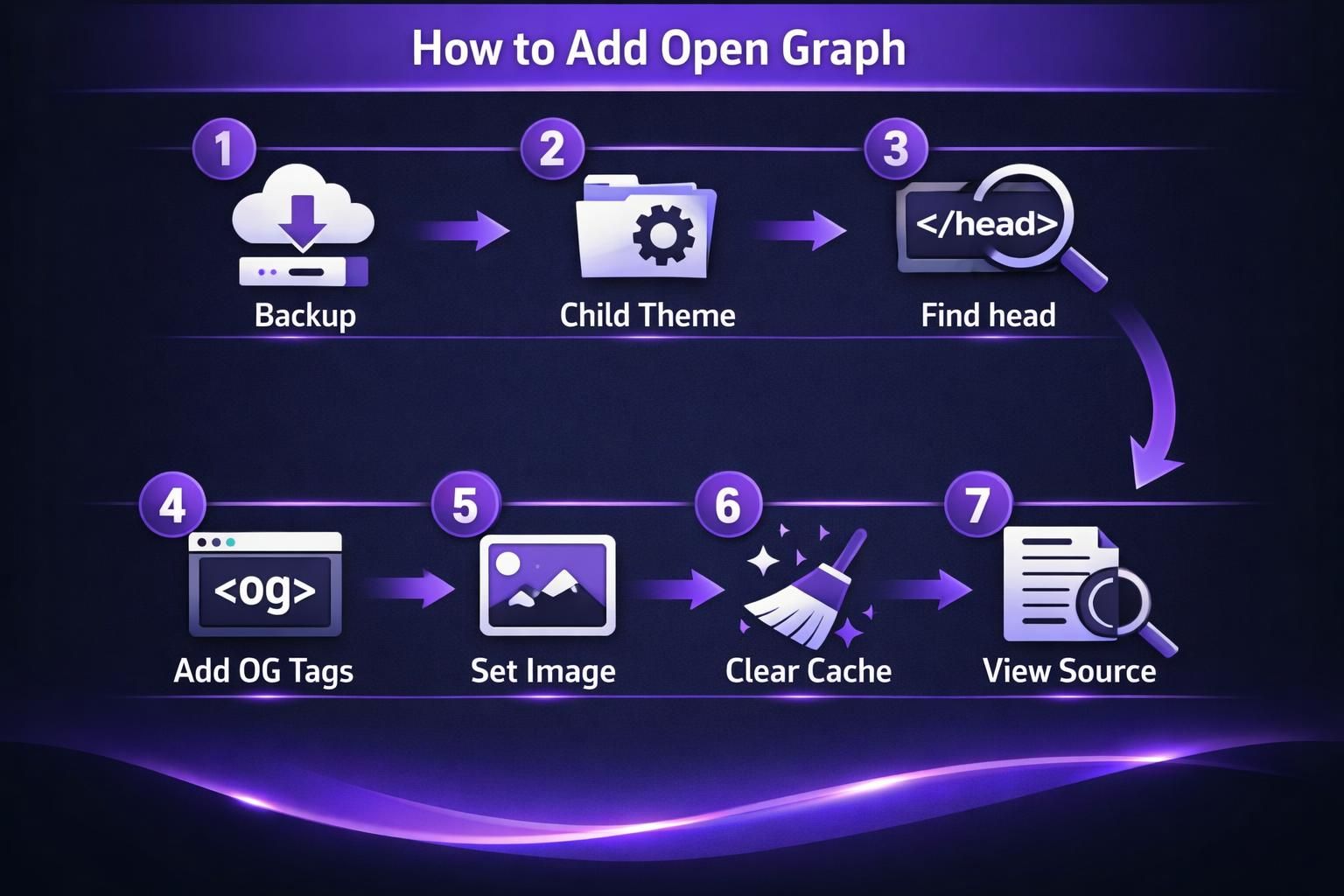
Typical steps:
- Locate where the theme prints head output.
- Add conditional logic for page types.
- Print og:title, og:description, og:image, og:url, and og:type.
- Ensure only one set of tags is output sitewide.
In most themes, head output is in header.php and the wphead() hook. A clean method is adding a function to functions.php that hooks into wphead.
Choose values carefully: title from the post title (or a shorter social title), description from the excerpt or trimmed intro, image from featured image with a fallback, and URL from the canonical version without parameters. Canonical alignment matters: canonical URL basics.
Keep og:image publicly accessible and avoid redirect chains. Remember maintenance: theme changes or builder swaps can break your logic, so recheck outputs after major updates.
How to Add Open Graph Tags With a Plugin
The easiest, most reliable approach is using an SEO or social sharing plugin that outputs Open Graph tags automatically. This is ideal for sites that publish often because it keeps tags consistent across posts and reduces breakage after theme changes. Still, confirm you don’t have multiple sources outputting the same tags.
A common issue: you enable Open Graph in an SEO plugin, but your theme also has “social meta” turned on. Shares look inconsistent because platforms can pick either set. Fix it by disabling one source, not by endlessly tweaking titles.
When configuring a plugin, focus on:
- Enable Open Graph output and Twitter Cards if available.
- Set a default social image as a fallback.
- Confirm featured images are used for posts.
- Customize social titles and descriptions for key pages.
- Disable Open Graph output in other plugins or the theme.
Use per-post social fields when the default excerpt is awkward, like on webinar or landing pages. Keep configuration centralized in one plugin suite when possible. See: schema and Open Graph settings.
After changes, purge page cache and any CDN cache so updated head HTML is served. Performance issues usually come from broader site tuning, not a few meta tags. Reference: WordPress speed plugin guide.
How to Test Your Open Graph Tags
Test Open Graph tags by checking page source and using platform debuggers to refresh cached previews. These two methods catch different issues.
In your browser:
- Open the page in an incognito window.
- View page source (not just the inspector).
- Search for og:title, og:description, og:image, og:url, and og:type.
- Confirm there is only one of each core tag.
Duplication is common. If you see two og:image values (logo and featured image), that’s a configuration conflict, not a platform bug.
Then use platform tools such as Facebook Sharing Debugger and LinkedIn Post Inspector to see what they scraped and to force a re-scrape. Platform caching often explains “old” previews. Also verify the image URL returns 200 and loads quickly in a private tab. Avoid redirect chains for og:image, since some scrapers time out.
For repeatable troubleshooting across pages, use a checklist: technical SEO audit checklist.
Open Graph Tags Checklist
Use this checklist to keep previews consistent and easy to maintain.
Core checks:
- Each indexable page outputs og:title, og:description, og:image, og:url, and og:type.
- Titles and descriptions fit the page intent and don’t truncate badly.
- og:url matches the canonical version of the page.
- og:image is relevant, high quality, and publicly accessible.
- Only one set of Open Graph tags is present.
Image checks:
- Posts that depend on social traffic have featured images.
- A fallback image exists for pages without featured images.
- Image URLs are absolute and don’t require cookies or login.
System checks:
- Only one plugin or theme feature outputs Open Graph.
- Caches are purged after changes.
- Social fields are filled on critical pages.
To align previews with broader content standards, use: on-page SEO checklist.
Conclusion
If you want clean, consistent share previews, you need Open Graph tags that match each page’s intent. Decide first whether you’ll add them via code or a plugin. Then make sure only one source outputs them. Test in page source and in platform debuggers. Keep a simple checklist for new templates and key pages. Once it’s set up, how to add open graph meta tags wordpress becomes a one-time fix, not a recurring headache.