




Alt text in WordPress is the short alternative text stored with an image that helps screen readers describe visuals and helps search engines understand what an image shows. If you publish blog posts, product pages, or landing pages, knowing where to add it matters because WordPress lets you set alt text in more than one place, and those choices affect how consistently it appears on the front end. Below you’ll learn what the alt attribute is, how to add or edit it in the block editor and the Media Library, what good alt text looks like in real scenarios, and what to check when it fails to display.
Best for: Site owners who want faster accessibility wins and more consistent image SEO across posts, pages, and templates.
Not ideal when: Images are decorative only, or your theme outputs background images where an alt attribute cannot be applied.
Good first step if: You’re unsure where alt text lives, so you can verify the editor, Media Library, and front-end markup match.
Call a pro if: A builder/theme hardcodes images, bulk tools misreport missing alt attributes, or changes break layouts across templates.
Quick Summary
- Alt text is stored as an image’s alt attribute and should describe the image’s purpose in its page context.
- You can add alt text in the block editor per image, or centrally in the Media Library via Attachment Details.
- Captions are visible on the page, while alt text is primarily for accessibility and image understanding in code.
- Decorative images often need an empty alt attribute, not a descriptive sentence.
- If changes don’t show, check for cached pages, builder widgets, or images inserted as CSS backgrounds.
What Alt Text is (and Why it Matters in WordPress)
Alt text is the value in an image’s alt attribute, letting screen readers and crawlers understand the image when it can’t be seen. In WordPress it’s usually stored on the attachment and printed into HTML when inserted, which is important for Image SEO. For accessibility, it describes meaning or marks decorative images. For SEO, it adds relevance beyond filenames. Alt text differs from captions (visible) and title/description fields (often unused).
Accessibility Vs. SEO—what Alt Text Should Communicate
Alt text should state what the image contributes, not list every detail. For accessibility, describe function; for SEO, be specific and contextual — follow alt text guidelines. Avoid keyword stuffing; clarity wins.
How to Add Alt Text in WordPress (Block Editor)
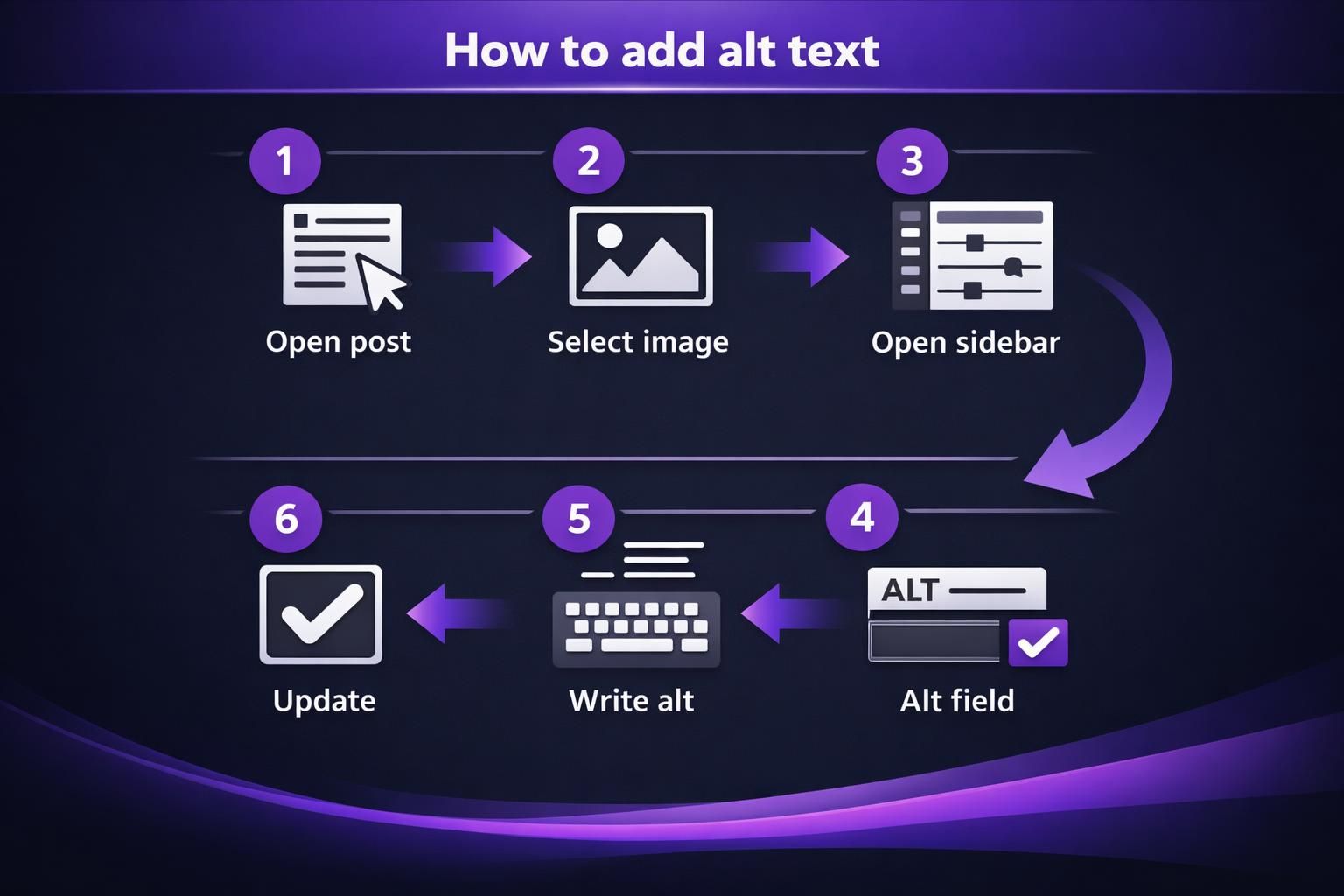
In the block editor, select the Image block and fill the Alt text field in the settings sidebar. This is fastest when editing a post and fixing a few images. Use a short description that matches the image’s role in that paragraph. It also lets you quickly see what’s already set without leaving the editor while following step-by-step tutorials updates.
Add or Edit Alt Text on an Image Block
Select the Image block, edit the Alt text field, then update the post. To clear it, delete the text and save. If available, “Decorative image” outputs an empty alt attribute for decorative images.
How to Add Alt Text in the WordPress Media Library
In Media Library, open an image and edit the Alt Text field in Attachment Details to write alt text. This is best when the same file appears across multiple pages and you want one source of truth. Go to Media Library, click the image, and enter the Alt Text value WordPress typically prints as the alt attribute. Title, Caption, and Description are separate metadata; captions can be visible but don’t replace alt text.
When Media Library Alt Text Does (and Doesn’t) Update Existing Posts
Media Library edits update front-end alt text only when the post pulls attachment data. Some blocks/builders store alt inside post content, so attachment changes won’t override it. Verify in the block settings or front-end HTML.

Alt Text Best Practices (Examples You Can Copy)
Good alt text is concise, specific, and written for readers, not keyword lists. Describe what you’d say in one sentence if explaining the image over the phone, then trim. Skip “image of” and name the subject: “Golden retriever wearing a raincoat.” If the image contains necessary text, include only the meaningful words. Keep alt text aligned with headings, nearby copy, and your SEO writing resources.
- WordPress Alt Text Generator
Decorative, Linked, and Text-in-image Scenarios
Decorative images should use empty alt so screen readers skip them. Linked images should describe the destination/action, not the icon. If text is embedded in an image, include the meaningful words unless already shown nearby.
Troubleshooting: Why Your Alt Text Isn’t Showing
Alt text often “disappears” because the front-end output isn’t using the attachment’s alt attribute. Blocks, theme functions, widgets, builders, galleries, and CSS background images don’t all print alt consistently. Confirm you edited the right media file, then inspect the page HTML to see if alt is present, empty, or missing. Also purge caches and check SEO/optimizer settings that rewrite markup. Keep steps in your sitewide SEO guides.
Theme/page Builder Overrides and “Hardcoded” Image Markup
Themes/builders may hardcode markup or use CSS background images, which can’t carry alt. Use nearby text/ARIA or a different component. If alt is missing despite Media Library text, update template code.
Bulk Workflows and Plugins for Managing Alt Text
Bulk workflows help when you have many images and need to audit missing alt attributes at scale. A typical process is: run a report, bulk-edit predictable patterns, then spot-check key pages. AI tools can draft alt text, but review for accuracy and context. Test plugins on staging and confirm whether they change attachment data, post content, or both. Document the process in your main blog hub for consistency.
Audit Missing/empty Alt Text and Scale Fixes Safely
Separate missing alt attributes from empty ones, since empty can be correct for decorative images. Bulk-edit using rules (like product names), not one repeated phrase. Re-scan afterward and manually spot-check pages to confirm HTML.
FAQ About Alt Text in WordPress
What is the Difference Between Alt Text, Caption, and Title Text in WordPress?
Alt text lives in the alt attribute for accessibility and machine understanding. Captions are visible on-page text. The image title is attachment metadata and may map to a title attribute, inconsistently.
How Do I Add Alt Text to an Image in WordPress When Uploading It?
After uploading, open the image’s Attachment Details and fill the Alt Text field before inserting. You can also insert first, then set alt text from the Image block settings.
What’s the Difference Between a Missing Alt Attribute and an Empty Alt Attribute?
Missing alt means the HTML has no alt attribute, often due
How Can I Generate Alt Text With AI in WordPress?
Conclusion
Alt text in WordPress is most effective when you treat it as both an accessibility requirement and an editorial habit — Image Title vs Alt Text highlights this balance. Add it where it will actually be printed—either in the Image block settings or in the Media Library—then verify the front-end HTML on key templates. Keep descriptions short, contextual, and accurate, use empty alt text for decorative images, and rely on audits for bulk cleanup at scale.