

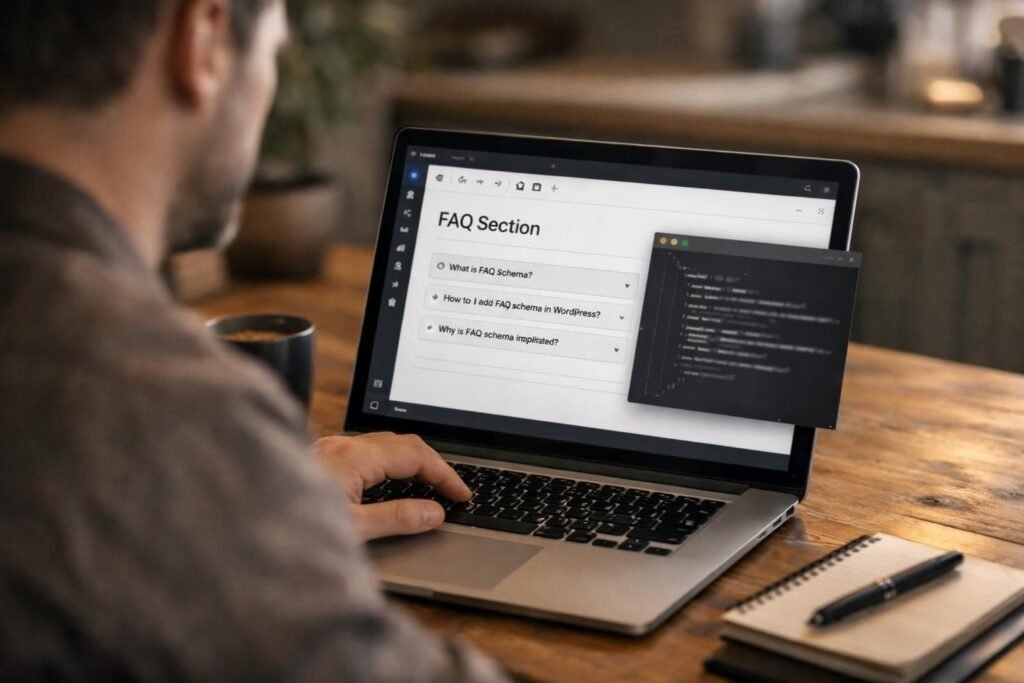
FAQ schema WordPress setups are still one of the cleanest ways to help Google understand your Q&A content. And when Google understands it, you’ve got a better shot at rich results. This guide walks you through adding FAQ schema in two ways. First, you’ll learn how to do it without a plugin, using JSON-LD. Then we’ll cover the plugin route, which is faster for bigger sites. You’ll also see how to test your markup, what best practices actually matter, and what mistakes tend to block rich results. So what does this mean in practice? You’ll leave with a repeatable process you can use on any FAQ section.
Best for: Sites with real Q&A sections that match the page content and need clearer eligibility for rich result formatting.
Not ideal when: Your “FAQ” is thin, duplicated across pages, or mostly marketing claims without direct, helpful answers.
Good first step if: You already have an FAQ block on key pages and want to add JSON-LD using a safe, controlled method.
Call a pro if: You see structured data errors you can’t trace, or your theme and plugins conflict around schema output.
Quick Summary
- FAQ schema can help Google parse your questions and answers, but rich results aren’t guaranteed.
- You can add markup manually with JSON-LD for maximum control and minimal plugin bloat.
- Plugins are faster when you publish many FAQs and want consistent fields and templates.
- Testing in Google’s tools is non-negotiable, because one small syntax issue can invalidate markup.
- Keep every answer visible on the page, and keep it aligned with what the schema says.
What is FAQ Schema
FAQ schema is structured data that labels on-page questions and answers so search engines can interpret them reliably. It doesn’t change what users see by itself. It changes how machines read the content.
In WordPress, this usually means you’ve got a small FAQ section on a page. Then you add JSON-LD in the header or body. Google can then map each Question to an acceptedAnswer. That mapping reduces ambiguity.
For example, you might have a product category page with “Do you ship internationally?” and a direct answer. Without markup, Google must infer structure from headings and text. With markup, you’re explicitly saying, “This is a question, and this is the answer.”
Now, a quick nuance. FAQ schema isn’t the same as “Q&A” markup. FAQPage is for content written by you, the publisher. QAPage is for forum-style pages with user submissions and multiple answers.
Here’s what a valid FAQ set typically looks like on a page:
- 3 to 8 questions that are genuinely different
- short, direct answers that match the on-page copy
- no hidden answers behind tabs that never render in HTML
- no “contact us for pricing” filler as the only answer
For example, a service page can include “How long does onboarding take?” with a real process summary. That’s helpful to users. And it’s clean for structured data.
Does FAQ Schema Still Work in Google
Yes, FAQ schema still works in Google, but Google may choose not to show the rich result even when markup is valid. Think of schema as eligibility and clarity, not as a promise.
Google’s display decisions change over time. They also vary by query type, device, and perceived usefulness. So you can do everything right and still see normal blue links. That’s not failure. It’s just how rich results work.
For example, you might add FAQs to a “Returns policy” page. Google may show a richer snippet for brand queries. But it might not show anything for generic “return policy” searches. The page can still benefit from clearer understanding and better matching.
So what should you watch instead of obsessing over snippets?
- Whether Google can read the markup without errors
- Whether the FAQs match the search intent for the page
- Whether impressions and clicks change for queries where FAQs matter
And don’t ignore indexation basics. If your page isn’t indexed, schema won’t help. For example, a page marked as noindex can have perfect markup and still show nothing. If you’re auditing visibility issues, noindex settings in WordPress is a good place to sanity check.
One more reality check. If you spam FAQs across every page, you’ll often get ignored. Google tends to reward pages where the Q&A section is truly additive.
How to Add FAQ Schema in WordPress Without a Plugin
You can add FAQ schema without a plugin by inserting JSON-LD that matches the exact Q&A visible on the page. This method gives you full control. And it avoids duplicate schema output from multiple tools.
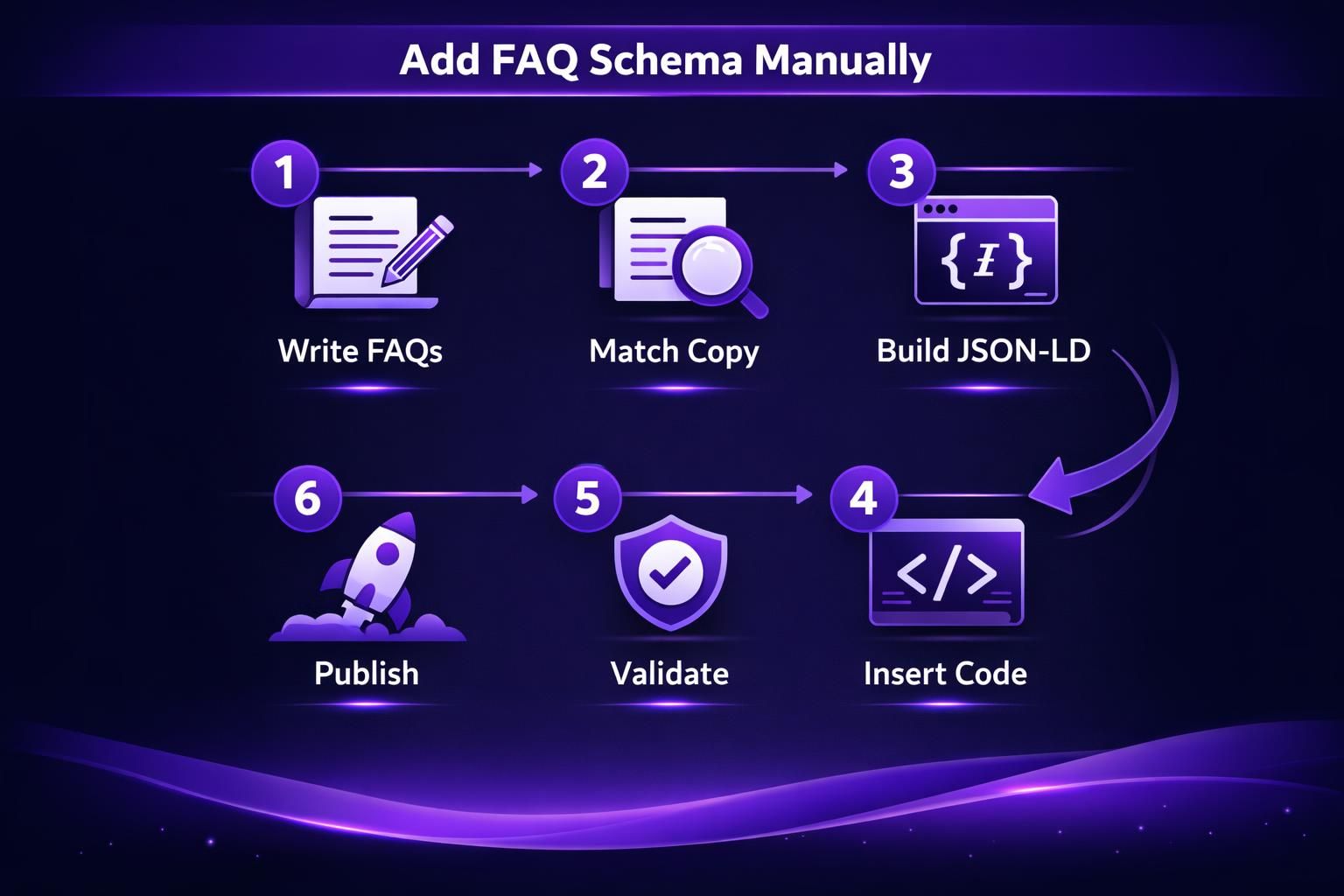
The workflow is simple. Write your FAQ section in the editor first. Then generate JSON-LD that mirrors it. Finally, place the JSON-LD in a safe injection point. In WordPress, that’s often a custom HTML block, a theme hook, or a snippets plugin.
For example, you might have a landing page with four FAQs at the bottom. You can add a “Custom HTML” block and paste JSON-LD there. It won’t display to users. But it will be present in the page HTML.
A basic FAQPage JSON-LD shape looks like this in concept:
- @context points to schema.org
- @type is FAQPage
- mainEntity is a list of Question objects
- each Question has a name and acceptedAnswer with text
Now, the practical steps.
Step 1: Draft the questions and answers on the page. Keep wording stable. Avoid changing the visible FAQ later without updating JSON-LD too.
Step 2: Create the JSON-LD. You can write it by hand if you’re comfortable. Or you can use a generator and then edit. For example, if you’re using a tool to draft your questions, you can pair it with generate FAQs faster and then build the matching schema.
Step 3: Place it on the page. Common options include:
- Custom HTML block in the editor
- theme file hook for single posts or pages
- a code snippets plugin that targets specific pages
Step 4: Avoid duplicates. If your SEO plugin already outputs FAQ schema from an FAQ block, don’t add another manual version. Duplicates can confuse testing and create inconsistent entities.
One more example. Say you manage a recipe blog and add FAQs to every recipe card manually. That’s a lot of upkeep. Manual JSON-LD still works. But it’s easy to drift. That’s where a plugin can reduce mismatch risk.
How to Add FAQ Schema With a Plugin
You can add FAQ schema with a plugin by using an FAQ block or schema module that outputs JSON-LD automatically. This is usually the fastest path. And it’s easier to standardize across a content team.
Most schema plugins follow one of two patterns. Either they provide an FAQ block in the editor. Or they add fields in the post sidebar. In both cases, the plugin generates the JSON-LD for you.
| Option | How you add FAQs | Control level | Risk to watch |
|---|---|---|---|
| Manual JSON-LD | Paste markup matching on-page FAQs | High | mismatch and syntax errors |
| Plugin output | Fill fields or use a block | Medium | duplicates and theme conflicts |
For example, a site with 200 support articles can’t afford manual markup on every page. A plugin lets writers add Q&A in a consistent UI. The output stays structured. And editors don’t need to touch JSON.
Here’s a clean plugin workflow you can follow:
- Pick one plugin to own schema output site-wide
- Enable FAQ schema output in its settings
- Add an FAQ block or FAQ fields on a page
- Confirm the plugin prints JSON-LD in the HTML
- Test the page and fix any warnings
Now, watch the common WordPress trap. Two plugins can both output FAQPage. Your theme can also add schema. That’s when you’ll see duplicate entities or mixed types.
For example, you might use a page builder with built-in FAQ schema. Then your SEO plugin adds its own FAQ schema. The page tests “valid,” but the structure is messy. In that case, disable one source. Keep a single source of truth.
If you’re already working inside a broader schema setup, it helps to keep settings consistent. For example, configure schema settings can keep your output predictable across pages.
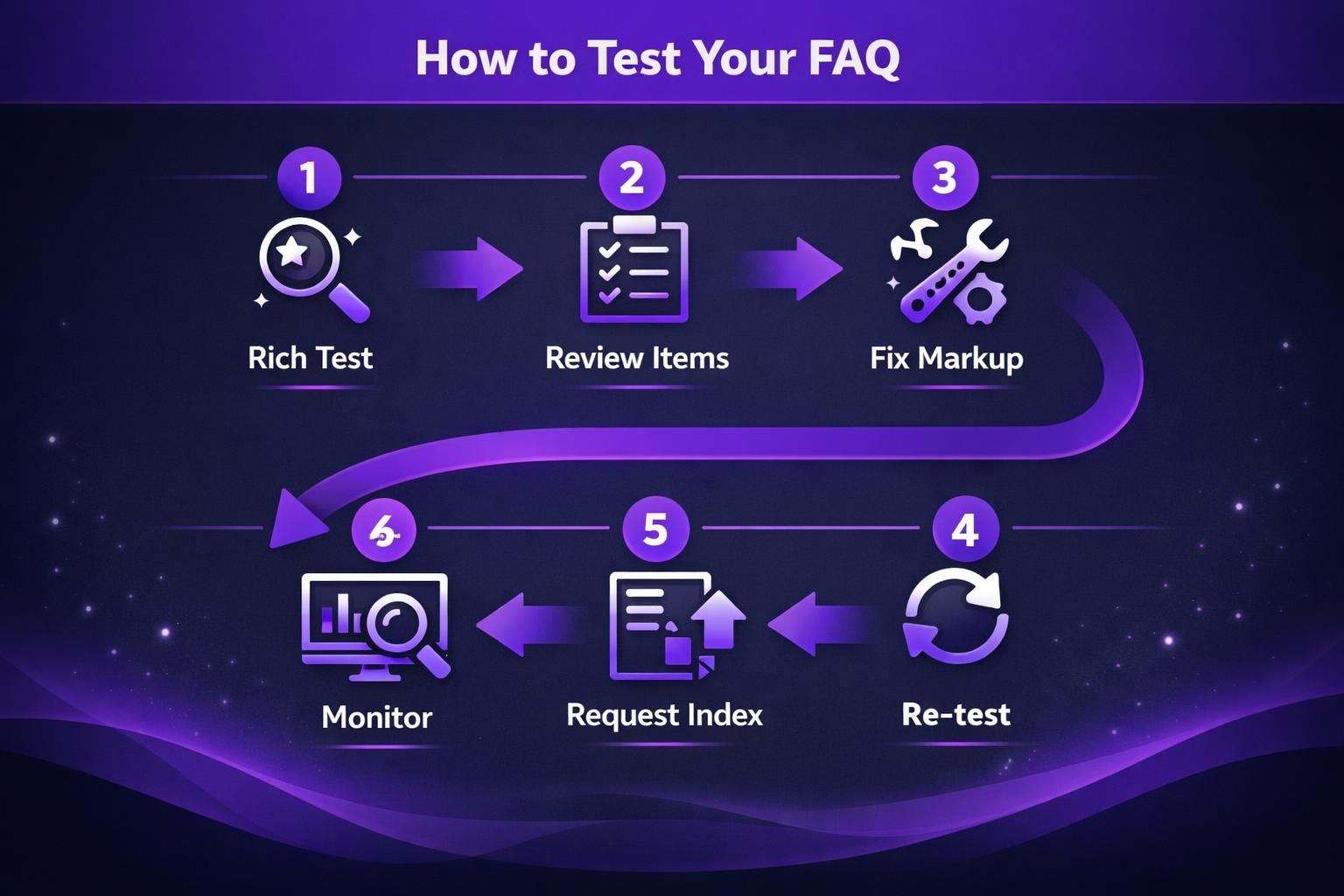
How to Test Your FAQ Schema
You should test your FAQ schema by validating both the structured data and the real rendered page content. A passing test means Google can parse your JSON-LD. It doesn’t mean Google will show a rich result.
Start with Google’s Rich Results Test. Paste in the URL for a live page. Or paste the code if it’s not published yet. The tool will show detected items and any errors.
Then use the Schema Markup Validator for a second opinion. It’s useful for debugging syntax and types. It can also show you if multiple FAQPage items exist.
For example, you paste a URL into the Rich Results Test and see “FAQ: 0 valid items.” That usually means one of three things:
- the JSON-LD didn’t load on the page
- the JSON-LD is invalid JSON
- the type is wrong, or fields are missing
Now check the page source. Search for “FAQPage” and confirm it appears once. Then confirm every question in JSON-LD appears visibly on the page.
A practical debugging checklist:
- Make sure quotes are straight quotes, not curly quotes
- Ensure every opening brace has a closing brace
- Use a comma between items in arrays
- Keep HTML tags out of the answer text when possible
- Don’t include hidden FAQ content that only appears after a click
For example, an answer like “<p>Yes</p>” can still parse. But sloppy HTML inside JSON-LD can break things fast. Clean text is safer.
If you’re monitoring results over time, Search Console helps. It can show enhancements and structured data reports when Google detects them. If your setup is part of a wider SEO workflow, connect Search Console can keep everything in one place.
FAQ Schema Best Practices
FAQ schema works best when it’s tightly aligned with page intent and written like a helpful human answered it. You’re not writing for the bot. You’re giving the bot a cleaner representation of what users already get.
Start with question selection. Each question should remove friction. It should address a real objection or confusion point. And it should fit the page topic closely.
For example, on a “WordPress maintenance” service page, good FAQs include “What’s included in monthly maintenance?” and “How do you handle plugin updates?” Bad FAQs include “Why are you the best?” because it’s not a question users ask.
Keep answers short, but complete. A strong answer usually includes:
- the direct answer in the first sentence
- one supporting detail or constraint
- a clear next step if needed
For example, “Can I add this without a plugin?” could be answered in two sentences. Then you can point to a “How” section on the same page. That keeps it useful and not fluffy.
Also, keep your structured data consistent with your on-page SEO signals. If your title and headings say one thing, but your FAQs cover another, Google gets mixed messages. If you’re cleaning up SERP snippets overall, write better meta descriptions pairs nicely with FAQ improvements.
Finally, treat FAQs as living content. When policies change, update both:
- the visible FAQ copy
- the JSON-LD output, if it’s manual
For example, if your support hours change, your FAQ answer must change too. Otherwise, you’ll be publishing outdated info with extra confidence signals.
Common FAQ Schema Mistakes
The fastest way to break FAQ schema is to let the markup drift away from what the page actually shows. Google wants the structured data to reflect visible content. When it doesn’t, eligibility drops.
Mistake one is marking up content that isn’t present. For example, you add an FAQ schema block for five questions. But the page only displays three questions after a design change. That mismatch can invalidate the item.
Mistake two is duplicating schema output. This is common with WordPress stacks. A theme adds basic schema. An SEO plugin adds advanced schema. A page builder adds FAQ schema too. Testing gets confusing. And Google may pick a messy version.
Mistake three is using FAQs to stuff keywords. For example, repeating “faq schema markup wordpress” inside every question reads unnatural. It also makes your FAQs less helpful. Keep wording natural and varied.
Mistake four is using promotional claims as answers. For example, “We offer the best service in town” isn’t an answer. It’s copy. Write answers that explain constraints, steps, or outcomes.
Mistake five is ignoring page quality and indexation issues. For example, a canonical tag that points somewhere else can cause Google to treat the page as a duplicate. Then the FAQ markup may not be considered. If you’re debugging duplicates, canonical URL basics can help you spot misconfiguration patterns.
A quick triage approach helps when things don’t show up:
- Confirm the page is indexed and canonicalized correctly
- Confirm schema is present once and is valid JSON-LD
- Confirm every Q&A is visible and matches the markup
- Confirm the FAQs actually fit the query intent of the page and aren’t just included to chase rich results.
Conclusion
Adding faq schema WordPress markup is mostly about accuracy and restraint. Put real questions on the page. Answer them clearly. Then mirror that content in JSON-LD or via one reliable plugin. Test every page you change, because tiny syntax errors can break eligibility. And keep your FAQs updated as your product, policies, or process changes. Your practical next step is simple. Pick one important page, add a small FAQ section, implement the markup, and validate it in Google’s testing tools.