




WordPress SEO internal links are one of the few on-page levers you fully control. And they affect almost everything that matters. They shape crawlability, indexing paths, and how link equity moves through your site. They also guide readers to the next helpful page. That lowers bounce and increases depth. So what does this mean in practice? You need a structure first. Then you need repeatable linking habits. In this post, you’ll learn how to plan your hierarchy, add links cleanly in WordPress, fix common issues, and maintain a system that stays healthy.
Best for: Site owners with 20+ posts who want better crawl paths and clearer content hierarchy for key pages.
Not ideal when: Your content is thin or duplicated, since internal links won’t fix weak intent or poor topical coverage.
Good first step if: You can list your top pillar page targets and map 5 to 10 supporting posts to each.
Call a pro if: Your rankings drop after major linking changes, or you suspect widespread broken links and indexing issues.
Quick Summary
- Internal links guide Googlebot and users toward your most important pages.
- A clear site structure reduces orphaned content and improves PageRank flow.
- Contextual links beat random footer link dumps for relevance and link placement.
- Anchor text should be descriptive, varied, and matched to the destination’s intent.
- Audits matter, because WordPress sites quietly accumulate broken links over time.
What Internal Links Are (and Why They Matter for WordPress SEO)
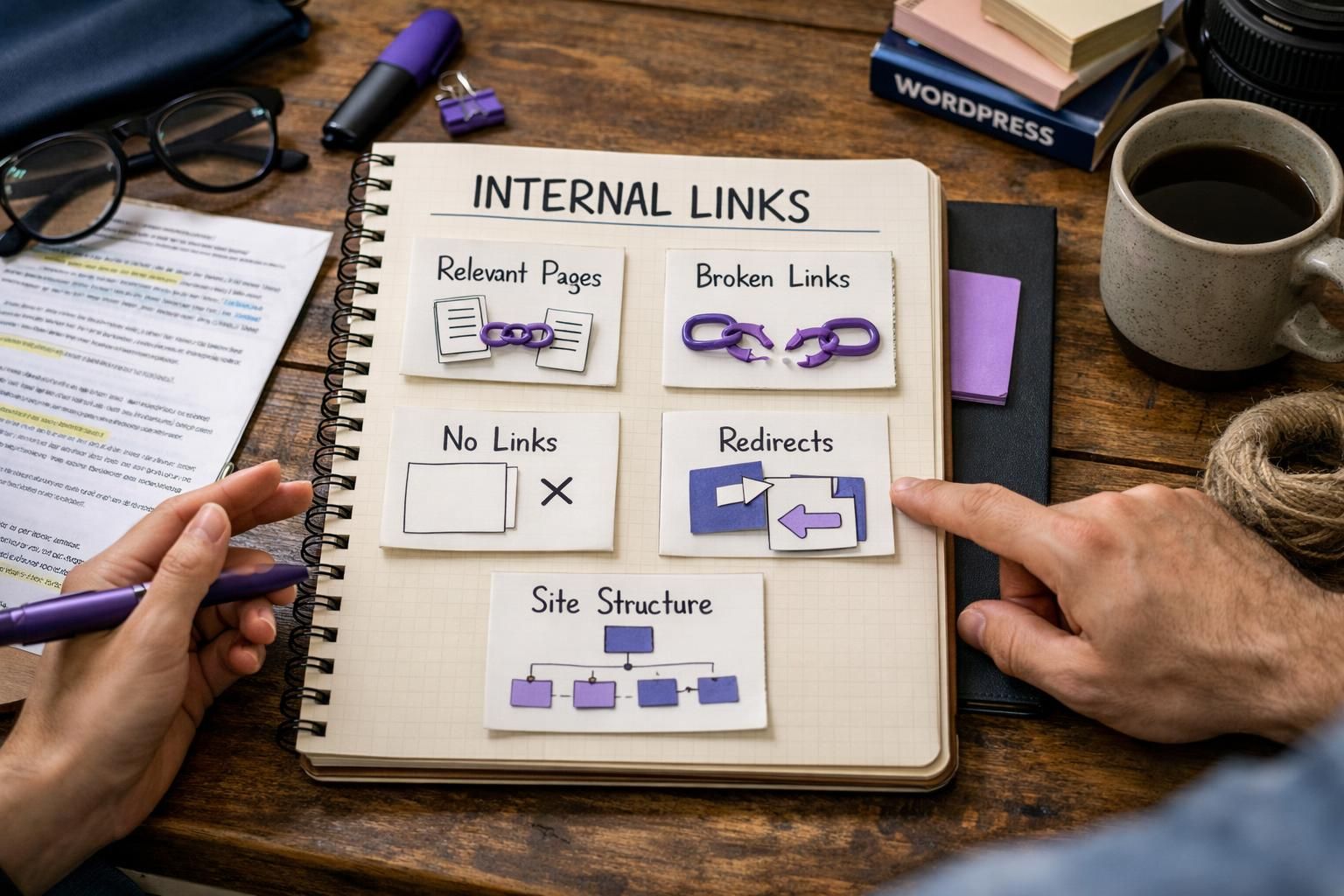
Internal links connect pages within the same WordPress site. They improve crawlability, clarify hierarchy, and distribute link equity to priority pages. Example: a “Beginner’s SEO Checklist” can link to a “Keyword Research” guide to show the relationship. Done well, links create clear paths for users and bots. Internal linking works best as a planned strategy, not a last-minute edit.
Internal Vs. External Links
Internal links stay on your domain, while an external link points to another domain. Internal links shape your site structure directly. External links add references and context. For example, your tutorial can cite Google Search Console docs as an external link. But it should still link internally to your own troubleshooting guide. Both have roles, but only internal links control your indexing paths.
Build a Site Structure That Supports Internal Linking
Good structure makes internal linking easier for users and Google. Identify your priority “money” pages, even if you don’t sell. Group related posts into silos and keep categories clean, because messy categories create messy navigation. Example: a local SEO site might use a “Local Rankings” hub with clusters for reviews, citations, and on-page factors. For planning clusters, topic cluster setup steps helps.
Pillar Pages, Clusters, and Hub Pages
Pillar pages work best when they act like a directory for a topic cluster. Each supporting post links up to the pillar page. The pillar links back down to the most useful subtopics. For example, a pillar page on “Technical SEO” can link to posts on sitemaps, redirects, and canonical tags. This builds predictable PageRank flow. It also makes it easier to avoid orphaned content.
Internal Link Best Practices That Move Rankings
Internal linking that helps rankings is relevant, consistent, and intentional. Link to pages you want to rank, not every page that mentions a term. Place links near the sentence that explains the connection. Avoid funneling everything to the homepage. Spread links across key guides, hubs, and high-intent posts, and audit for imbalance. For a structured check, scan internal link health is a solid workflow.
Anchor Text, Relevance, and Placement
Anchor text should preview the destination
Fix Common Internal Linking Problems in WordPress
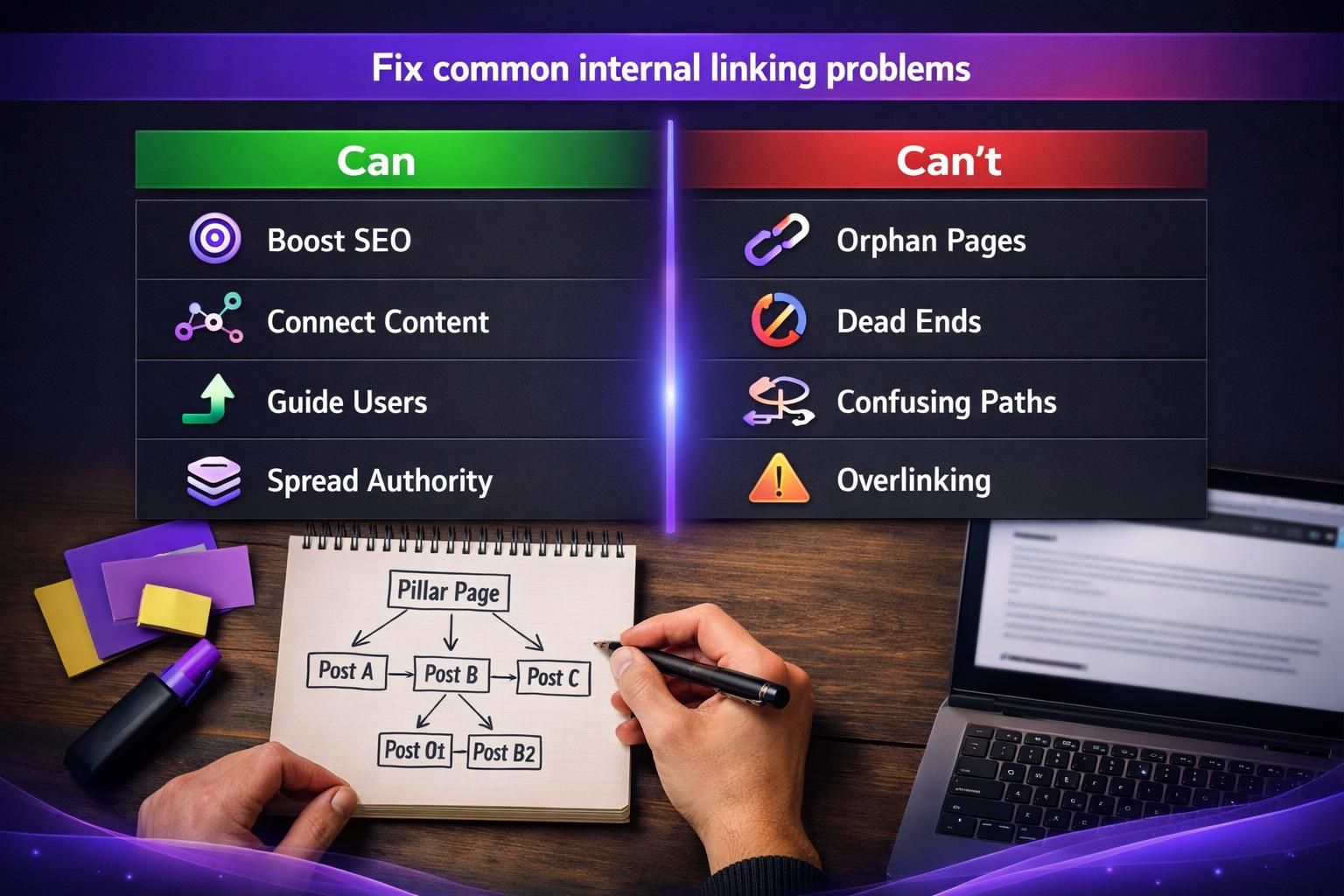
Most internal link issues come from neglect. Common problems include orphaned pages, broken links, redirect chains, and irrelevant auto-links. WordPress publishing is fast, so older posts stop pointing to new content. Example: you publish “Core Web Vitals,” but never link to it from older performance articles, so it stays invisible. Also replace redirected URLs with the final destination. Fixes improve indexing and make reports trustworthy.
Orphan Pages and Broken Links
Orphan pages have no internal links pointing to them. Broken links lead to errors or the wrong URL, often after a slug change. Start by listing pages with zero inlinks, then add 2 to 5 contextual links from relevant pages. Fix broken links by updating URLs, not just deleting links. For faster editing, bulk tools workflow reduces manual work.
How to Add Internal Links in WordPress (Step-by-step)
Use internal linking as a repeatable workflow. Pick 3 to 5 target pages for the post. Find sentences where a link adds clarity, then insert it and confirm it points to the right URL. Review anchor text so it reads naturally and matches intent. Example: link “crawl report” to your audit guide, not a random paragraph. add links in the editor is a practical reference.
Classic Editor Vs. Block Editor Workflow
The WordPress block editor makes linking easier inside rich blocks and buttons. You can highlight text and search for a page quickly. The classic editor is similar, but it relies more on the link popup flow. For example, in the block editor you can add a link inside a list block. In the classic editor, you’ll usually add the link after selecting plain text. Either way, always test the link.
How Many Internal Links Per Post (Without Overdoing It)
Use as many internal links as the content truly needs. Too few strands equity and creates orphans. Too many feels like stuffing and dilutes attention. A useful guideline is 3 to 8 contextual links that cover key subtopics. Example: a 1,500-word guide can link to a pillar page, two tutorials, and a category hub. Keep distribution balanced across important pages.
WordPress Internal Linking Tools and Plugins (Manual Vs. Automated)
Manual linking gives the best relevance control, but it doesn’t scale. Automated internal linking saves time, but needs strict rules to avoid spammy patterns. A useful middle ground is semi-automatic suggestions you approve or reject. Tools typically suggest links using keywords, content similarity, or mapping rules like “XML sitemap” to a setup guide. Add exclusions so off-topic pages and languages don’t mix. plugin setup overview can help.
What to Look for in an Internal Linking Plugin
A good internal linking plugin should let you control relevance and limits. Look for an exclusion list, per-page link limit per page settings, and easy editing. For example, you may want to block auto-links in product names or author bios. Also check for plugin configuration options that prevent repeated anchors. If suggestions show nothing, it may need a better sitemap or crawl source. A support forum can also matter when conflicts happen.
Internal Linking Maintenance Checklist (Monthly/quarterly)
A simple routine keeps links healthy. Monthly, scan for broken links and newly orphaned pages, then add links from older posts to recent content. Quarterly, refresh pillar pages and cluster links. If you publish a new “SEO Reporting” post, add it to your analytics hub. Also watch uneven link distribution across categories. Validate sitemaps and crawl paths. sitemap configuration steps can help.
Conclusion
A clean internal linking strategy is what turns scattered posts into a system. Start with a clear hierarchy, then add contextual links that match intent. Fix orphans and broken paths before you automate anything. And keep a simple review cadence so links don’t rot. If you do just one thing this week, improve one pillar page’s cluster links. That single action often sharpens your WordPress SEO internal links quickly.