




If you’re wondering how to submit sitemap to google search console, you’re in the right place. A submitted XML sitemap won’t force indexing. But it does give Google a clean list of URLs you want crawled. And it helps you spot problems fast. In this guide, you’ll submit a sitemap, confirm Google can fetch it, and interpret the Sitemaps report. You’ll also troubleshoot common errors like “Couldn’t fetch” and parse issues. For example, if you just migrated to HTTPS, a sitemap submission can reveal lingering HTTP redirects.
Best for: Site owners who want Google to discover new or updated URLs faster and diagnose sitemap and crawl issues.
Not ideal when: Your sitemap sits behind login, IP limits, or returns errors, since Search Console can’t read it reliably.
Good first step if: You’ve verified a Search Console property and can open your sitemap URL in a browser without prompts.
Call a pro if: You see persistent 5xx errors, widespread deindexing, or complex canonical and parameter issues across templates.
Quick Summary
- Google Search Console helps you monitor indexing and submit an XML sitemap for crawl discovery.
- You’ll need a verified property before you can add a sitemap in the Sitemaps report.
- Use the exact sitemap URL, and prefer a sitemap index for large or segmented sites.
- After submission, watch sitemap status, last read, and discovered URLs for signals.
- Fix fetch and parse errors by checking robots.txt rules, status codes, and URL formatting.
Before You Submit: What You Need in Place
Submission works only with a verified Search Console property and a reachable sitemap URL. Add the correct variant (protocol and host), like https://www.example.com. Use an XML sitemap listing only canonical index targets, not parameter versions. Ensure your CMS updates it after changes. Review sitemap setup tutorial.
Verify Your Site Ownership (Domain vs URL-prefix Properties)
You must pass site verification to submit a sitemap in Google Search Console. Domain properties cover all subdomains and protocols. URL-prefix properties cover only one exact prefix. For example, if you verify only http://example.com, your https://www.example.com sitemap won’t match that property. Common ownership verification methods include DNS records, HTML files, and Google Analytics verification. Also check user permissions. You might be a user, not an owner.
Find Your Sitemap URL (Sitemap.xml vs Sitemap Index)
Your sitemap is often /sitemap.xml, but many sites use a sitemap index linking to multiple files (posts, pages, products). Common paths include /sitemap_index.xml or /sitemap.xml.gz. Open it in a browser: you should see XML, not a login page. Confirm it returns HTTP 200. Get the exact path from your CMS.
How to Submit Your Sitemap in Google Search Console
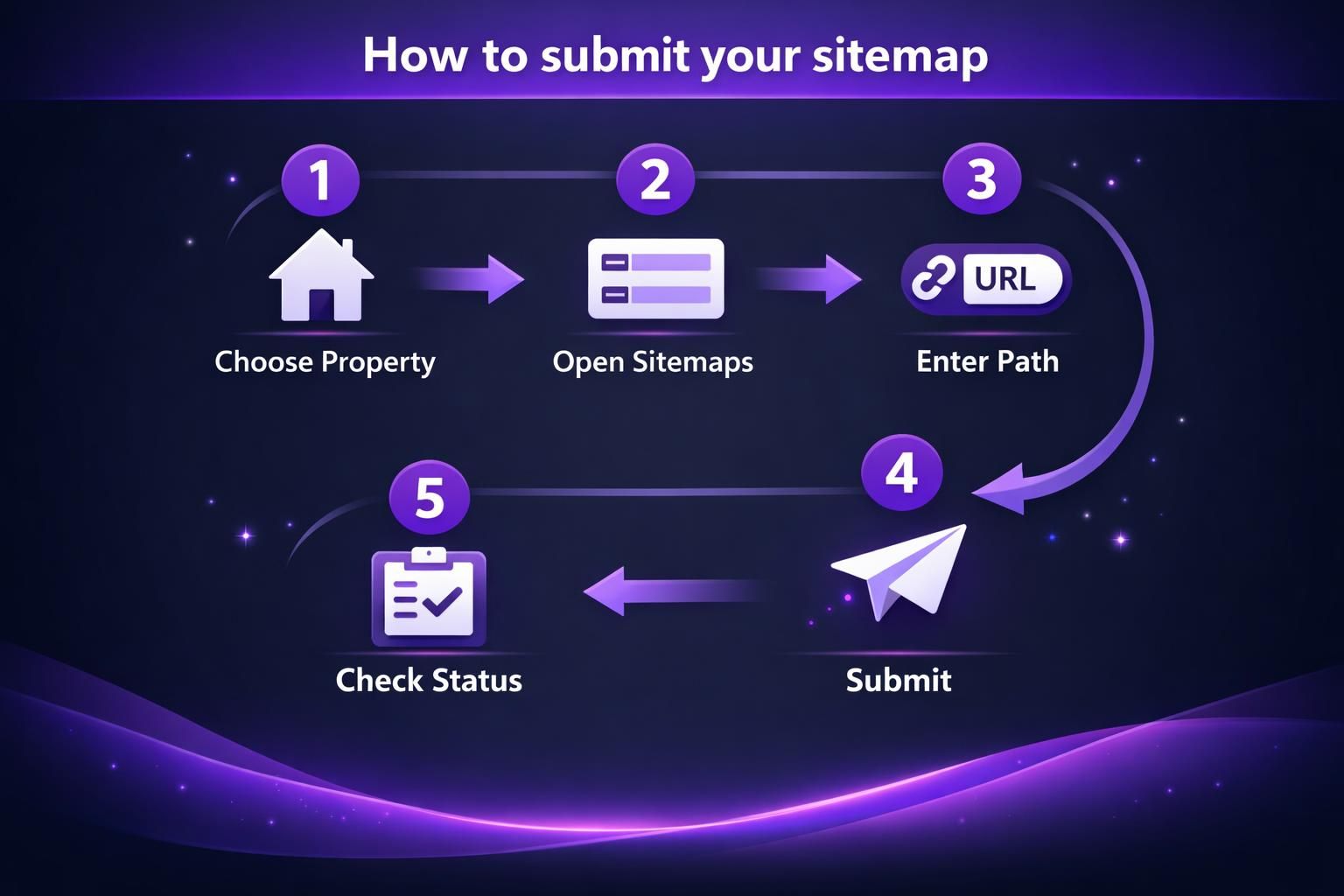
In Search Console, open the Sitemaps report under the correct property for your canonical version. Enter only the sitemap path and submit it, such as sitemap.xml (not the full URL). Afterward, it appears in the submitted list with status and timestamps. Keep sitemap filenames consistent across sites.
Use the Sitemaps Report (Exact Steps)
Open Search Console and choose your property. Go to Indexing, then Sitemaps. Enter the sitemap URL path in “Add a new sitemap” and click Submit. For example, submit sitemap_index.xml if you have multiple content sections. Then click the submitted sitemap row. Review “Last read” or “last downloaded” and discovered URLs. If the status stays “Couldn’t fetch,” move to access checks next.
How to Test and Confirm Google Can Access Your Sitemap
Google can process only a sitemap that is fetchable, allowed, and valid XML. Open the sitemap URL in an incognito browser and confirm it loads. Check for a 200 response and clean redirects. If /sitemap.xml redirects to a blocked host, fetch may fail. Also verify robots.txt doesn’t disallow the sitemap path.
Check Robots.txt, HTTP Status, and URL Inspection
Check robots.txt to ensure the sitemap path isn’t blocked, like an accidental Disallow: /. Confirm the sitemap URL returns clean HTTP status codes, avoiding 403, 404, 500, or long redirect chains. Then run URL Inspection on a URL in the sitemap to test indexing signals for that page. For setup help, see connect Search Console.

What Happens After You Submit (and How Long it Can Take)
After submission, Google fetches the sitemap on its own crawl schedule. “Success” can appear quickly, but discovery may still take time. The Sitemaps report shows status, last read, and discovered URLs. Discovered is not indexed. Use the Pages report and sample URL checks for indexing status. Then watch Performance for impressions once pages start appearing.
Common Sitemap Submission Errors and Fixes
Most sitemap submission errors come from access problems, redirects, or invalid XML and URLs. Read the exact message in the Sitemaps report, then load the sitemap URL directly to reproduce it. “Couldn’t fetch” often means Googlebot can’t reach the file. “Submitted URL not found” usually indicates 404s or bad redirects for URLs listed. Fix the cause, then wait for Google to reread.
Couldn’t Fetch / Blocked / 404 / Redirects
These errors mean
Invalid Format / Parse Errors / Wrong URLs
Parse errors usually mean invalid XML or the wrong content. Confirm the sitemap returns XML, not an HTML error or login page. Plugin conflicts can add warnings before the XML header. Ensure URLs are absolute, match your canonical version, and contain no spaces. Avoid stuffing parameters that create duplicates. If using hreflang or image tags, ensure nesting and closing tags are correct.
Best Practices for Keeping Sitemaps Healthy
Keep sitemaps limited to indexable canonical URLs and consistent across deployments. Exclude noindex pages, admin areas, and internal search results, including noindex tag archives. Split sitemaps by content type when it aids debugging. Monitor internal linking; weak links reduce crawl value. Audit with internal link health scan.
When to Resubmit vs Wait for Recrawl
Resubmit only if the sitemap URL changed or you fixed a real sitemap problem. New pages usually don’t require resubmission; Google will recrawl on its schedule. If you moved from sitemap.xml to sitemap_index.xml, submit the new file and remove old entries to avoid confusion. For urgent pages, use URL Inspection on that specific URL, not a sitemap refresh.
Alternatives (if You Can’t Submit in Search Console)
If you can’t submit a sitemap, you can still advertise it without Search Console reporting. Add a Sitemap directive in robots.txt pointing to the sitemap URL, useful before you have ownership access. You can also use the Sitemaps API. Strong internal linking improves discovery; scale it with generate internal links.
Reference the Sitemap in Robots.txt
You can add a Sitemap directive that points to the full sitemap URL. Place it near the top or bottom of robots.txt. For example, add “Sitemap: https://example.com/sitemap_index.xml” on its own line. Then confirm robots.txt returns 200 and isn’t blocked. Also confirm the sitemap URL isn’t redirecting to a different host. This method doesn’t replace Search Console diagnostics. But it’s a solid fallback for discovery.
Conclusion
Submitting a sitemap is mostly about clean access and clean signals, not pressing a magic button. If you follow the checks above, you’ll know exactly how to submit sitemap to google search console and verify it’s working. Start with the right property, submit in the Sitemaps report, and confirm “Last read” updates. Then monitor the Pages and Performance reports for real indexing progress.