



Organizing images in WordPress can feel like an SEO task, but most rankings wins come from keeping URLs stable and improving how images are created, described, and delivered. This guide breaks down what “media library folders” really are, how WordPress stores uploads in wp-content/uploads, and where folder changes can quietly create broken links or lost image visibility. You will learn when to keep the default year/month structure, how virtual folder plugins work, and which safeguards matter if you must reorganize. Most importantly, you will get practical image SEO habits, like consistent filenames, solid alt text for accessibility, smart format selection, and compression, that typically matter far more than folder names for search performance.
Best for: Site owners who want a tidy WordPress Media Library without risking URL changes, broken links, or messy workflow handoffs.
Not ideal when: Your site already ranks for image-heavy pages and you cannot audit every existing image URL and placement.
Good first step if: You can keep the default uploads structure and instead improve filenames, alt text, and compression before reorganizing anything.
Call a pro if: You need to move existing uploads, rewrite image URLs, or troubleshoot widespread 404s and missing media across templates.
Quick Summary
- WordPress usually stores uploads in wp-content/uploads using year/month folders, which is stable and plugin-friendly.
- “Folders” in the Media Library are often virtual folders that organize items without changing file paths.
- Changing folder structure can break image URLs, causing missing images, broken links, and weaker image discovery.
- Stronger image SEO usually comes from filenames, alt text, correct dimensions, and compression, not directory naming.
- Responsive images (srcset) and lazy loading help performance without requiring any folder rework.
What “Media Library Folders” Mean in WordPress (and Why SEO Can Be Affected)
“Media library folders” usually means how attachments are organized inside WordPress, not an SEO requirement. WordPress stores images as attachment records in the database, while files live on the server, typically under wp-content/uploads. SEO is affected when “organization” changes the real file path and URL, because Google and browsers must fetch the image from that URL.
Your approach mainly impacts URL stability, workflow speed, and maintenance. Better findability reduces duplicate uploads. Preserved URLs reduce breakage across posts, page builders, widgets, and templates. For broader context on how content and assets interact, see WordPress publishing basics.
SEO problems show up when image URLs change, important images return 404s, or pages slow down due to oversized files and unnecessary variants. Folder labels themselves rarely matter; the side effects do.
Physical Folders vs Virtual Folders (Taxonomy-based)
Physical folders are real directories on your server, such as wp-content/uploads/2026/02/, and moving a file into a different directory changes its URL. That is the risky kind of “folder organization” because any place that referenced the old URL may now show a broken image.
Virtual folders are organizational layers created inside the WordPress admin, typically by a media library folder plugin. They often work like taxonomy terms assigned to attachments, so the image stays at the same URL but appears inside a chosen folder view in the Media Library. This is usually the safest way to get structure without SEO side effects.
The key question to ask is simple: does the tool move files on disk or only categorize them in the database. If URLs never change, SEO risk drops dramatically, even on large libraries.
The Safest Default: Wp-content/uploads Year/month and When to Keep it
The default year/month folders in wp-content/uploads are safest for most sites because they preserve stable URLs and broad compatibility. Leave the setting alone and WordPress will store uploads predictably while core features like image sizes, responsive images, and attachment metadata keep working.
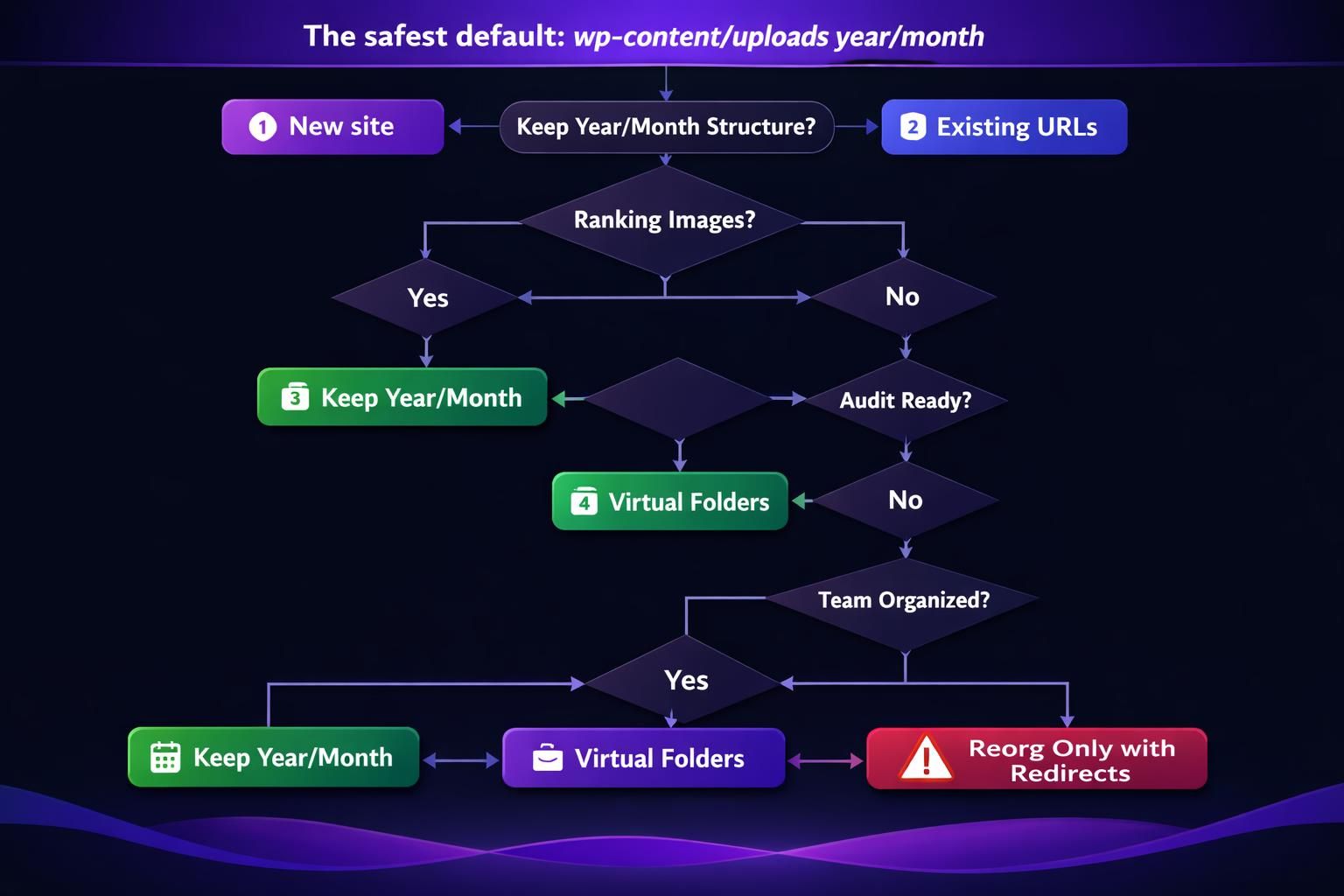
Keep the default structure if you have years of content, multiple authors, or external systems that may reference images. Posts, product pages, page builder modules, widgets, email templates, and social platforms can store or cache image URLs. Stable paths reduce the chance that “reorganization” creates widespread broken links.
Year/month is not ideal for human browsing, so improve findability with Media Library search, filters, or virtual folders instead of changing storage rules. For maintainable patterns that avoid moving files, see site organization tips.
Put SEO effort into filenames, alt text, compression, correct dimensions, and lazy loading.
When Changing Folder Structure Makes Sense (and When It’s Risky)
Changing folder structure makes sense mainly when you are early in a project, migrating content, or building a controlled workflow where you can enforce rules from day one. For example, an agency might prefer a clean separation for brand assets, campaign images, and client uploads, but only if the system prevents URL churn.
It is risky when you already have indexed image URLs, long-lived pages, or third-party integrations that reference direct file paths. Even if you “only move a few images,” you can accidentally break a hero image used in multiple templates or a featured image that appears in archives and feeds.
If you still want to proceed, treat it like a URL migration: map what changes, plan how to handle old URLs, and test representative pages before and after. If you cannot confidently do that, default structure plus virtual folders is usually the safer compromise.
URL Stability Rules: How Folder Changes Can Break Images and Rankings
Folder changes can break images and rankings because an image URL is effectively the image’s address, and moving files changes that address. When a page still points to the old URL, users see missing images, and search engines may stop fetching or indexing the asset. Over time, that can reduce image search visibility and weaken the page experience signals tied to performance and usability, especially if you don’t know how to rename an image in WordPress properly.
The most common breakage happens when a plugin or manual FTP move changes the physical location without updating WordPress attachment metadata. WordPress does not magically rewire every instance of the image URL embedded in post content, custom fields, page builder JSON, or theme options. Some page builders store the URL in multiple places, so a partial replacement can leave hidden broken references behind.
| Option | What it changes | Main risk | Typical use |
|---|---|---|---|
| Keep default year/month | Nothing about URLs | Low | Most sites |
| Physical moves/renames | File path and URL | High | Controlled migrations only |
| Virtual folders | Admin-only organization | Low | Large libraries needing structure |
A good rule is: if you are not prepared to handle URL changes like a migration, do not move images. If you are troubleshooting broader on-site search visibility issues, you may find it useful to review SEO writing workflow guidance so image work aligns with page intent, titles, and content quality.
Redirects, Replacements, and Avoiding 404s for Image Files
Redirects help, but they are not a perfect safety net for images. Not every setup handles media redirects consistently, and many embeds are hard to track. If paths change, plan for both server-side redirects and content-level replacements.
To reduce 404s: export current attachment URLs, then crawl or spot-check after changes. Run search-and-replace for embedded URLs in posts, pages, and custom fields. Confirm srcset variants still load. Rebuild page cache and CDN caches so old URLs are not served.
If breakage appears, pause further moves and fix the process first. Compounding changes makes it harder to reconcile database metadata with the filesystem.

Image SEO Basics That Matter More Than Folders (Filenames, Alt Text, Compression)
Filenames, alt text, and compression affect image SEO and speed far more than folders because they influence relevance, accessibility, and load time, as discussed in WordPress image SEO. Folder names are rarely seen, but filenames can appear in URLs, and alt text helps screen readers and search engines.
Before upload, resize to the layout’s real dimensions, then compress to keep transfer size low. Pick formats intentionally: JPEG for photos, PNG for transparency, WebP for efficient delivery, and SVG for simple icons when handled safely.
In WordPress, keep responsive images working. Core generates multiple sizes and outputs srcset so devices download the right file. Use lazy loading for below-the-fold images to reduce initial load.
Write useful alt text that describes the image in context, and avoid keyword stuffing in names or alt text. Standardize this in content workflow resources.
Naming Conventions That Scale (Hyphens, Keywords, Consistency)
A scalable file naming convention uses clear words, hyphens, and consistent patterns so teams can predict names without thinking. For example, use descriptive terms that match the image filename SEO topic, separate words with hyphens, and avoid random strings from cameras or stock sites. This makes the image file name more readable in URLs and easier to manage in bulk organize tasks.
Keep it consistent across the library:
- Use lowercase and hyphens instead of spaces or underscores.
- Include a short, accurate descriptor rather than a full sentence.
- Add a distinguishing detail when needed, like color, angle, or location, to prevent duplicates.
- Avoid stuffing keywords in filenames; aim for clarity and relevance.
Alt text should complement the filename, not duplicate it. Use alt text for accessibility and context, and use captions only when the caption adds value to the reader. Title attribute fields are often optional and typically less important than alt text and surrounding content.
Recommended Folder Strategies by Site Type (Blog, Ecommerce, Agency)
The right approach depends on team size, reuse, and how expensive breakage is. For a typical blog, default year/month is usually enough because content is time-based. The biggest wins come from resizing, compression, good filenames, and alt text. If needed, add light virtual folders for evergreen assets like logos or author headshots without changing URLs.
For ecommerce, prioritize stability and reuse. Product images are referenced across product pages, category grids, widgets, and feeds, so avoid physical moves. Virtual folders can separate product photography from banners and brand assets while keeping URLs stable. Use consistent naming so variants are easy to manage, and ensure compression so grids load fast.
For agencies, workflow and governance matter most. Use virtual folders plus documented rules, and limit who can upload or delete. Centralize standards in shared writing guidelines alongside an image checklist for campaigns and landing pages.
Example Folder Trees for Common Workflows
Example trees are most useful when they are virtual folders, because they help humans without rewriting file paths. A blog might use a simple structure that mirrors content types, while ecommerce might mirror catalog logic, and agencies might mirror campaign operations.
Example virtual folder trees:
- Blog
- Brand assets
- Author photos
- Post featured images
- Illustrations
- Ecommerce
- Products
- Category A
- Category B
- Lifestyle photography
- UI icons
- Promotions
- Agency
- Client A
- Evergreen
- Campaigns
- Spring launch
- Webinar series
- Client B
- Ads
- Landing pages
If you do need physical organization for a special case, keep it limited to new uploads going forward and avoid retroactively moving legacy assets unless you can fully manage redirects and replacements.
Using Virtual Folder Plugins Safely (What to Look For)
The safest Media Library “folders” are virtual: they organize attachments without moving files in wp-content/uploads. The key difference is implementation. Taxonomy-based virtual folders are usually reversible and keep URLs stable, while tools that physically move files require a migration plan.
Brand names vary (FileBird, Real Media Library, Enhanced Media Library, and others), but selection should focus on behavior: it should respect core attachment URLs, work with the block editor, and allow bulk organization without rewriting links.
Before installing, define the goal. If you mainly need faster reuse, prioritize browsing, search, and filters. If you need team workflows, check roles and consistent views. Start with conservative settings and test on staging.
Also watch admin performance. Heavy queries can slow large libraries, and fragile storage of folder state can complicate backups and migrations. Choose the simplest tool and document the rules.
Checklist: “URLs Never Change”, Bulk Moves, Editor Integration
A safe virtual folders setup should meet clear criteria before you rely on it across the team. The first requirement is that the attachment URL does not change when you drag items between folders in the plugin UI.
Use this checklist during evaluation:
- Confirm “URLs never change” by moving a test image and checking the file URL before and after.
- Ensure bulk moves are supported for large libraries without timeouts or partial failures.
- Verify block editor integration so selecting images from folders works inside the media modal.
- Check compatibility with common SEO plugins such as SEOPress, especially for sitemaps and attachment handling.
- Make sure the plugin does not require physical folder rewrites to function.
After setup, create a small operating rule: new uploads get named correctly and placed into a virtual folder only after they are compressed and resized. That way, organization supports SEO rather than becoming a separate project that introduces URL changes.
Ongoing Maintenance: Cleanup, Duplicates, and Performance Guardrails
Ongoing maintenance matters more than perfect folders because media libraries bloat over time, hurting workflow and performance. The goal is to keep uploads useful and safe without making risky changes that break links, especially when it comes to a mass fix for missing alt text.
Clean up unused media carefully. WordPress does not reliably track every usage, especially in shortcodes, page builders, custom fields, theme options, or CSS. Before deleting, check where files appear, take a backup, and work in batches. Start with clear duplicates and truly unused items, then review edge cases.
Add guardrails to prevent future clutter. Standardize pre-upload resizing so editors do not upload massive originals. Compress consistently and choose the right format (JPEG/PNG/WebP/SVG) for the asset. Keep lazy loading for below-the-fold images, but test conflicts with sliders and hero sections. Periodically confirm srcset is output on key templates.
Protect uploads with sensible permissions, regular backups, and hotlink protection if needed. Stability and recoverability prevent SEO issues from becoming outages.
Conclusion
The best practices for media library image folders on wordpress seo come down to stability first and optimization second: keep image URLs steady, avoid risky physical moves, and use virtual folders when you need human-friendly organization. For most sites, the default wp-content/uploads year/month structure is the safest baseline, and your biggest gains will come from consistent filenames, descriptive alt text for accessibility, correct sizing, smart format choices, and compression. If you are considering a reorganization that would change existing URLs, treat it like a migration with testing, replacements, and a rollback plan so you do not trade a tidy library for broken images and lost visibility.