




Bulk add alt text WordPress workflows help you fill or update the alt attribute on many images without opening each attachment one by one. Alt text matters for accessibility because screen readers rely on it, and it supports image SEO by clarifying what an image shows. In this guide, you will learn what “bulk” really changes in WordPress, the quick checks that prevent accidental overwrites, and three practical methods: manual Media Library editing, filename-based filling, and AI alt text generation.
Best for: Site owners with many existing uploads who want consistent alt text without editing every single image page manually.
Not ideal when: Your images are highly contextual or decorative, or when existing alt text is already accurate and should not be overwritten.
Good first step if: You can first identify which attachments have an empty alt attribute and decide whether to fill blanks only or rewrite everything.
Call a pro if: Bulk processing causes timeouts, unexpected overwrites, or multisite network settings make it unclear which site-level settings are being changed.
Quick Summary
- Alt text (alt tag) is stored as image metadata on the attachment and can be updated in batches with the right workflow.
- The safest bulk updater approach is to start by filling only blank fields, then expand to rewrites if needed.
- Media Library edits change the attachment’s alt attribute, while post content can still contain separate image settings and context.
- Filename and title-based rules/templates can speed up baseline coverage, but often need cleanup for readability.
- AI-generated descriptions are fast for large image library backfills, but review and version history matter.
What “Bulk Add Alt Text” Means in WordPress (and What it Changes)
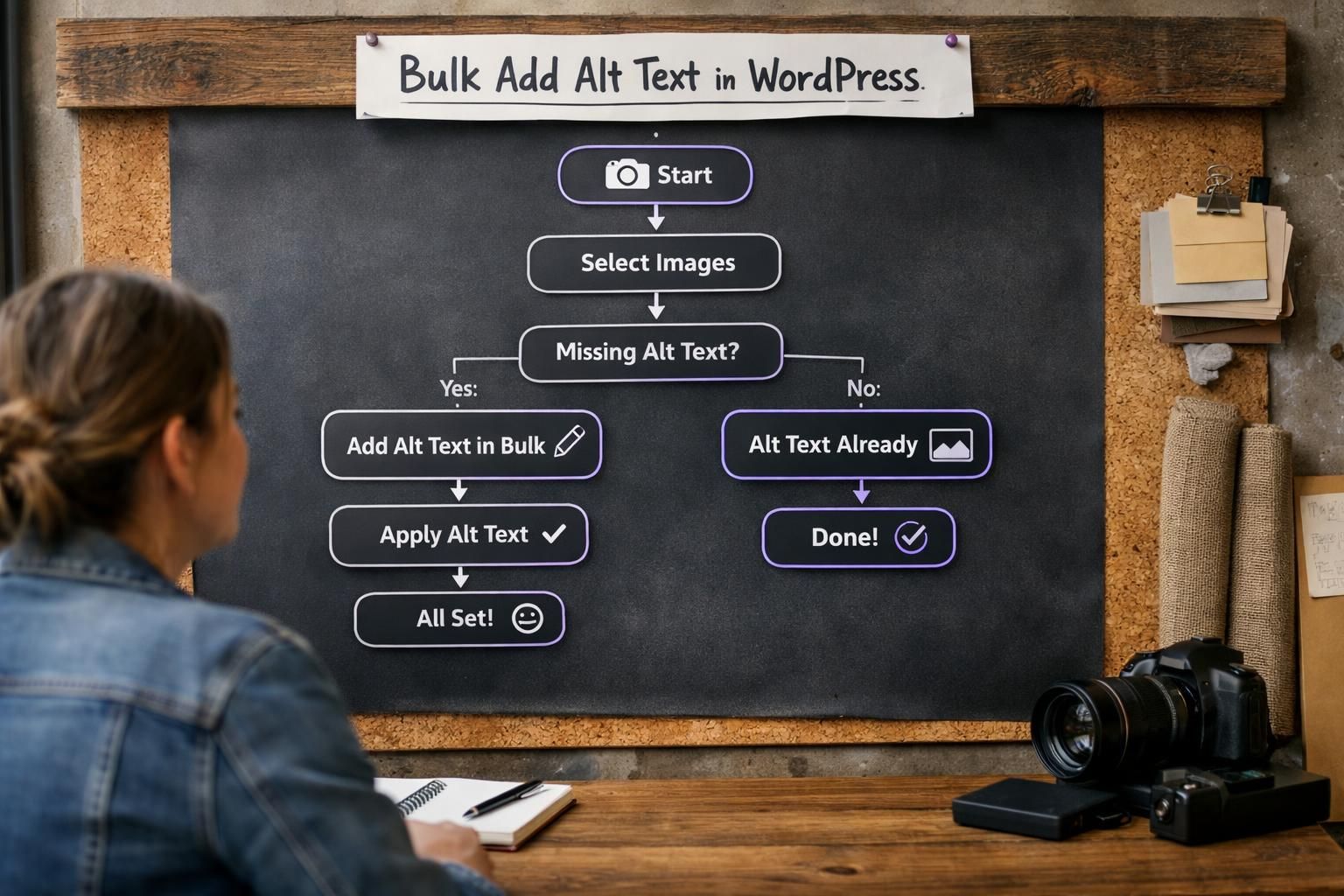
In WordPress, “bulk add alt text” means updating many attachments’ alt text fields in one operation. Tools may fill only empty fields, overwrite existing text, or apply templates across selected items. Because changes affect many images at once, understanding how alt text helps SEO is crucial, and you need filters, previews, and a rollback plan if results are wrong.
Quick Pre-checks Before You Update Anything
Set rules before bulk edits to avoid overwriting good alt text with worse text. Decide whether you will fill blanks only or rewrite existing entries, and confirm which image types are included. If using a plugin, verify where settings apply, especially on WordPress multisite (site vs network). For similar walkthroughs, see step by step tutorials.
Audit Images Missing Alt Text
Audit by filtering for blank alt text in the Media Library, then spot-check patterns as part of a mass fix for missing alt text. Prioritize product photos, blog headers, and category images since they’re reused. Save a few “good” examples to match style.
Know the Difference: Media Library vs Images Inside Posts
Media Library edits update attachment metadata, but some blocks or builders override image settings inside posts. After bulk changes, review key pages to confirm the front-end alt output matches your intent.
Method 1 — Bulk Edit Alt Text Directly in the Media Library (Manual but Controlled)
For maximum control, edit alt text in the Media Library list view, where you can filter and open attachment details. It’s slower than automation, but reduces errors because each description matches the image. Typical flow: filter to a subset, open items, update alt text, and optionally clean titles or captions. If columns are missing, enable them in Screen Options or plugin settings.
Best When You Need Precise, Human-written Descriptions
Manual editing is best for images that convey specific information, like screenshots, charts, step-by-step photos, or product variants. Keep alt text descriptive and concise: describe what is visible and relevant, not every detail. Also avoid repeating the same template across near-identical images unless the images are truly interchangeable.
Method 2 — Bulk Fill Alt Text From Filenames or Titles (Semi-automated)
You can semi-automate WordPress bulk alt text by generating it from filenames or attachment titles. Tools convert “blue-running-shoe-side.jpg” to “Blue running shoe side,” with rules like replacing hyphens, stripping size suffixes, and capitalizing words. Many plugins let you preview samples, then apply changes to selected images. It works best when naming is consistent, because it fills blanks without inventing details. Later, refine priority images manually using the practical SEO writing tools guide.
When This is Acceptable (and When it Isn’t)
Filename-based alt text is fine when names are readable and specific. Avoid it for “IMG_4021,” context-dependent images, or useless auto-titles. A practical compromise: fill blanks only, then rewrite high-traffic-page images manually.
Method 3 — Bulk Generate Alt Text With AI (Fastest for Large Libraries)
AI generators can add alt text fastest by analyzing each image and drafting descriptions automatically. They work well for large, messy libraries with older uploads. The tradeoff is accuracy: outputs may be vague or miss page-specific context, so review samples before scaling alt text. Run jobs in batches during low-traffic windows to limit performance impact.
How Bulk AI Workflows Usually Work (Review + History + Credits)
AI alt-text plugins typically scan the Media Library, queue images, and write results to attachment alt fields. Many require an API key and track credits. Prioritize review screens, history/changelogs, and re-run options for failed items. On multisite, confirm whether keys and limits are per site or network-controlled.
Recommended Plugins for Bulk Adding Alt Text (What to Choose by Use Case)
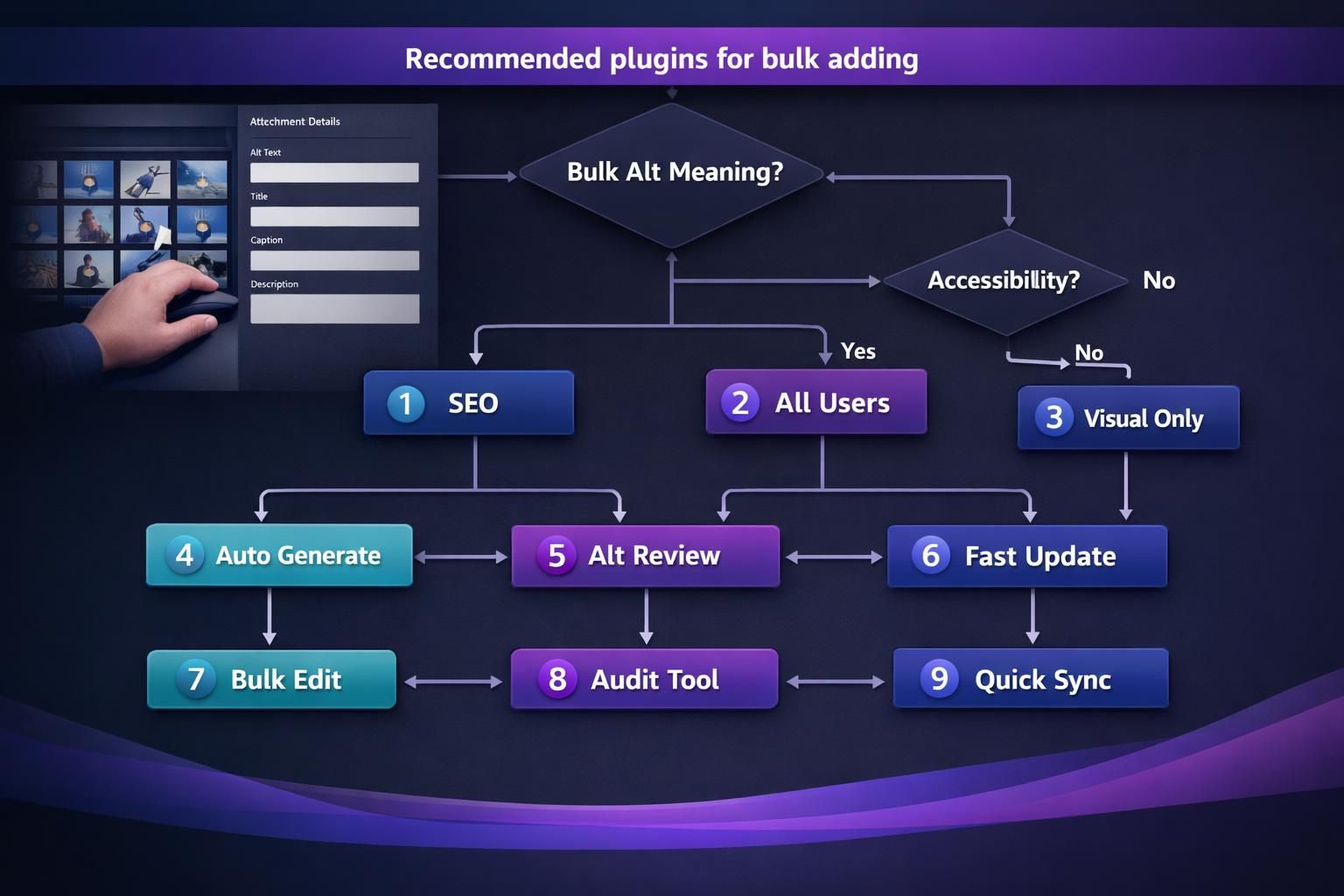
Choose based on need: faster UI editing, rule-based generation, or AI dashboards. Confirm installation options (dashboard install, upload, or FTP). Check scope controls: process selected items, fill blanks only, and exclude file types. Prefer plugins that also bulk edit title, caption, and description for consistency. For broader comparisons, use the curated learning resources hub.
Bulk Edit Columns + List View Tools
Column tools speed manual work: sort, filter, and edit alt text in place. Choose plugins that add ALT columns and search for blanks. If columns vanish, check Screen Options, disable conflicts, and use list view.
AI Generators + Bulk Processing Dashboards
AI dashboards help at scale with queues and controls. Look for batching, pause/resume, error logs, and reports for audits. Prefer tools that skip existing alt text, lock key images, and flag low-confidence results.
Common Pitfalls (SEO + Accessibility) and How to Avoid Them
The biggest pitfalls in wordpress bulk edit image alt text are overwriting good text, creating duplicates, and writing alt text that does not match the image’s purpose on the page. Avoid using alt text as a dumping ground for keywords; screen readers need clarity, and following accessibility image alt text guidelines ensures accuracy.
Conclusion
Bulk updating alt text in WordPress works best when you start with a clear rule: fill blanks first, then selectively rewrite high-impact images. Use manual Media Library edits for precision, filename-based filling for quick baseline coverage, and AI generation when you need speed across large libraries, as well as to understand good alt text examples. Whatever method you choose, preview changes, process in small batches, and spot-check key pages afterward to confirm accessibility and SEO outcomes.