



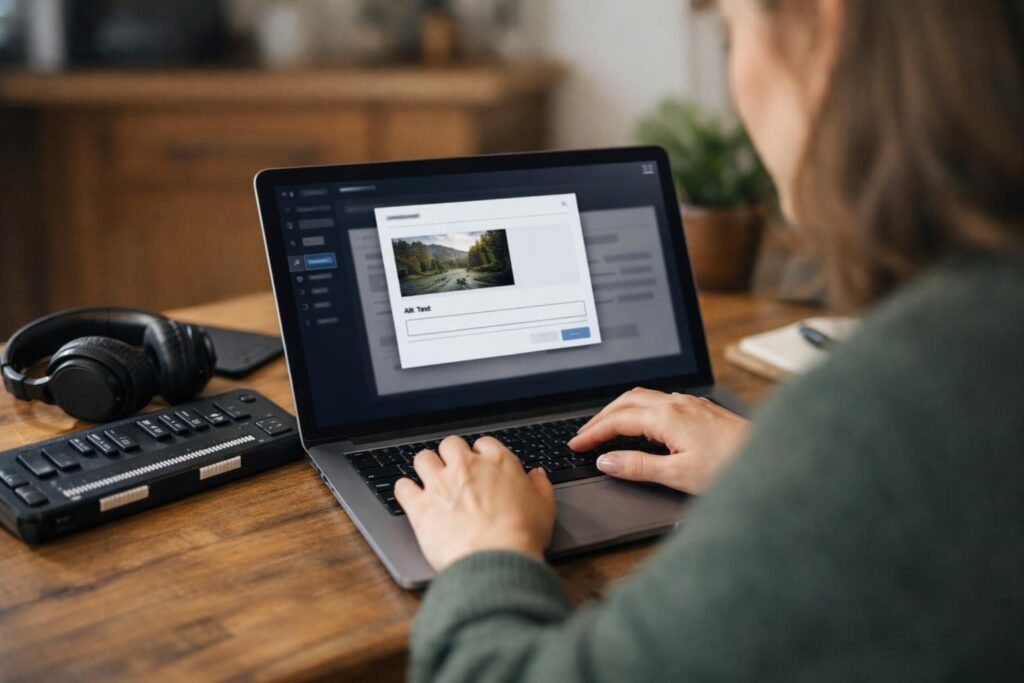
Alt text is one of the fastest ways to improve real-world accessibility because it gives non-visual users a meaningful alternative to images. These accessibility image alt text guidelines focus on practical decisions you make every day: when to write descriptions, when to leave alt empty, and how to handle logos, icons, photos, and charts without overexplaining. You will learn how the alt attribute works, what WCAG expects, and simple patterns that keep your content consistent across a site while staying helpful for screen reader users and other assistive technology.
Best for: Teams publishing web content who want consistent, WCAG-aligned alternative text that supports screen readers and keyboard users.
Not ideal when: The image is purely decorative or redundant with nearby text and would add noise if described.
Good first step if: You can audit every HTML img element and decide whether it needs alt text or empty alt.
Call a pro if: Your site uses complex charts, image maps, or compliance-driven workflows that need formal accessibility review.
Quick Summary
- Alt text is the alternative text used by assistive tech when an image cannot be seen.
- Write alt to match the image’s job on the page, not to narrate every visual detail.
- Use empty alt (alt=””) for a decorative image that adds no meaning.
- Functional images should describe the action, like “Search” or “Download report.”
- For charts and infographics, use a brief summary in alt and provide a longer explanation nearby.
What Alt Text is (and What WCAG Requires)
Alt text is the short text alternative in the alt attribute of an HTML img element, used when users can’t see the image or it doesn’t load. Screen readers announce it instead of the image. WCAG 2.1 SC 1.1.1 Non-text Content requires a text alternative that serves an equivalent purpose. Store team conventions in your editorial guidelines hub.

When Alt Text is Required vs Empty Alt (Decorative)
Alt text is required when the image is a meaningful image that communicates information or performs a function. Use empty alt (alt=””) when it is a decorative image, such as spacers and separators, image bullets, or background flourishes that do not change understanding, as explained in our guide on alt text for decorative images. If an image is decorative, you may also see role=”presentation” or role=”none” used to ensure it is ignored by assistive tech.
The Core Rule: Describe Purpose and Context (Not Just Appearance)
Alt text is the alternative text used by assistive tech when an image cannot be seen. Write alt to match the image’s job on the page, not to narrate every visual detail. Use empty alt (alt=””) for a decorative image that adds no meaning. Functional images should describe the action, like “Search” or “Download report.” For charts and infographics, use a brief summary in alt and provide a longer explanation nearby, as seen in alt text for charts.
Good alt text in WordPress explains why the image matters in its context, not just what it looks like. The same photo may need different alt on a news page versus a team page. Ask what a user would miss if the image disappeared, and write that. Skip details that do not change meaning. For portraits, avoid demographic descriptors unless clearly relevant to the content’s purpose.
How to Keep Alt Text Concise and Non-redundant
Alt text should be as short as possible while still being equivalent. Skip phrases like “image of” or “picture of” because screen readers already convey that it is an image. Also avoid repeating nearby text: if a caption or surrounding text already states the same thing, your alt can be shorter or even empty if the image adds nothing beyond what is already written.
Alt Text Patterns by Image Type
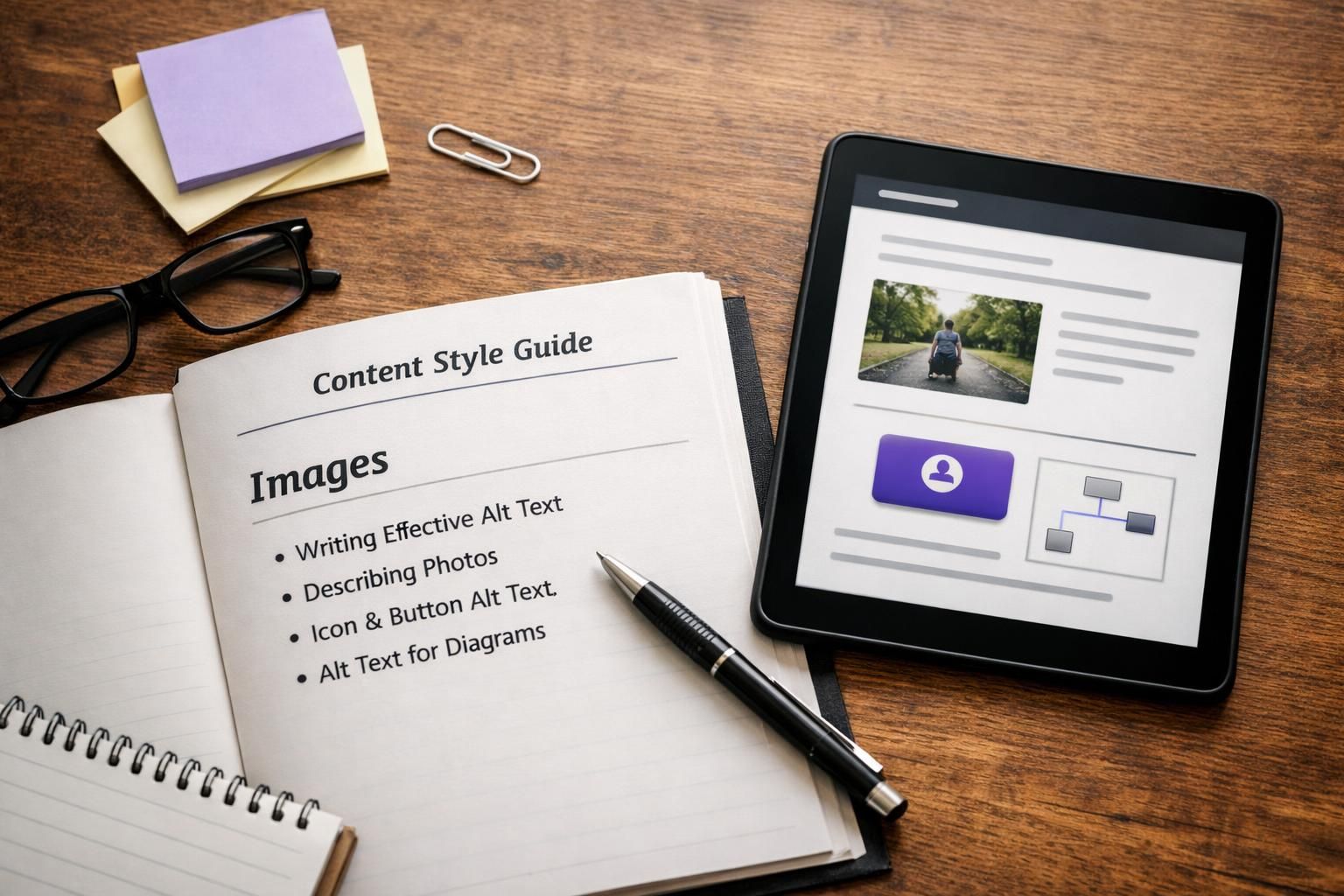
Use repeatable patterns based on image role: informative, functional, or decorative. Informative images convey content; functional images trigger an action; decorative images add mood or layout. A simple decision tree in your workflow reduces inconsistency and speeds QA, especially in a CMS like WordPress. For author training, turn patterns into short exercises in your learning tutorial library.
Informative Photos & Simple Graphics
For informative photos and simple graphics, name the subject and the meaningful detail that supports the page. Example: “Customer service agent assisting a caller” is more useful than “Woman at desk” if the page is about support. For a simple diagram, state the takeaway: “Three-step checkout flow: cart, delivery, payment.” Leave out background items, colors, and clothing unless they change the message.
Functional Images (Links, Buttons, Icons)
For functional images, alt should state the action or destination, not the appearance, including when to describe alt text for logos. Write it like link text: “Search,” “Download PDF,” or “View account settings.” For image buttons, match the control’s purpose so screen reader users understand. In icon-only UIs, keep accessible names consistent for repeated icons.
Images That Contain Text, Logos, and Repeated UI Icons
Avoid images of text, but when used, alt should convey the same words or meaning, like “Free returns.” If the same message appears as real text nearby, keep alt short to avoid double-reading. For logos, use the organization or product name. If the logo is a link, describe the destination, often “Home.” Document conventions in a shared team content resources so authors label repeated UI icons consistently.
When to Include the Exact Text in Alt Text
Include the exact text when the words in the image are the content, such as a promotional headline, a warning label, or a screenshot where the visible text is what users need. Do not copy every word when it is lengthy or when the page already provides the same text as selectable content. If only part of the text matters, summarize the meaning and include the key phrase users must not miss.
Complex Images (Charts, Infographics, Maps): What to Do Instead of Long Alt Text
Complex images should not depend on long alt text. Use alt for a brief summary of the chart, map, or infographic’s takeaway, then provide a longer description in nearby text, a caption, or a separate section. This is easier to maintain when visuals change. For image maps with multiple hotspots, each area link needs its own accessible text describing destination or action.
Pair Brief Alt Text With Nearby Explanations / Long Descriptions
Use alt for a brief replacement of the image, then provide longer explanations in nearby text, a caption, or a dedicated description. figure/figcaption help keep them together, but captions are not alt. If a meaningful CSS background image is used, switch to img with alt or add equivalent text.
Common Mistakes and Quick QA Checklist
Common alt text failures include missing alt, meaningless text, and inconsistent labels for repeated patterns. Treat alt text as content, not optional metadata. In review, classify each image as informative, functional, or decorative, then confirm the technique fits. Checklist: meaningful images have purpose-based alt; decorative images use alt=”” or presentational; functional images describe action/destination; avoid images of text or provide equivalents; repeated icons use consistent accessible names. Add screen reader spot checks for key flows.
What to Test in Code (Missing Alt, Filename Alt, Duplicate Alt)
In code, verify every HTML img element has an alt attribute, even if it is empty alt (alt=””) for decorative use. Flag missing alt, filename alt like “hero-banner-final2.png,” and duplicate alt that makes multiple different images sound identical, as part of a mass fix for missing alt text. Also confirm role=”none” or role=”presentation” is only used when the image truly has no meaning, and that linked image and image button controls have an accurate accessible name.
Conclusion
Applying accessibility image alt text guidelines comes down to consistent decisions: write alternative text for meaningful or functional images, use empty alt for decorative ones, and avoid stuffing long explanations into a single attribute. Start by auditing templates and the most-used components, then build simple patterns authors can follow. When images get complex, pair a brief summary with nearby long description content so everyone gets the same information.