




Product schema markup helps search engines understand exactly what you’re selling on a page. And that can change how your result appears in search. If you’ve ever seen listings with price, stock status, ratings, or review counts, you’ve seen product structured data in action. This guide walks you through a practical product schema markup example, plus what each property does and when it matters. You’ll also learn how to add it in WordPress, including WooCommerce, and how to validate it without guessing. So what’s the real goal here? It’s simple. You want search engines to trust your product details. And you want fewer surprises in Search Console.
Best for: Ecommerce sites that want clearer product details in search and fewer mismatched titles, prices, and availability.
Not ideal when: Your page isn’t actually a product page, or your pricing and stock change faster than you can update markup.
Good first step if: You can list a stable name, SKU, price, currency, availability, and a single canonical product URL.
Call a pro if: You have variable products, complex offers, multi-currency feeds, or recurring structured data warnings you can’t clear.
Quick Summary
- Product schema describes a product page in a format search engines can read consistently.
- JSON-LD is the most common format because it’s easier to add and maintain.
- Required properties get you eligible for rich results, while recommended ones improve confidence.
- WordPress sites can add schema through WooCommerce, SEO plugins, or custom JSON-LD.
- Validation means checking both “is it valid code” and “does it match the page,” using tools like Google’s Rich Results Test and Schema Markup Validator to confirm accuracy.
What is Product Schema Markup
Product schema markup is structured data that labels product page facts for search engines using Schema.org. It doesn’t replace on-page copy; it should mirror information users can see, like product name, price, stock status, and seller.

Think of it as a product data layer that removes confusion across templates, variants, and dynamic elements. If your hero text says “Trail Runner 2.0” but your title tag says “Lightweight Running Shoe,” schema can explicitly define the product name and reduce mixed signals.
Product schema typically includes:
- Product: the item (name, brand, SKU, images, description).
- Offer or AggregateOffer: the sellable offer (price, currency, availability, seller).
Start with your highest-traffic product detail pages. Use product schema only on true PDPs; category and search pages require different markup types.
Why Product Schema Helps You Stand Out in Search
Product schema helps you stand out by reducing ambiguity about what the page sells and what the current offer is. Rich results are never guaranteed, but clean structured data supports eligibility and trust.
It also adds consistency when ecommerce pages rely on reusable blocks and scripts. Prices or availability may load after the initial HTML, and schema provides a stable snapshot for crawlers. If a flash sale changes the visible price but markup still shows the old price, you create a mismatch that can suppress enhancements.
In practice, structured data can improve:
- Clearer product identity when names overlap
- Better alignment between snippets and on-page details
- Faster diagnosis when Search Console flags issues
- Cleaner signals for shopping-focused queries
JSON-LD is also easier to audit than scattered microdata. Pair schema checks with broader workflows like technical SEO audit checklist, especially after theme or template changes.
Product Schema Markup Example (JSON-LD)
A solid product schema markup example uses JSON-LD and matches what users can see on the page. The key is accuracy, not stuffing every property you can find.
Below is a practical JSON-LD example for a single product with one offer. Replace the values with real page values. And keep your formatting valid JSON.
| Option | What it covers | Best use | Common pitfall |
|---|---|---|---|
| JSON-LD | Separate script block | Most WordPress stores | Values drifting from page content |
| Microdata | Inline HTML attributes | Custom themes | Hard to maintain across templates |
For example, if your product is “Stainless Steel Water Bottle,” the schema should use that exact name. Don’t use an internal catalog label that users never see.
Here’s the example:
{ "@context": "https://schema.org", "@type": "Product", "name": "Stainless Steel Water Bottle 750ml", "image": [ "https://example.com/images/water-bottle-750-front.jpg", "https://example.com/images/water-bottle-750-angle.jpg" ], "description": "Double-wall stainless steel bottle with leak-proof lid.", "sku": "WB-750-SS", "brand": { "@type": "Brand", "name": "North Ridge" }, "offers": { "@type": "Offer", "url": "https://example.com/products/stainless-steel-water-bottle-750", "priceCurrency": "USD", "price": "29.95", "availability": "https://schema.org/InStock", "itemCondition": "https://schema.org/NewCondition", "seller": { "@type": "Organization", "name": "North Ridge Store" } } }
Now, what does this mean in practice? Every value needs a source of truth. If your price changes daily, don’t hardcode it in a template file. Use a plugin or dynamic output tied to your store data.
For example, on WooCommerce, the product URL and SKU already exist. You should pull those, not type them manually. That’s how you avoid outdated markup after a catalog update.
Required vs Recommended Product Schema Properties
The properties that matter most are the ones that make a product eligible and believable for search features. “Required” fields establish a valid Product and Offer. “Recommended” fields reduce warnings and clarify what you sell.
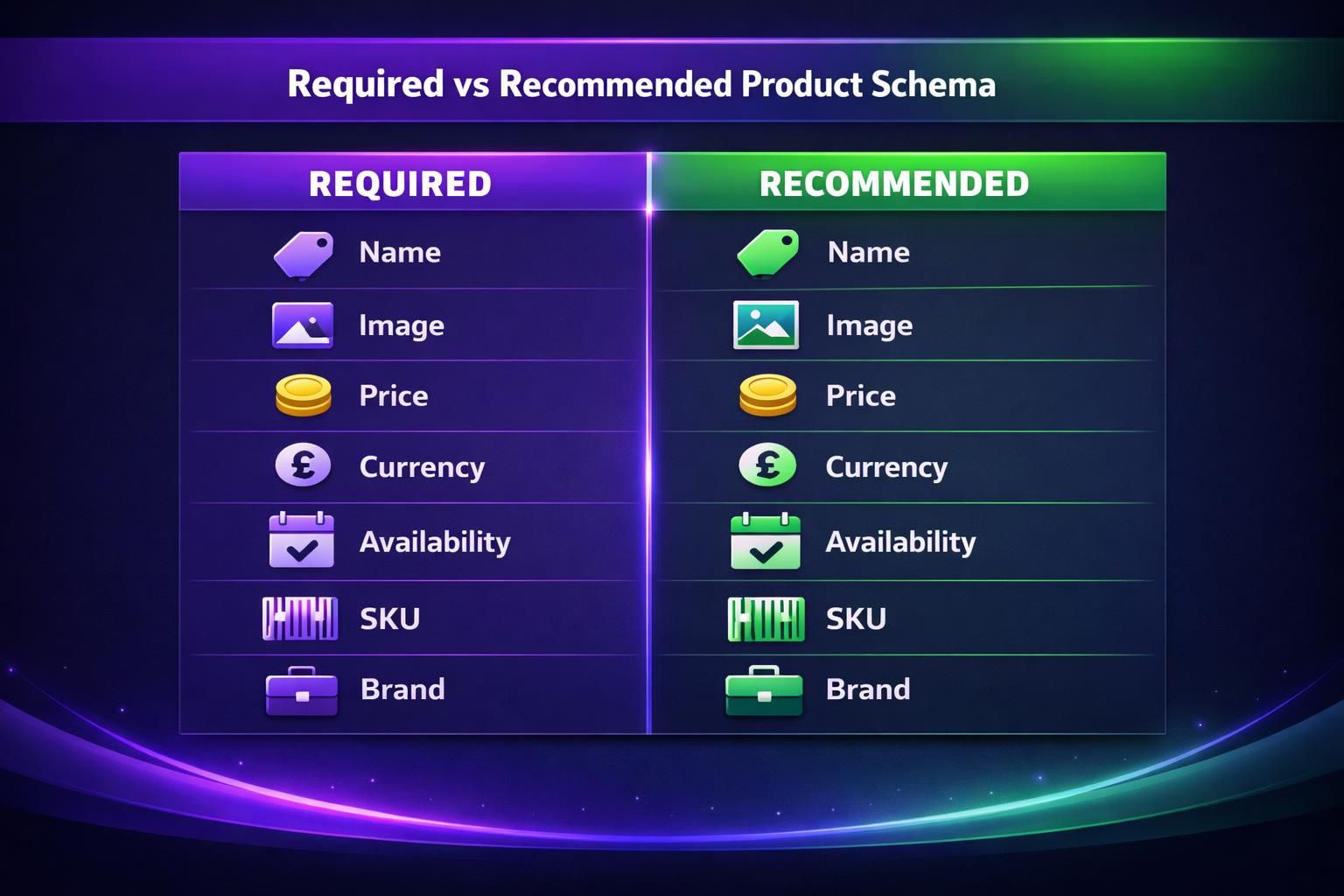
At minimum, make the Product identifiable and the Offer complete. If you have variants, choose a consistent approach: mark up the parent product, a default variant, or use AggregateOffer. A t-shirt with sizes S to XL should not claim one price if sizes differ; use a range or variant-level offers.
Commonly treated as required for a basic Product + Offer:
- @type Product with name
- image (at least one)
- offers with price, priceCurrency, availability, and url
Commonly recommended to reduce ambiguity:
- description aligned with on-page text
- sku or mpn
- brand
- itemCondition for used/refurbished
- seller when branding differs
- aggregateRating and review only if shown on-page
Do not add ratings users cannot see. Edge cases include subscriptions, bundles, custom quotes, and pre-orders, where price or availability needs accurate markup.
How to Add Product Schema in WordPress
The cleanest way to add product schema in WordPress is to let your ecommerce system generate it from product data. Custom code is fine. But it’s easier to drift out of sync.
If you’re on WooCommerce, start by checking what it already outputs. Many setups already include some schema. Your job is often to fix gaps, not to add a second competing markup block. Duplicate Product entities can confuse parsers.
For example, a store might install an SEO plugin that injects Product schema. Then a theme adds its own schema. Search Console ends up showing warnings for conflicting prices.
Here are the main approaches, from simplest to most controlled:
- Use WooCommerce or your theme’s built-in schema output
- Use an SEO plugin that supports product structured data
- Add custom JSON-LD in your template files or via a hook
- Generate schema via a tool, then inject it dynamically
Now, let’s get practical about WooCommerce schema markup. You’ll usually want your schema values to map to:
- Product name from the product title
- Description from the short description or excerpt
- SKU from the SKU field
- Price and currency from WooCommerce settings and product pricing
- Availability from stock management settings
- Images from the product gallery
For example, if you run sales, WooCommerce can show a sale price. Your schema should reflect the active price users see. If your plugin doesn’t handle that well, that’s a reason to switch methods.
Also watch your canonicals. Your schema Offer url should match the canonical URL you want indexed. If you struggle with duplicated URLs, read up on WordPress canonical URL basics and fix that first.
How to Validate Product Schema
Validating product schema means confirming the code parses and the values match what users see. Passing a tool doesn’t guarantee eligibility for enhancements.
Start with a structured data testing tool on a product URL. Inspect detected Product entities and check for empty strings, wrong currency, stale prices, or outdated availability. If priceCurrency is blank, your store currency may not be reaching the schema generator, often after a migration or settings reset.
Then validate at scale in Search Console. Enhancements reports surface patterns, such as only variant products failing. Set it up early; connect Search Console belongs on your launch checklist.
A simple routine:
- Test one URL, then sample five more across categories
- Confirm name, price, availability, and Offer url match the canonical
- Check mobile rendering if templates differ
If snippets still look off, it may be page SEO, not schema; review meta descriptions in WordPress.
Common Product Schema Errors
Most product schema errors come from mismatches between markup and visible content, or incomplete Offer fields. Fixes usually mean correcting the data source and eliminating duplicate outputs.
A common issue is price mismatch: the schema price differs from the on-page price, or the page shows a range (“From $20”) while schema outputs one value (“$35”). Another frequent problem is availability. It must use the correct Schema.org URL value and match the real status; marking InStock when the page says “Backordered” triggers warnings.
Watch for patterns like:
- Two plugins outputting duplicate Product entities
- Offer url pointing to a tracking link, not the canonical
- Missing or inconsistent currency
- Empty fields like sku: "" or description: ""
- Images blocked by robots or login
- Ratings marked up without visible reviews
To troubleshoot, disable schema from one plugin at a time on staging, then retest. Also clean up broken URLs referenced in schema; find broken links helps catch silent failures.
Conclusion
If you want search engines to show accurate product details, schema is one of the most direct levers you control. Keep your markup tied to real product data, not hand-typed values. Validate a few product types, then scale your checks across the catalog. And remove duplicate schema sources before you tweak properties. Once you’ve got a stable template, reuse it across products and only adjust what truly differs. That’s how a product schema markup example becomes a repeatable system, not a one-off snippet you forget to update.