
On page seo wordpress work is mostly about making one page easy to understand, useful, and easy to crawl. It’s not magic. It’s also not just checking boxes in an SEO plugin. In this guide, you’ll learn a practical workflow you can repeat. You’ll pick a target keyword, match search intent, and then tighten up titles, URLs, and headings. You’ll also handle internal links, images, and mobile readability. And you’ll run a few indexing checks in Google Search Console. For example, you’ll know what to fix when a good post stays invisible for weeks. By the end, you’ll have a clean on-page checklist that fits WordPress.
Best for: Site owners and editors who can update WordPress content and want repeatable rankings improvements without rebuilding the theme.
Not ideal when: Your site is blocked from indexing or has serious speed and stability issues that content tweaks can’t offset.
Good first step if: You have one priority page and a clear query you want it to rank for within its current topic.
Call a pro if: You see site-wide noindex, sudden deindexing, or redirects and canonicals behaving unpredictably across templates.
Quick Summary
- On-page SEO in WordPress is content, metadata, and structure you control per page.
- Start by matching search intent, then map one main query to one page.
- Nail the basics first: clean permalink, strong title tag, and helpful meta description.
- Use heading tags to create a clear content hierarchy that scanners understand fast.
- Improve UX with compressed images, accurate alt text, and mobile-friendly formatting.
- Confirm indexing with XML sitemaps, robots rules, and Google Search Console checks.
What “on Page SEO” Means in WordPress (and What it Doesn’t)
On-page SEO in WordPress is the set of page-level edits that improve relevance, clarity, and crawlability: copy, heading tags, internal links, media, and metadata like the title tag. It also includes the URL slug and keeping each page focused on one primary query.
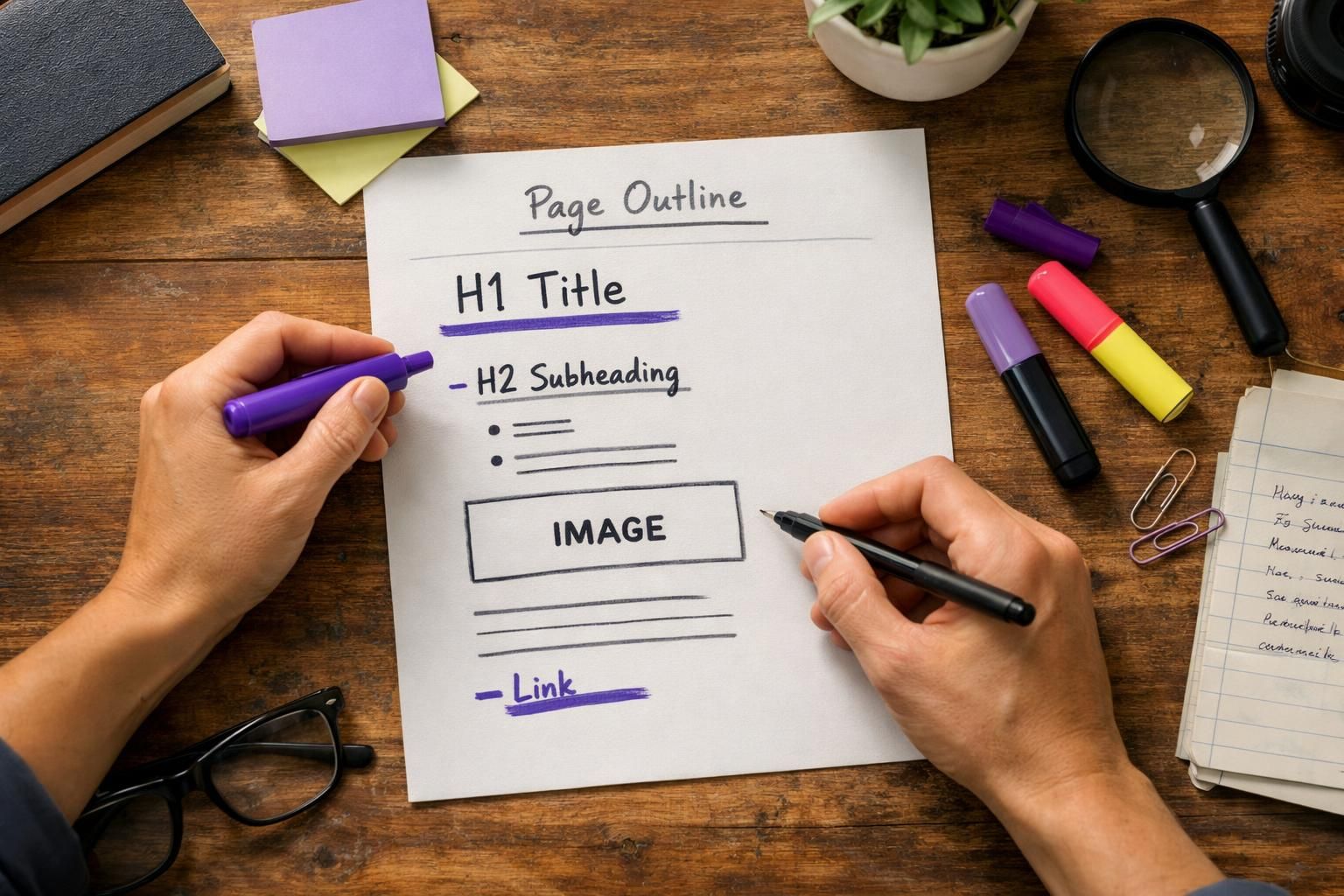
It is not “install a plugin and wait,” and it doesn’t replace technical SEO like fixing crawl errors, unstable mobile performance, or slow hosting. Example: adding FAQs, photos, and clear H2s to a “kitchen remodeling” services page is on-page work; fixing unreliable load times is infrastructure.
On-page also isn’t off-page authority. Strong on-page makes future links and mentions perform better, but it can’t substitute for them.
On-page Vs. Technical Vs. Off-page (Quick Definitions)
On-page SEO is what the user reads and what search engines parse on that URL. Think headings, paragraphs, images, internal links, and metadata. Technical SEO is how the site behaves for crawling and indexing. Think XML sitemap, robots.txt, canonical URL, HTTPS, and PHP version stability. Off-page SEO is what happens elsewhere on the web. Think backlinks, citations, and brand mentions.
For instance, a WooCommerce category page can have great copy and headings. That’s on-page. If its canonical URL points to the wrong place, that’s technical. If competitors have stronger links, that’s off-page.
Before You Optimize: Pick a Target Keyword and Match Search Intent
On-page improvements work fastest when one URL targets one primary query and satisfies its intent. Keyword research finds the term; intent defines what the page must deliver. If your page can’t meet the intent, don’t “optimize” it.
Check the top results and identify the dominant format: guide, product page, comparison, template, or tool. Match that format, not the domain. If the SERP is informational, write a step-by-step guide, not a thin lead-capture page.
Example: for “WordPress on page SEO optimization,” most results are how-to guides, so your page should teach the process.
Rules:
- One primary keyword per URL.
- Use close variants in supporting sections.
- Avoid multiple pages targeting the same query.
Simple Keyword Mapping for Posts Vs. Pages
Posts work best for timely or educational queries. Pages work best for evergreen brand, service, or core product intent. You’re doing keyword mapping when you assign queries to URLs on purpose.
For example, map “on-page seo wordpress guide” to a blog post. Map “WordPress SEO services” to a service page. If two posts both target “WordPress SEO checklist,” combine them or differentiate intent. And keep a simple sheet with URL, focus keyphrase, and intent type.
Optimize the Basics: URL, Title Tag, and Meta Description
Fast on-page wins usually come from your permalink, title tag, and meta description. Keep the permalink short, readable, and stable. Avoid dates and filler words unless they add meaning. Standardize www vs non-www and use clean canonicals to prevent duplicates.
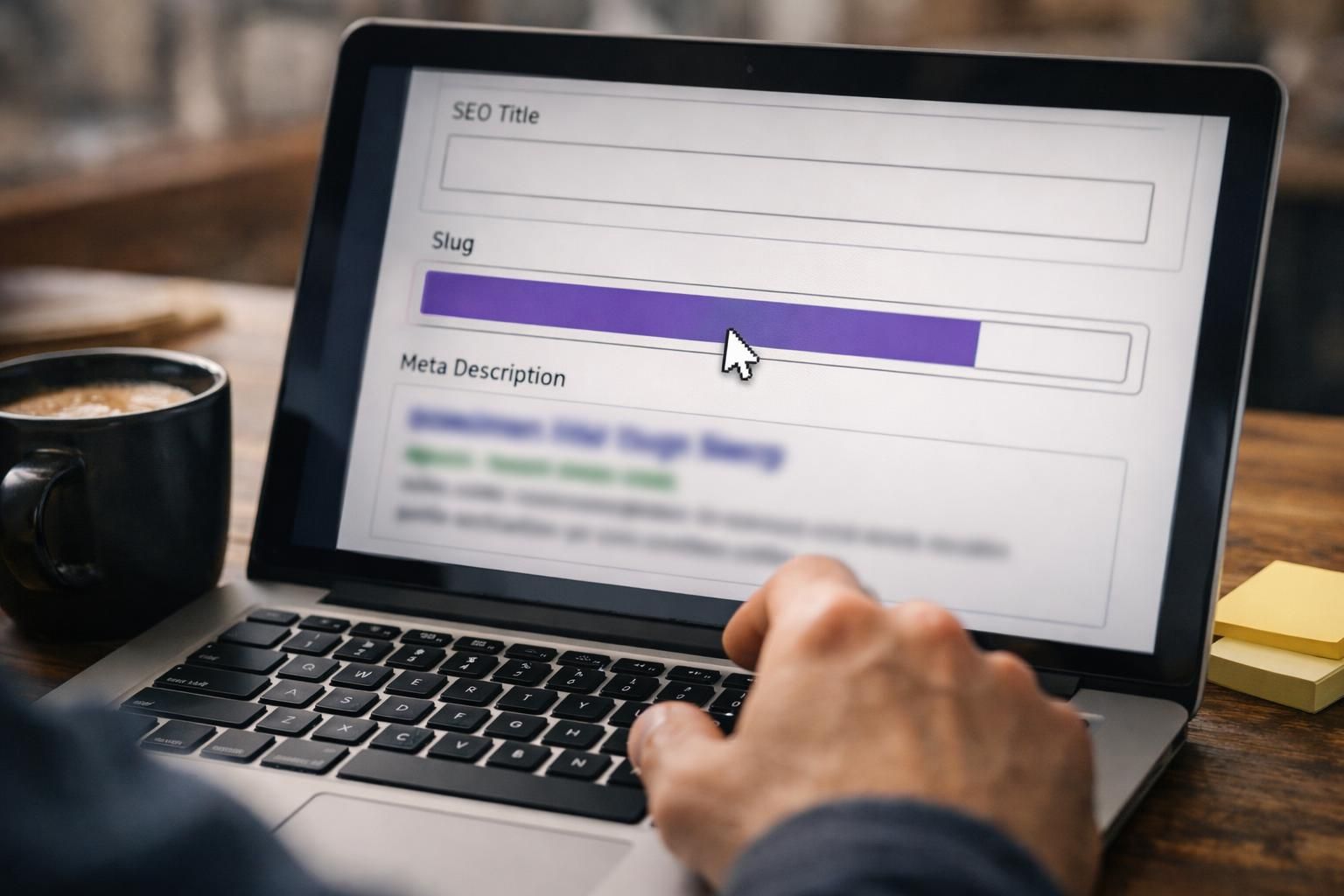
Write a title tag that mirrors the query language and promises a clear outcome. Use the meta description to accurately preview what’s on the page and earn the click. Example: change /blog/seo-tips-for-wordpress-sites-that-work-in-2026/ to /on-page-seo-wordpress/.
Quick check:
- Title tag: intent + specific promise.
- Meta description: scope + who it’s for + what’s included.
- URL slug: short, consistent, no repeated words.
If you use Aomark for drafts, keep it true to the page. Compare workflows in generate meta titles quickly.
Examples of Good Titles/meta Descriptions in WordPress
Good titles and descriptions sound like the page. They also reduce pogo-sticking because they set expectations.
For example, for a guide targeting “on page seo for wordpress”: Title tag: On-Page SEO for WordPress: Practical Checklist for Posts and Pages Meta description: Learn a repeatable on-page workflow in WordPress. Covers titles, permalinks, headings, internal links, images, and indexing checks.
For instance, for a local service page: Title tag: WordPress SEO Audit for Small Businesses: What We Review Meta description: See what a WordPress SEO audit includes. Covers on-page fixes, indexing checks, and technical issues that block rankings.
Structure Your Content for Readers and Google (H1/H2/H3)
Clear headings make pages easier to scan and easier for Google to interpret. Use one H1 that reflects the main topic, then H2s for the major sections that answer sub-questions. Use H3s only when you need an extra layer for steps, options, or edge cases.
In WordPress, the post title is usually the H1, so keep it focused. Write H2s that add new value instead of repeating the keyword. If you use builders like Elementor, ensure headings are real H-tags, not styled paragraphs, or structure and accessibility suffer.
Workflow:
- H1: main topic.
- H2: sections that satisfy intent.
- H3: supporting structure.
- Keep paragraphs short and lists clear.
Internal Links, Breadcrumbs, and Categories/tags
Internal links help discovery and show Google how pages relate. Add links where they help the reader take a logical next step, using descriptive anchor text instead of “click here.” Don’t spray exact-match anchors across the site. For a scalable process, see build internal links in-editor.
Breadcrumbs improve navigation and clarify structure, especially on large blogs and WooCommerce stores. Keep categories tied to real topic hubs you’ll expand. Use tags sparingly, or skip them, because thin tag archives can create crawl bloat. One “On-Page SEO” category with a few tight tags is often enough.
Media & UX: Images, Alt Text, and Mobile Readability
UX supports SEO when users can read, scroll, and complete the task. In WordPress, focus on images, formatting, and mobile-first readability. Use images that explain something, compress them, and avoid oversized files that slow pages.
Alt text is primarily for accessibility and secondarily for image SEO. Keep it accurate and specific. Example: “Yoast SEO meta box showing title tag and meta description fields.” Skip keyword stuffing and don’t bother describing decorative icons. Practical rules are in alt text in WordPress.
Mobile basics:
- Short paragraphs.
- Helpful subheadings every few scrolls.
- Avoid cramped tables.
- Make navigation tap targets easy.
Speed Basics That Move the Needle (Without Overengineering)
The best speed work is boring and consistent, and it supports Core Web Vitals. Start with image compression, fewer heavy plugins, and lighter page templates. Caching helps too, but it won’t fix a bloated builder layout by itself.
For example, if a post has ten uncompressed PNG screenshots, convert them and resize them. That alone can improve page speed and scrolling feel. Also remove sliders and auto-playing videos when they aren’t necessary.
If you need a safe process for managing filenames and alt text at scale, bulk rename and alt text can speed up cleanup work without chaos.
Indexing & Crawl Checks: Sitemaps, Robots, and Search Console
Indexing issues can erase the impact of good on-page work, so verify crawlability early. In WordPress, confirm “discourage search engines” is off. Then review robots.txt, page-level noindex rules, and whether an XML sitemap exists and is submitted in Google Search Console.
Search Console is your source of truth. Use URL Inspection to confirm indexing status, the chosen canonical, and any blocks from robots or meta tags. If you see “Crawled, currently not indexed,” it may signal weak uniqueness or poor internal linking rather than a penalty.
Workflow:
- Inspect URL and canonical.
- Confirm sitemap inclusion.
- Add relevant internal links.
- Improve depth where intent is unmet.
Pull signals via connect Search Console data.
Quick Troubleshooting Checklist if a Page Won’t Rank
Most “won’t rank” problems come from intent mismatch, weak internal links, or indexability issues. Check in a fixed order to avoid guessing.
Sequence:
- Confirm indexability: noindex, robots.txt, and WordPress visibility.
- Confirm canonical points to the correct URL.
- Validate the page matches SERP intent and format.
- Add two to five internal links from relevant pages.
- Tighten the title tag and H2s to match
WordPress SEO Plugins: What to Use Them for (and What to Ignore)
SEO plugins are best for controlling metadata, sitemaps, schema, and page-level index settings. They help prevent mistakes like missing titles, wrong canonicals, or accidental noindex. They do not provide strategy or understand your niche.
Choose one plugin and learn it well. Avoid stacking multiple tools that manage titles, canonicals, or structured data, because conflicts can create duplicate schema or inconsistent meta. Treat “SEO analysis” prompts as suggestions, not rules. Ignore nags like “use the keyphrase in every subheading,” but act on real warnings like a noindex setting.
Use a plugin to:
- Edit title and meta description.
- Manage canonicals and index settings.
- Output XML sitemaps.
- Set basic schema and Open Graph defaults.
For controlled schema, use generate schema markup.
Avoid “Green Light” Traps and Focus on Outcomes
A “green light” score can distract you from what actually ranks, which is usefulness and clarity. Use plugin checks as guardrails, not goals. Watch outcomes instead: impressions, clicks, and the queries you’re showing for in Search Console.
For example, a post can have a “red” score because it doesn’t repeat the focus keyphrase enough. But it can still rank if it answers the query better than competitors. On the other hand, a “green” post can underperform if it’s thin, poorly structured, or mismatched to intent.
A better workflow is simple:
- Write the best page for intent
- Make headings and internal links clear
- Ensure indexability and correct canonicals
- Measure in Search Console over time
Conclusion
Good on page seo wordpress work is mostly about doing the basics well, every time. Pick a single target query, match search intent, and then tighten your URL slug, title tag, and meta description. Structure the page with clean H1/H2/H3 hierarchy. Add internal links that help real readers. Optimize images for speed and accessibility. Then confirm indexing in Google Search Console, not in a plugin score. Your next step is to choose one priority page and run this workflow end to end.